
Welcome email for every new Shopify customer
When a customer signs up in your Shopify store, it sends them a personalised welcome email from your own domain.
Everything is created inactive in a new folder of your account. Nothing runs until you activate it, and you can undo it for 24 hours.
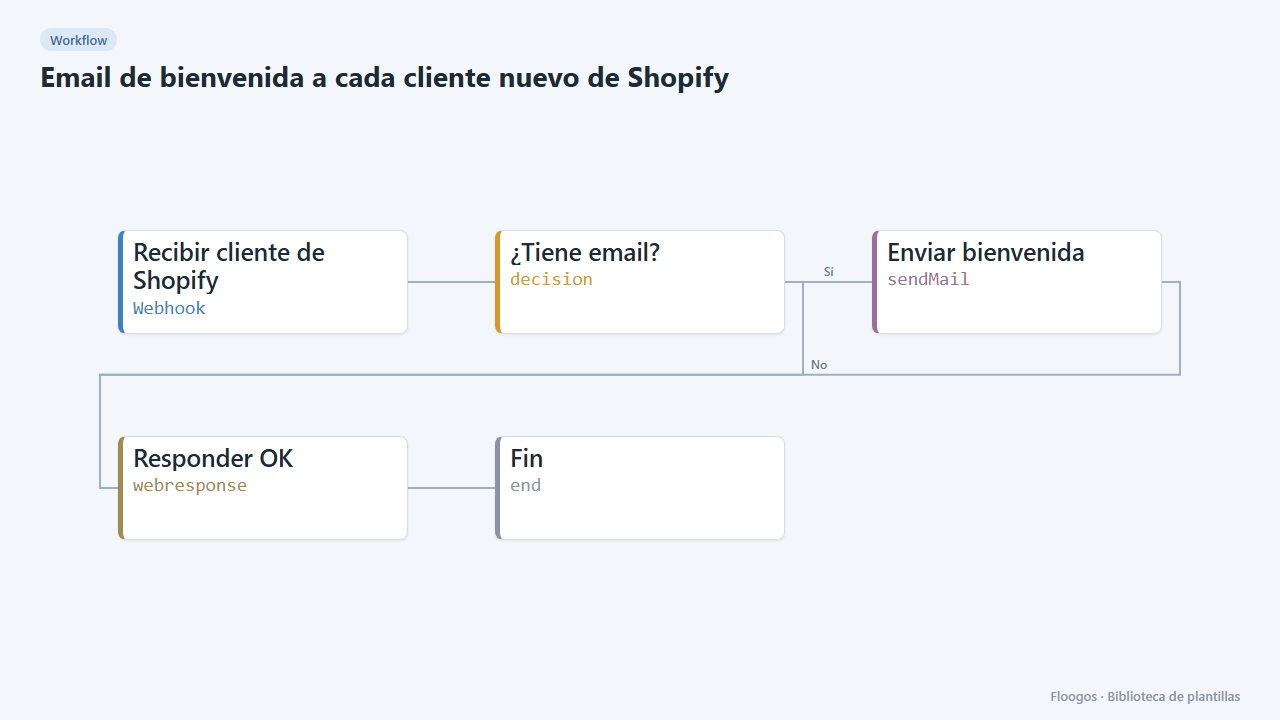
What it does
Shopify calls the Floogos webhook every time a customer is created. The workflow checks they have an email and sends a welcome message with their name from your SMTP account (your domain, your sender, your style), without depending on Shopify templates.
What you need: an SMTP account (your domain, Gmail, Brevo…) and permission in Shopify to create webhooks.
How to use it: install the template, connect the SMTP account, customise the email text and register a Shopify "Customer creation" webhook (JSON) pointing to the workflow URL.
How to set it up
- 1
Connect the smtp credential
This template uses smtp in: Enviar bienvenida. Create or pick the credential and assign it in those nodes.
- 2
Copy the webhook URL (Recibir cliente de Shopify)
A new URL is generated on install. Paste it into the external system that must call this workflow.
- 3
Customise the email
In the Enviar bienvenida node change the subject and body to your brand voice (you can use
{{first_name}}). - 4
Register the webhook in Shopify
In Shopify: Settings → Notifications → Webhooks. Event "Customer creation", JSON format and the URL of the Recibir cliente de Shopify node.
- 5
Test it
Send a
POSTto the webhook URL with{"first_name":"Ana","last_name":"Perez","email":"ana@example.com"}. Ana should receive the email. - 6
Activate the workflow
Workflows are installed inactive. Once everything is set, activate it.
Related templates
Other templates that use similar nodes or integrations.
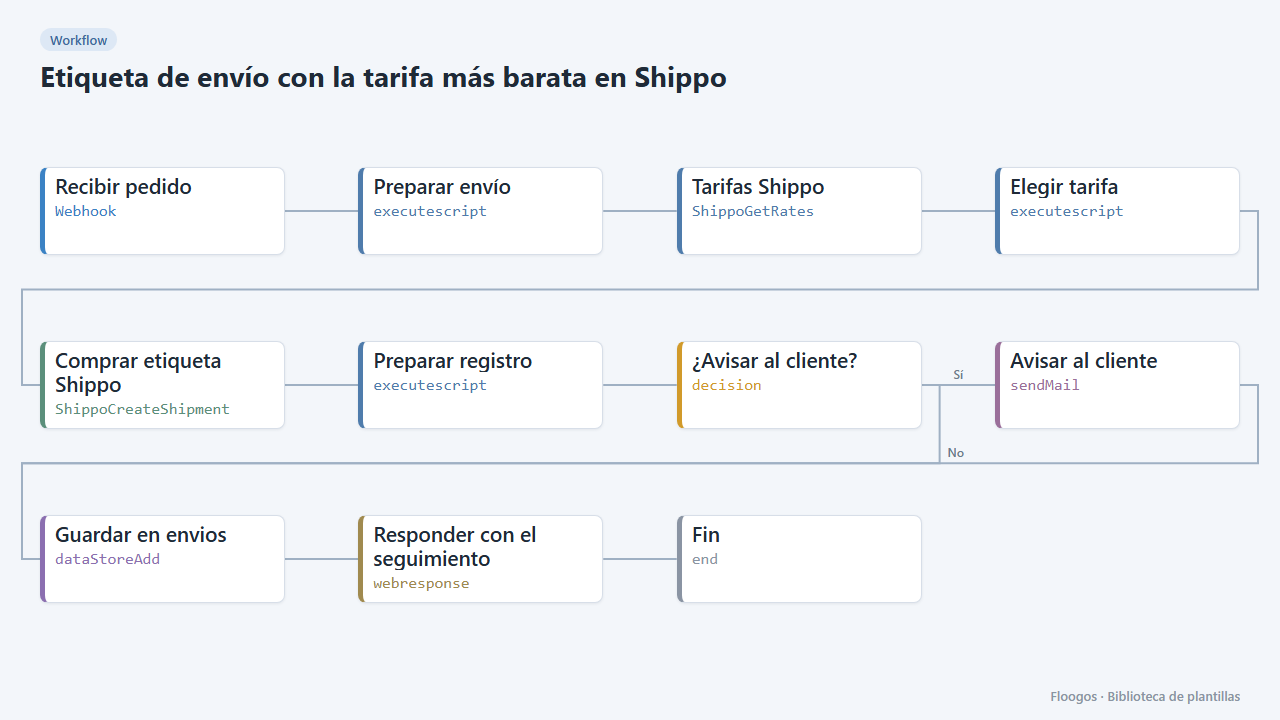
Shipping label with the cheapest rate in Shippo
When an order arrives it requests rates from every carrier in Shippo, buys the cheapest, saves the tracking and notifies the customer.
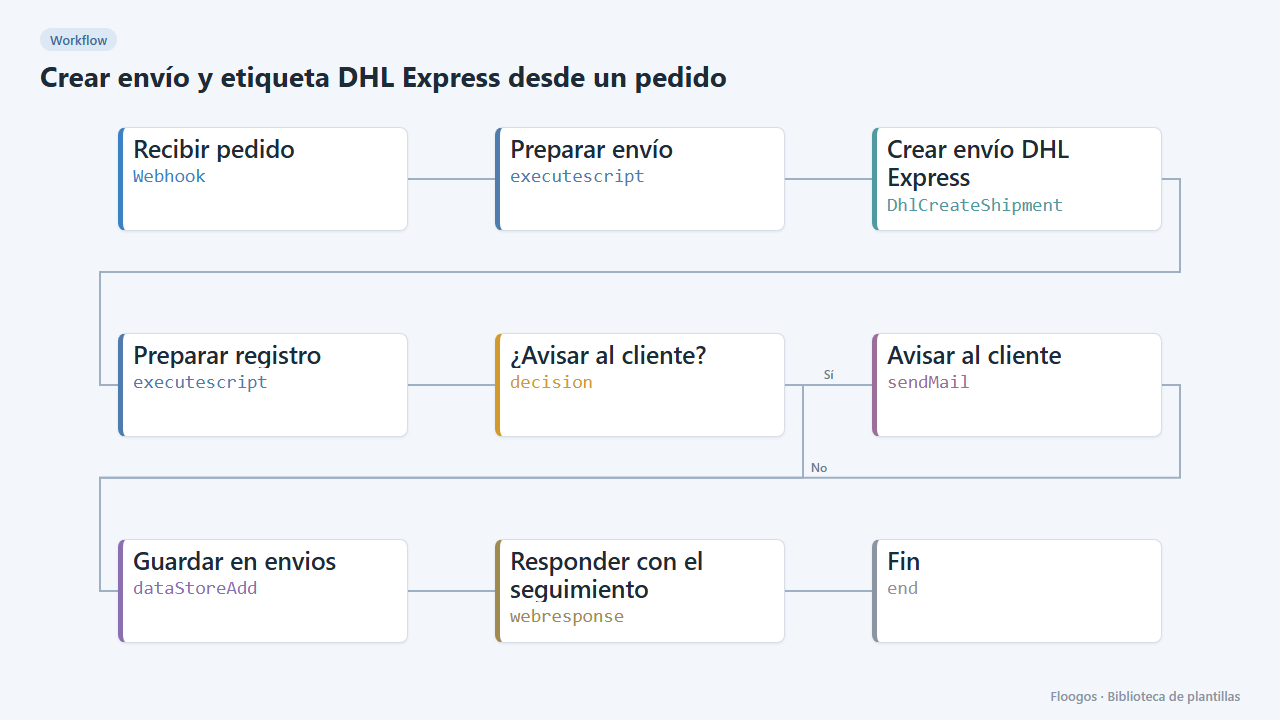
Create a DHL Express shipment and label from an order
When an order arrives via webhook it creates the DHL Express shipment, saves the tracking in a Data Store and emails the customer.
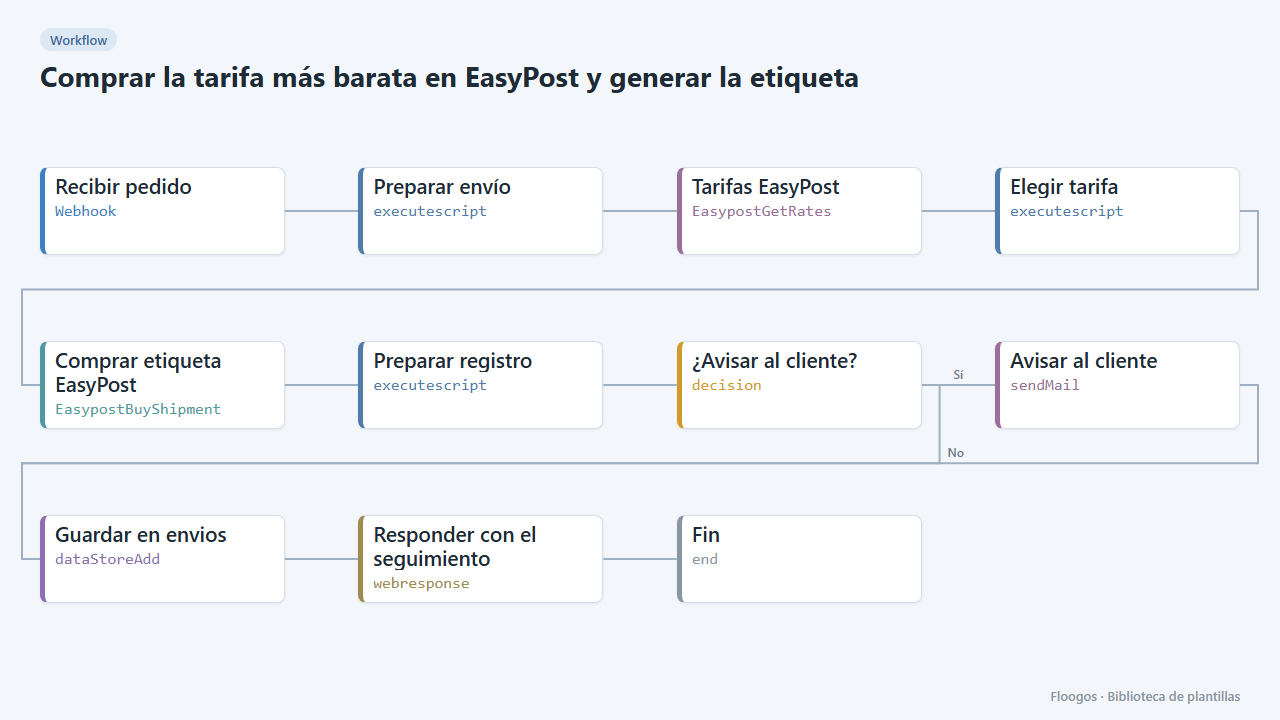
Buy the cheapest rate in EasyPost and generate the label
When an order arrives it compares EasyPost rates, buys the cheapest, saves the tracking and emails the customer.
Try it in under 5 minutes
Create the template in your account, connect your credentials and activate it when you are ready.
Use this template