
Google Analytics AI analysis with actionable advice
An AI reads your Google Analytics 4 data every week, explains what happened, spots anomalies and emails you a prioritized list of advice.
Everything is created inactive in a new folder of your account. Nothing runs until you activate it, and you can undo it for 24 hours.
What it does
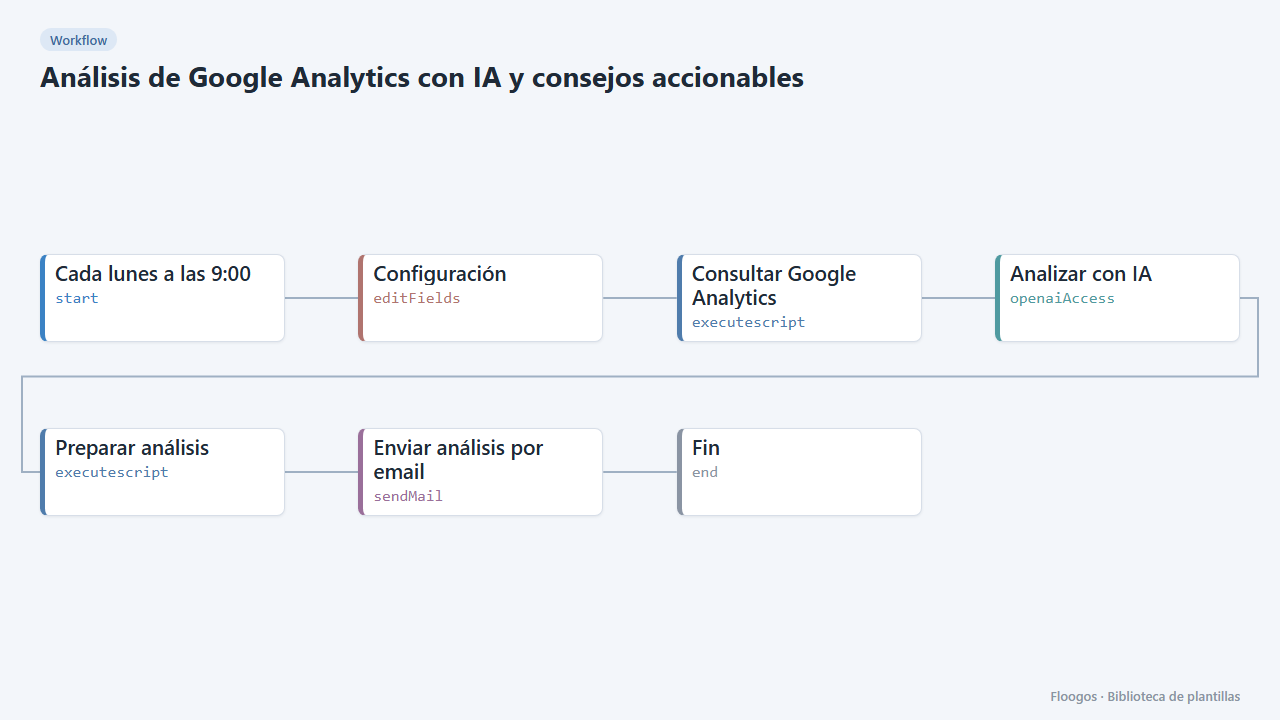
No more charts nobody interprets. Every week the workflow queries the Google Analytics 4 Data API (metrics, pages, channels and, optionally, Search Console searches), hands them to OpenAI with web-analyst instructions and receives a structured analysis: summary, findings, anomalies and prioritized actionable advice (high, medium, low). The result is emailed together with your metrics table.
To connect with Google it uses a service account stored as a credential: no user authorizations and no key inside the workflow.
What you need: a service account with viewer access to your GA4 property, an OpenAI API key and an SMTP account.
How to use it: follow the connection steps, fill in the Configuración node, run it once by hand and enable the schedule (Mondays at 9:00). To get it on Slack or Telegram, swap the last node for your channel one and use {{texto}} as the message.
How to set it up
- 1
Connect the openai credential
This template uses openai in: Analizar con IA. Create or pick the credential and assign it in those nodes.
- 2
Connect the smtp credential
This template uses smtp in: Enviar análisis por email. Create or pick the credential and assign it in those nodes.
- 3
Create the Google service account
In Google Cloud Console create (or pick) a project, enable Google Analytics Data API (and Search Console API if you will use Search Console), create a service account and download its JSON key.
- 4
Grant the service account access in Analytics
In Google Analytics go to Admin > Property access management and add the service account email (
...@...iam.gserviceaccount.com) with the Viewer role. Note the property ID (digits only, under Admin > Property details). - 5
Store the key as a Basic Auth credential
In Credentials create a Basic Auth one named exactly
ga4-service-account(or whatever you set in the Configuración node). Username = the JSONclient_emailfield; password = the JSONprivate_keyfield (paste it as is, with the\n). The key is never stored in the workflow. - 6
Fill in the Configuración node
Enter the property ID in
property_id, your site name innombre_sitioand, optionally, your Search Console property insearch_console_site(for examplesc-domain:yoursite.com; also add the service account as a user in Search Console). - 7
Connect OpenAI and mail
In the Analizar con IA node pick your OpenAI credential and in Enviar análisis por email your SMTP credential and recipients.
- 8
Test and tune the tone
Run it once by hand. If you want a different focus (for example SEO or conversions), edit the prompt text in Analizar con IA without touching the JSON keys.
- 9
Activate the workflow
Workflows are installed inactive. Once everything is set, activate it.
Related templates
Other templates that use similar nodes or integrations.
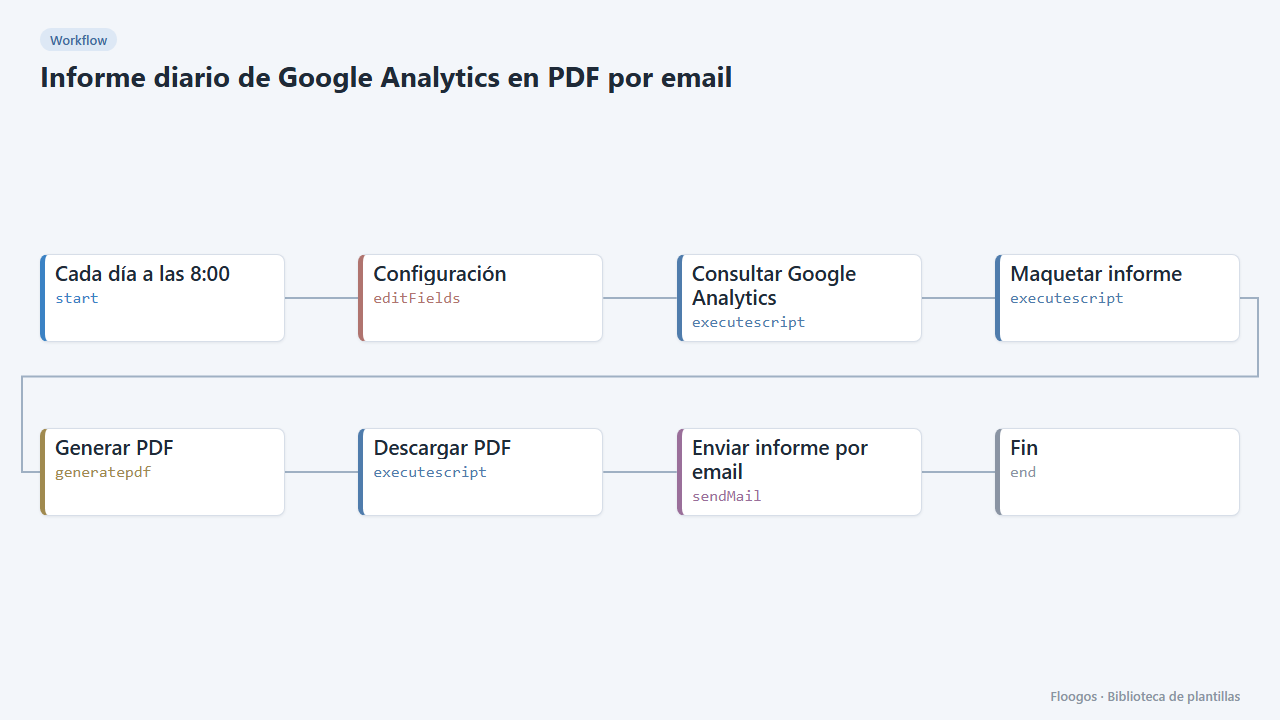
Daily Google Analytics PDF report by email
Every morning it queries Google Analytics 4, builds a PDF report with yesterday metrics, top pages and channels and emails it.
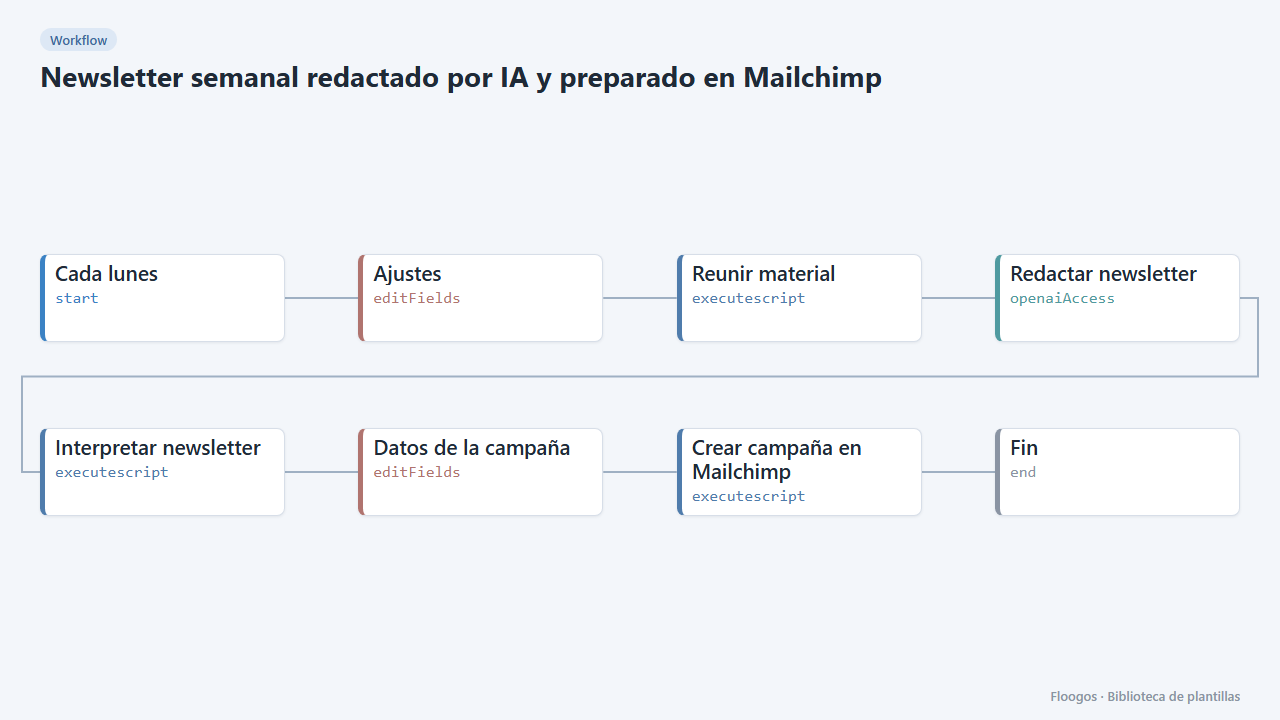
Weekly newsletter written by AI and prepared in Mailchimp
Every week it gathers your news and blog posts, AI writes the newsletter and leaves it ready as a Mailchimp campaign.
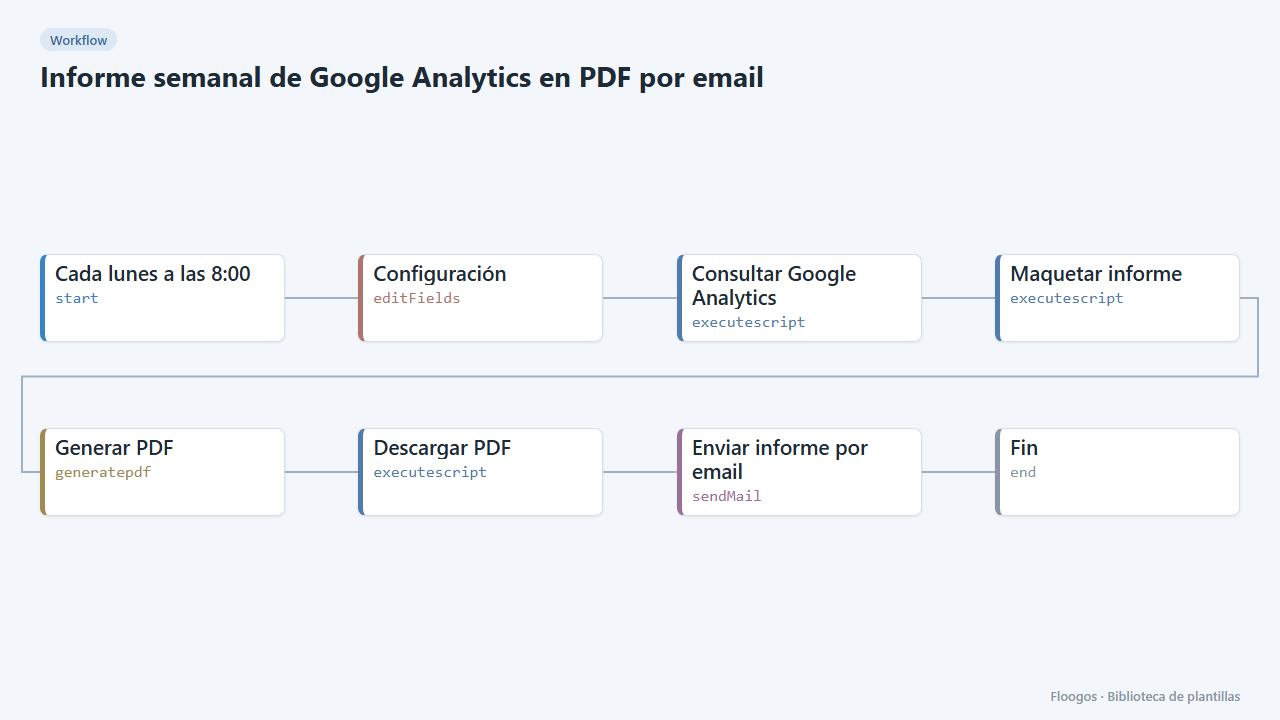
Weekly Google Analytics PDF report by email
Every Monday it summarizes the last week of Google Analytics 4 against the previous one in a PDF with metrics, pages and channels, and emails it.
Try it in under 5 minutes
Create the template in your account, connect your credentials and activate it when you are ready.
Use this template