
Weekly newsletter written by AI and prepared in Mailchimp
Every week it gathers your news and blog posts, AI writes the newsletter and leaves it ready as a Mailchimp campaign.
Everything is created inactive in a new folder of your account. Nothing runs until you activate it, and you can undo it for 24 hours.
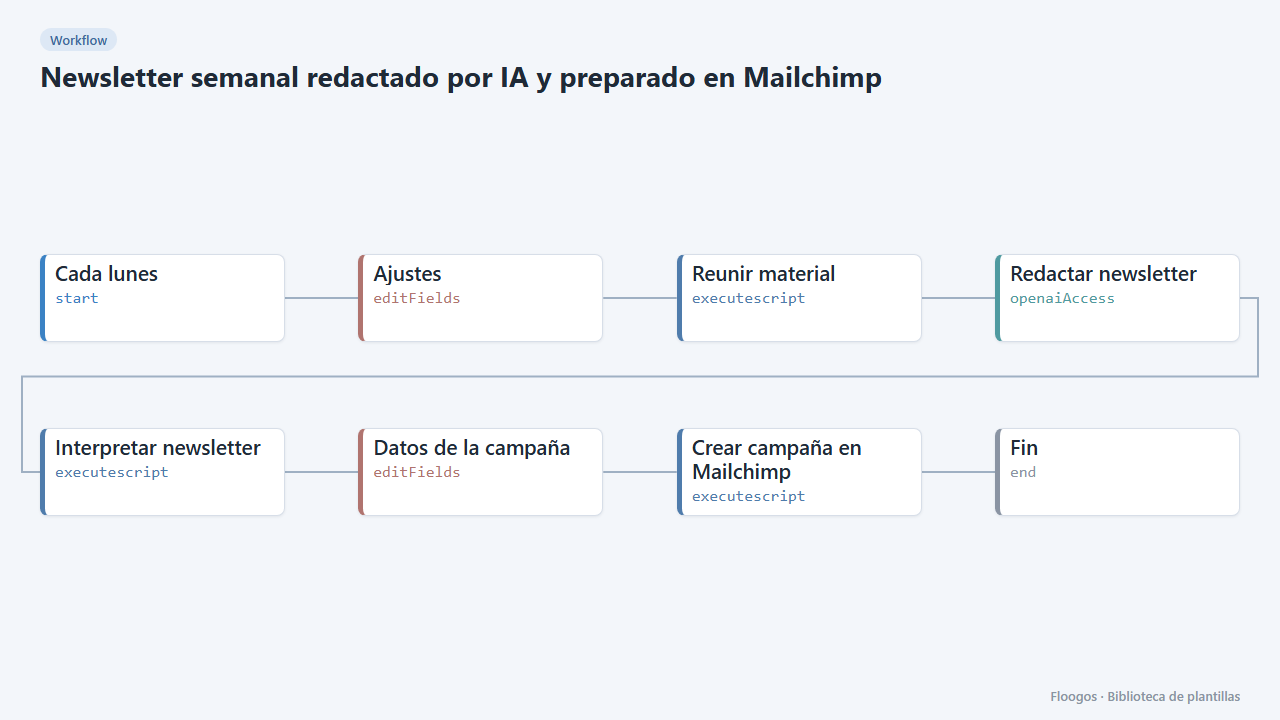
What it does
Stop starting the newsletter from a blank page. Every Monday the flow gathers the news you wrote in the settings and the posts your WordPress published in the last days, hands them to OpenAI to write the subject, preview text and body, and creates the campaign in your Mailchimp audience.
By default the campaign is created as a draft: you open Mailchimp, review it, tweak what is needed and send it yourself. Once you trust the result you can set enviar = si so it is sent automatically.
What you need: an OpenAI API key, a Mailchimp account with its API key and the audience ID, and (optionally) your WordPress address.
How to set it up
- 1
Connect the openai credential
This template uses openai in: Redactar newsletter. Create or pick the credential and assign it in those nodes.
- 2
Connect OpenAI
In the OpenAI node pick your credential with the API key. Always review the generated text before publishing it.
- 3
Connect Mailchimp
In Mailchimp go to Account > Extras > API keys and create a key (it looks like
xxxxxxxx-us21). In Credentials create a Basic Auth one namedmailchimp: username = anything, password = the API key. The audience ID is under Audience > Settings > Audience name and defaults. - 4
Fill in the settings
In the Ajustes node set
lista_id,from_name(sender name),reply_to(reply email, verified in Mailchimp),novedades(what you want to tell this week) and, if you have a blog,wp_url.ultimos_diasis how many days back to look for posts. If there is no news and no posts, the flow stops with a warning instead of creating an empty campaign. - 5
Review the draft
Run the flow once by hand and open Campaigns in Mailchimp: the campaign shows up as a draft. Review the text before sending it; the AI can make mistakes. Then enable the weekly schedule.
- 6
Activate the workflow
Workflows are installed inactive. Once everything is set, activate it.
Related templates
Other templates that use similar nodes or integrations.
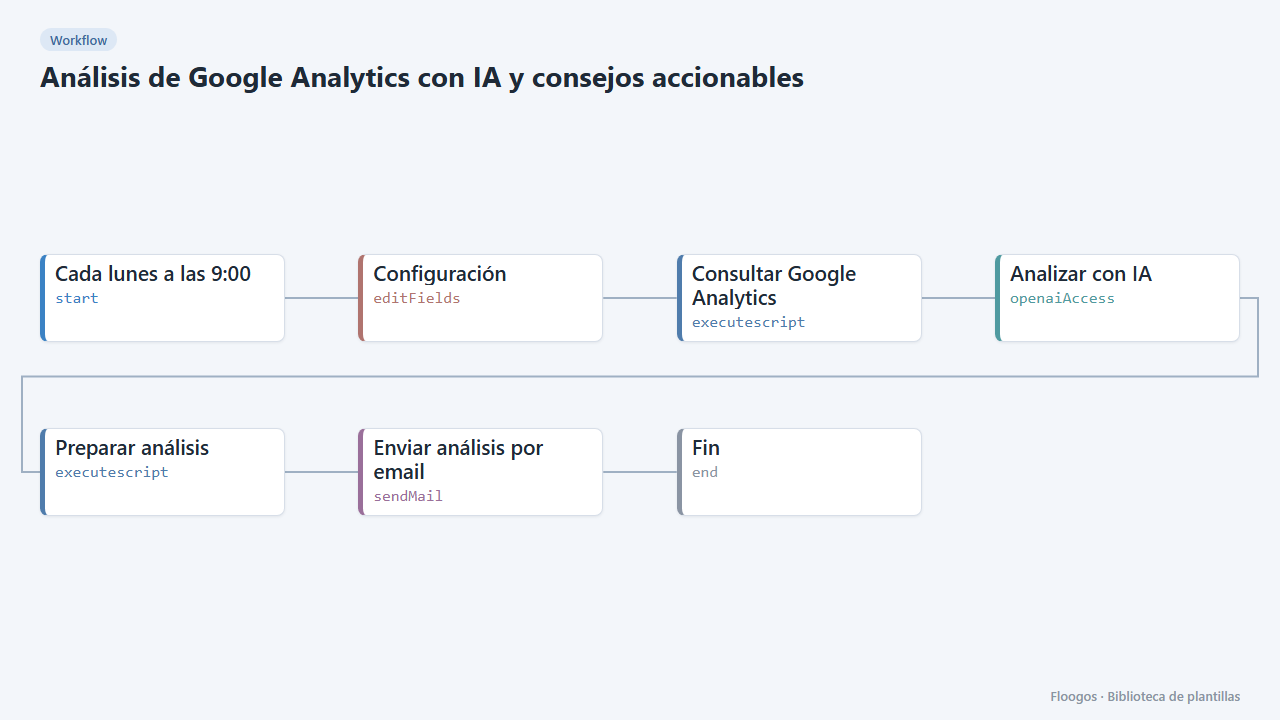
Google Analytics AI analysis with actionable advice
An AI reads your Google Analytics 4 data every week, explains what happened, spots anomalies and emails you a prioritized list of advice.
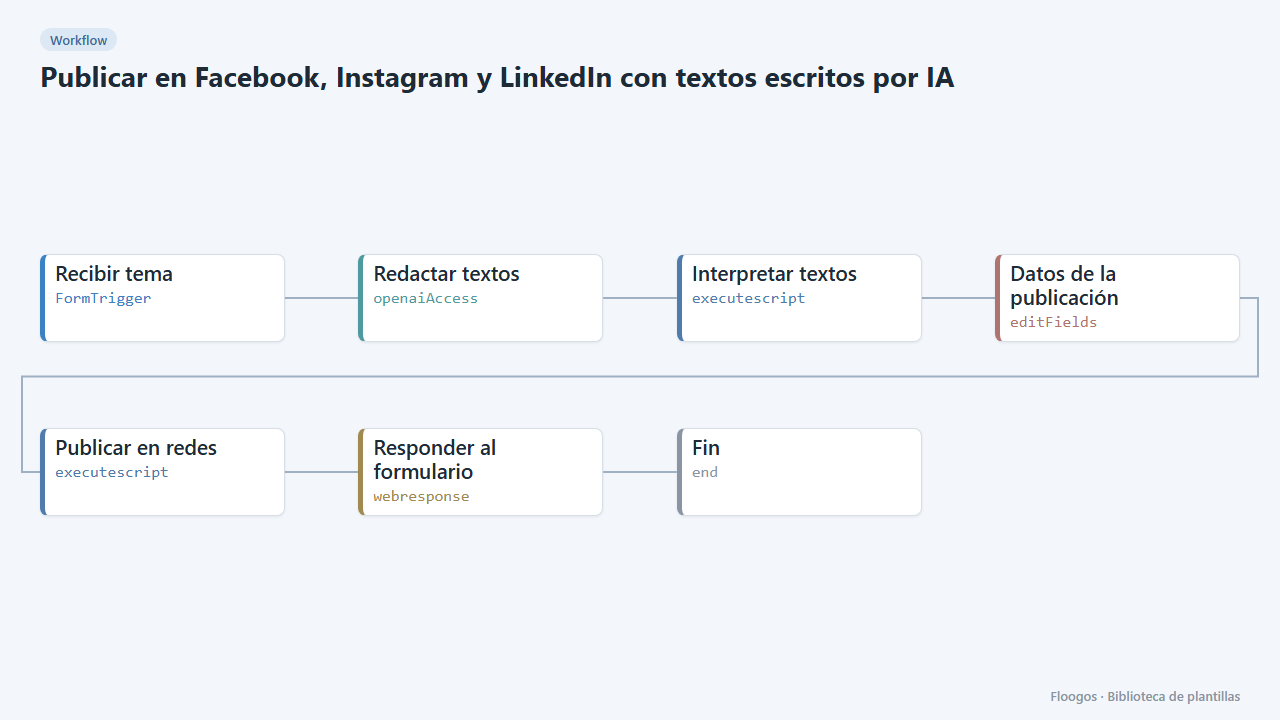
Post to Facebook, Instagram and LinkedIn with AI-written copy
Fill in a form with the topic, AI writes a text for each network and publishes it (or shows it as a draft).
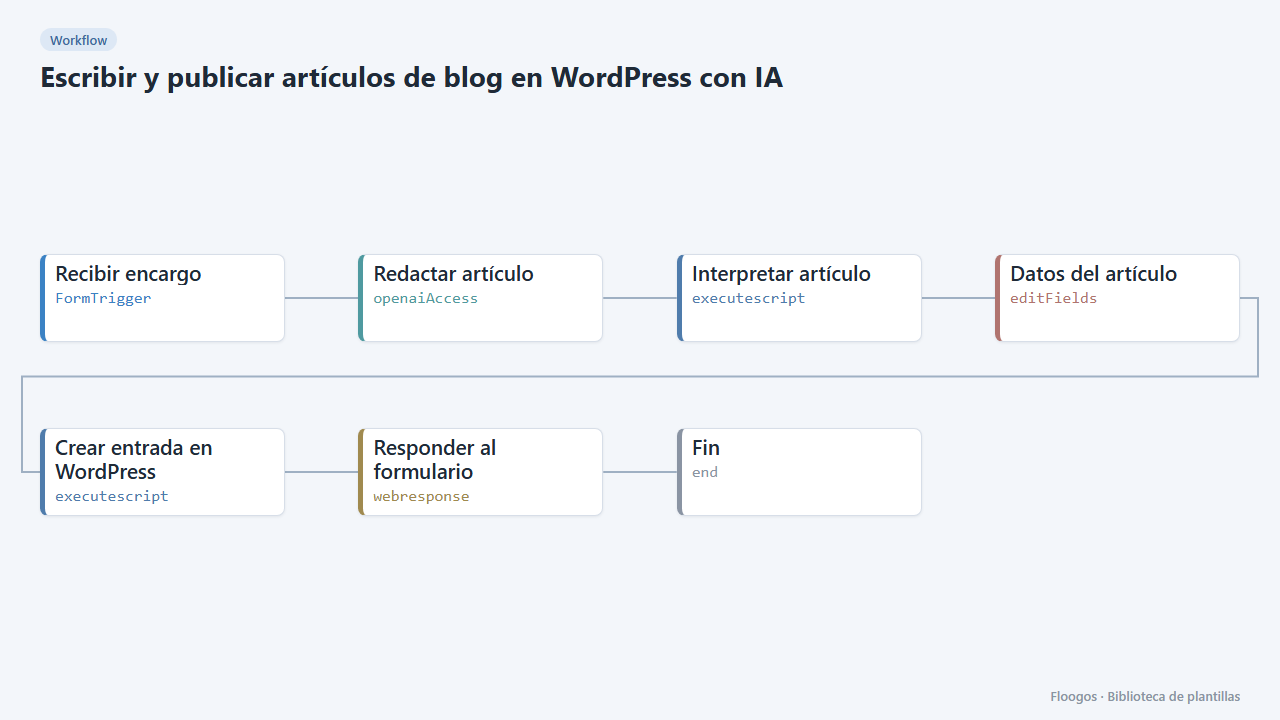
Write and publish blog posts on WordPress with AI
You give the topic and keywords, AI writes the article and leaves it in your WordPress as a draft or published.
Try it in under 5 minutes
Create the template in your account, connect your credentials and activate it when you are ready.
Use this template