
Post to Facebook, Instagram and LinkedIn with AI-written copy
Fill in a form with the topic, AI writes a text for each network and publishes it (or shows it as a draft).
Everything is created inactive in a new folder of your account. Nothing runs until you activate it, and you can undo it for 24 hours.
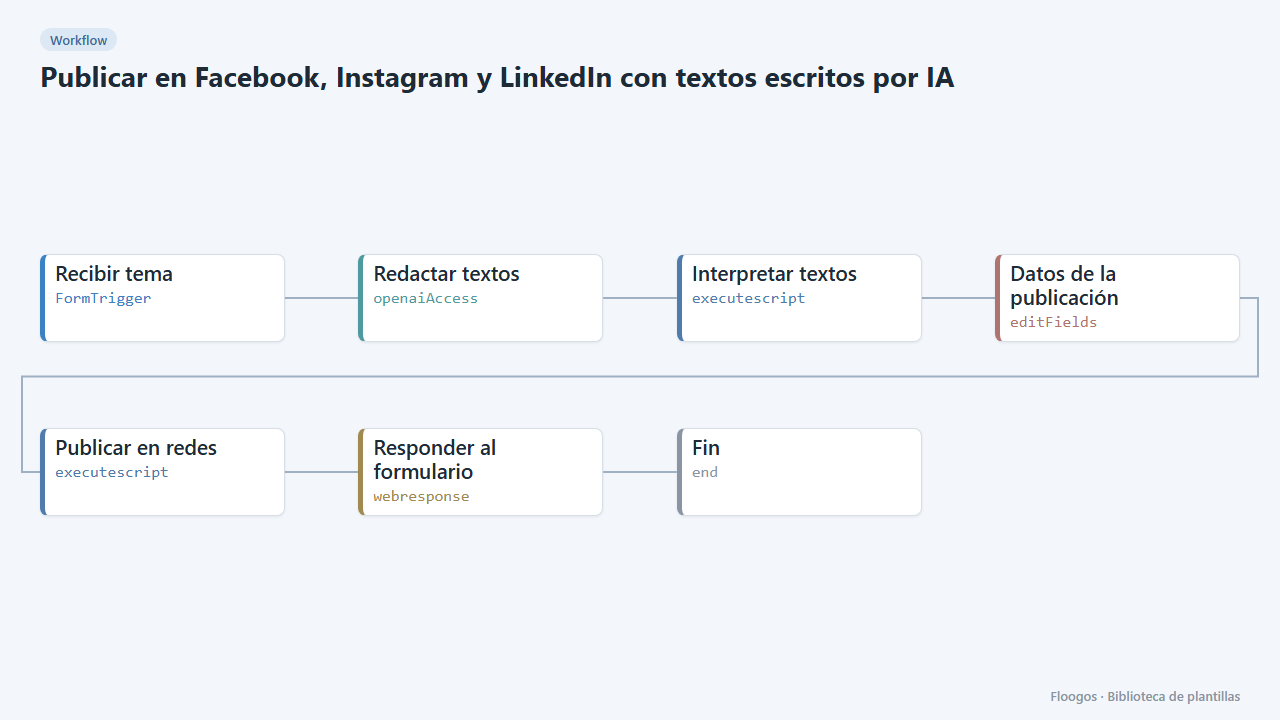
What it does
For people with no time to write. You enter the topic, pick the tone and the channels, and OpenAI prepares a text tailored to each network: friendly on Facebook, with hashtags on Instagram and professional on LinkedIn. The flow then publishes it with the image and link you provided.
For safety the form defaults to draft mode: nothing is published and you get the texts back to review. Once you trust the result, switch to publish.
What you need: an OpenAI API key and the credentials for the networks you use (steps below). Instagram requires an image at a public URL.
How to set it up
- 1
Connect the openai credential
This template uses openai in: Redactar textos. Create or pick the credential and assign it in those nodes.
- 2
Copy the webhook URL (Recibir tema)
A new URL is generated on install. Paste it into the external system that must call this workflow.
- 3
Publish and test the form "Publicar en redes con IA"
Open it, publish it and submit a test entry to check the workflow starts.
- 4
Connect OpenAI
In the OpenAI node pick your credential with the API key. Always review the generated text before publishing it.
- 5
Connect your Facebook page
At developers.facebook.com create an app, add the
pages_manage_postsandpages_read_engagementpermissions and use the Graph API Explorer to generate a long-lived page token. In Credentials create a Basic Auth one namedfacebook-page: username = page ID, password = page token. - 6
Connect Instagram (Business account)
Your Instagram account must be Business or Creator and linked to your Facebook page. Add the
instagram_basicandinstagram_content_publishpermissions to your app, get the account ID withGET /{page-id}?fields=instagram_business_accountand create a Basic Auth credential namedinstagram-business: username = Instagram account ID, password = the same page token. Instagram only publishes images (JPG) hosted at a public URL. - 7
Connect LinkedIn (optional)
Create an app at developers.linkedin.com with the Share on LinkedIn and Sign In with LinkedIn using OpenID Connect products, generate a token with the
openid profile w_member_socialpermissions and store it in a Basic Auth credential namedlinkedin(username = anything, password = the token). The token expires after 60 days: you will have to renew it. If you do not use LinkedIn, leave it out of the channels. - 8
Test in draft mode
Open the form, leave the mode on Draft and submit a topic. The response shows the generated texts without publishing anything. Then try a real post on a single network.
- 9
Activate the workflow
Workflows are installed inactive. Once everything is set, activate it.
Related templates
Other templates that use similar nodes or integrations.
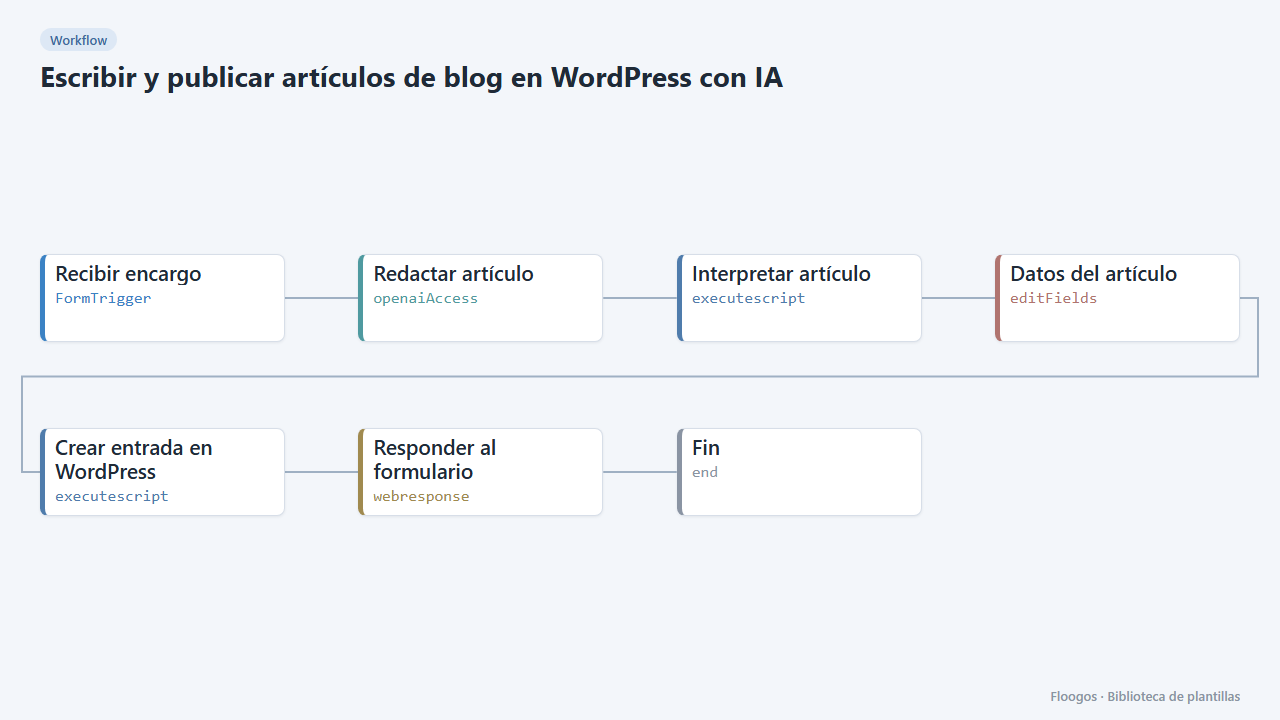
Write and publish blog posts on WordPress with AI
You give the topic and keywords, AI writes the article and leaves it in your WordPress as a draft or published.
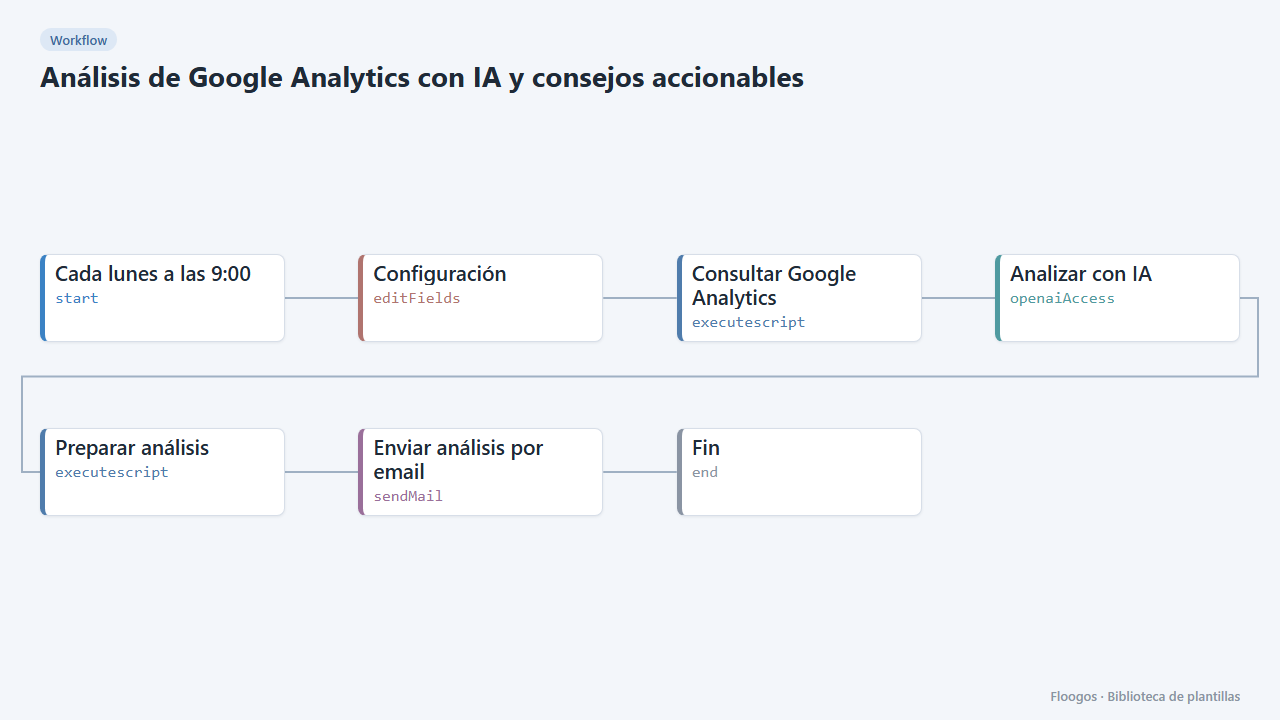
Google Analytics AI analysis with actionable advice
An AI reads your Google Analytics 4 data every week, explains what happened, spots anomalies and emails you a prioritized list of advice.
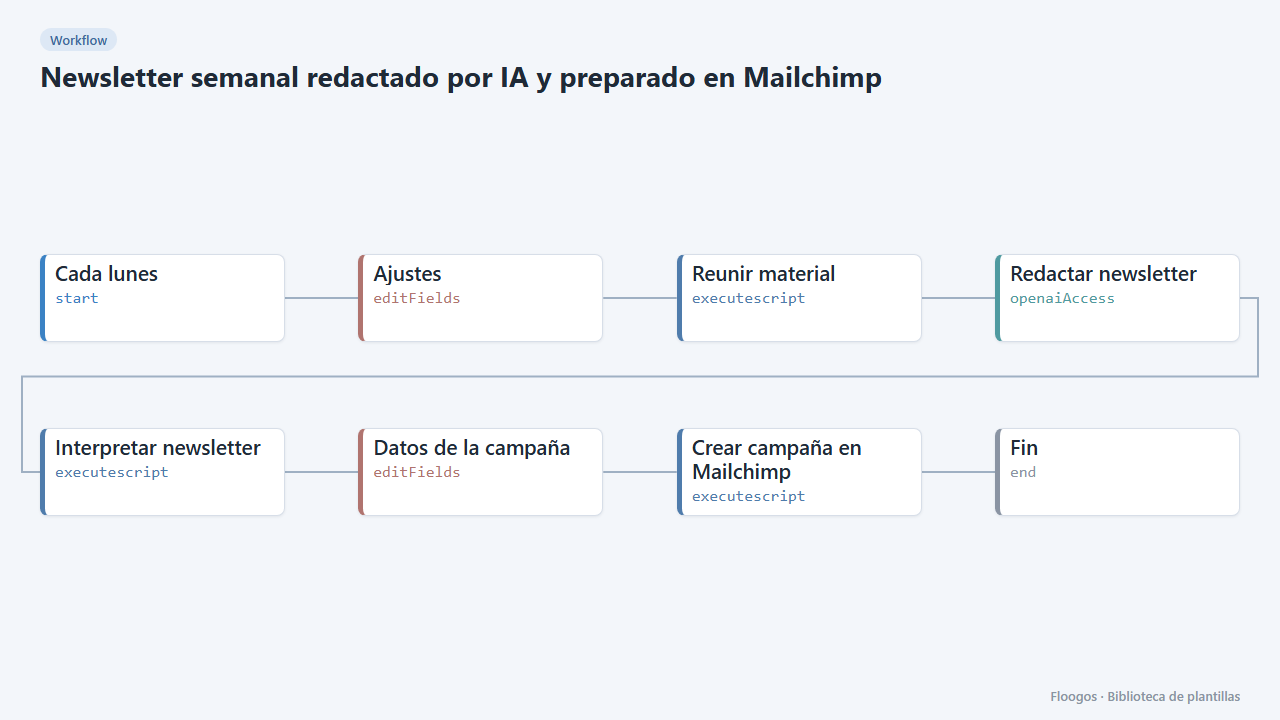
Weekly newsletter written by AI and prepared in Mailchimp
Every week it gathers your news and blog posts, AI writes the newsletter and leaves it ready as a Mailchimp campaign.
Try it in under 5 minutes
Create the template in your account, connect your credentials and activate it when you are ready.
Use this template