
PDF invoice to Excel, sent by email
Turn each PDF invoice into an Excel file with its lines, net, VAT and total, and email the download link to accounting.
Everything is created inactive in a new folder of your account. Nothing runs until you activate it, and you can undo it for 24 hours.
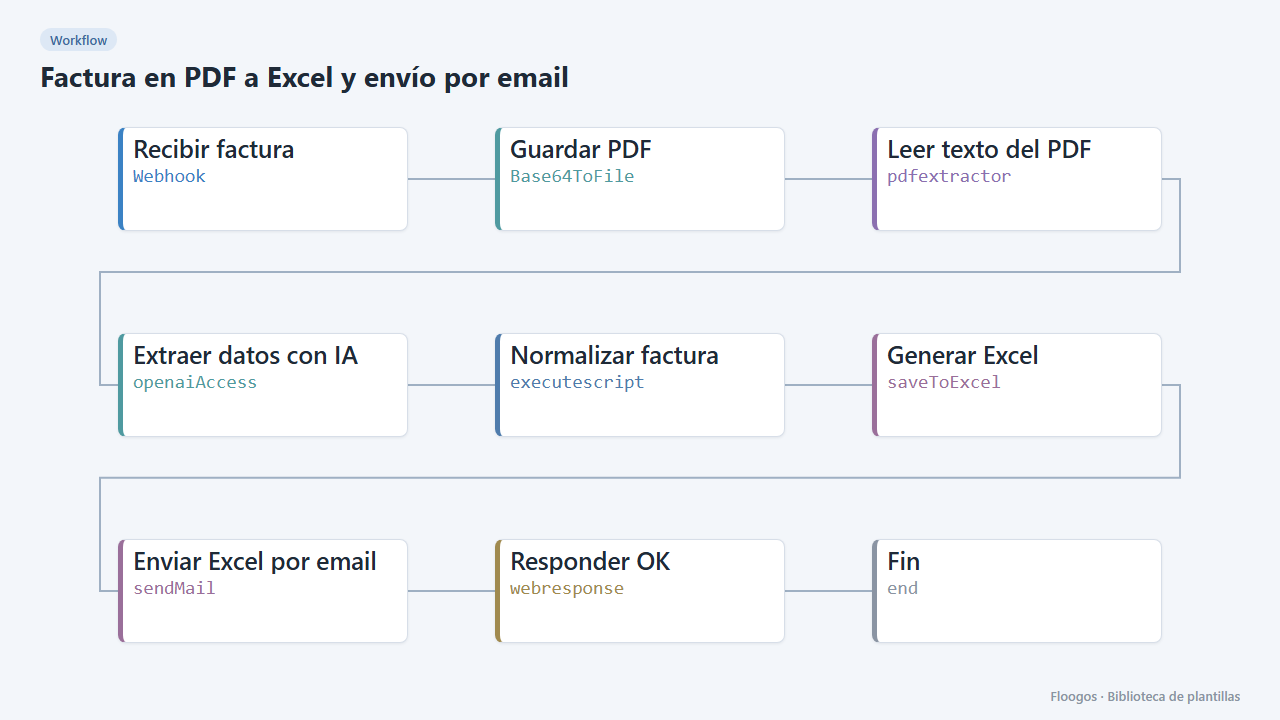
What it does
For those who work with Excel: every invoice arriving via webhook is read, AI extracts its data as JSON, the Normalizar factura node validates it (numeric amounts, ISO date, net + VAT = total) and an .xlsx file is generated with one row per invoice line plus net, VAT and total rows. Then an email with the download link is sent.
What you need: an OpenAI API key and a configured SMTP.
Important: the Excel node creates a new file for each invoice (no accumulated history). If you want a single accumulated spreadsheet, use the Google Sheets template, which appends one row per invoice.
How to set it up
- 1
Connect the openai credential
This template uses openai in: Extraer datos con IA. Create or pick the credential and assign it in those nodes.
- 2
Connect the smtp credential
This template uses smtp in: Enviar Excel por email. Create or pick the credential and assign it in those nodes.
- 3
Copy the webhook URL (Recibir factura)
A new URL is generated on install. Paste it into the external system that must call this workflow.
- 4
Connect OpenAI and email
Connect OpenAI in Extraer datos con IA and your SMTP in Enviar Excel por email, and set the recipient (accounting) in the
tofield. - 5
Send an invoice
Send a
POSTto the webhook URL with{"pdf_base64":"<base64 encoded PDF>"}. Text PDFs only (not scanned). - 6
Data format
The JSON generated before the Excel has this shape:
{"proveedor":"Suministros Norte S.L.","nif":"B12345678","numero_factura":"F-2026-0412","fecha":"2026-09-30","moneda":"EUR","base_imponible":200,"iva_porcentaje":21,"iva_importe":42,"total":242,"lineas":[{"descripcion":"Papel A4 (caja)","cantidad":4,"precio_unitario":50,"importe":200}],"estado":"OK"}. The Excel columns areNº factura, Fecha, Proveedor, NIF, Descripción, Cantidad, Precio unitario, Importe. - 7
Activate the workflow
Workflows are installed inactive. Once everything is set, activate it.
Related templates
Other templates that use similar nodes or integrations.
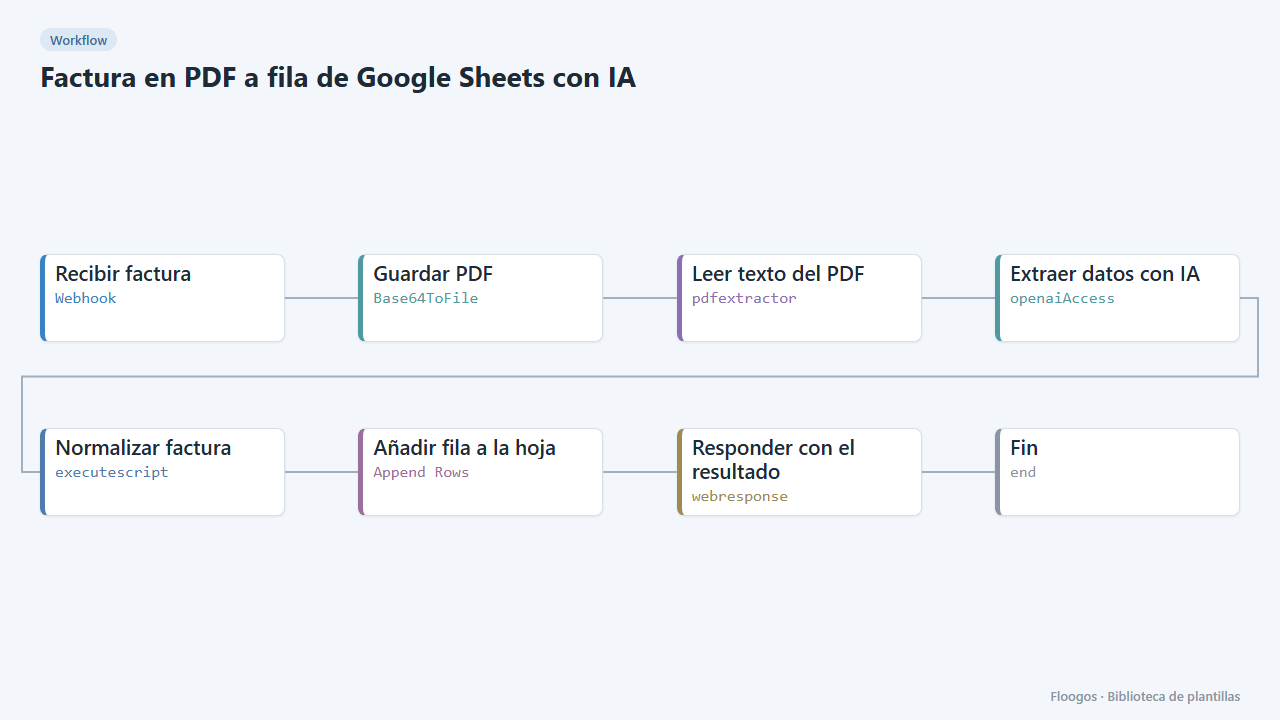
PDF invoice to a Google Sheets row with AI
Receive a PDF invoice, AI extracts supplier, tax ID, number, date, net, VAT, total and lines, validates the amounts and adds a row to your sheet.
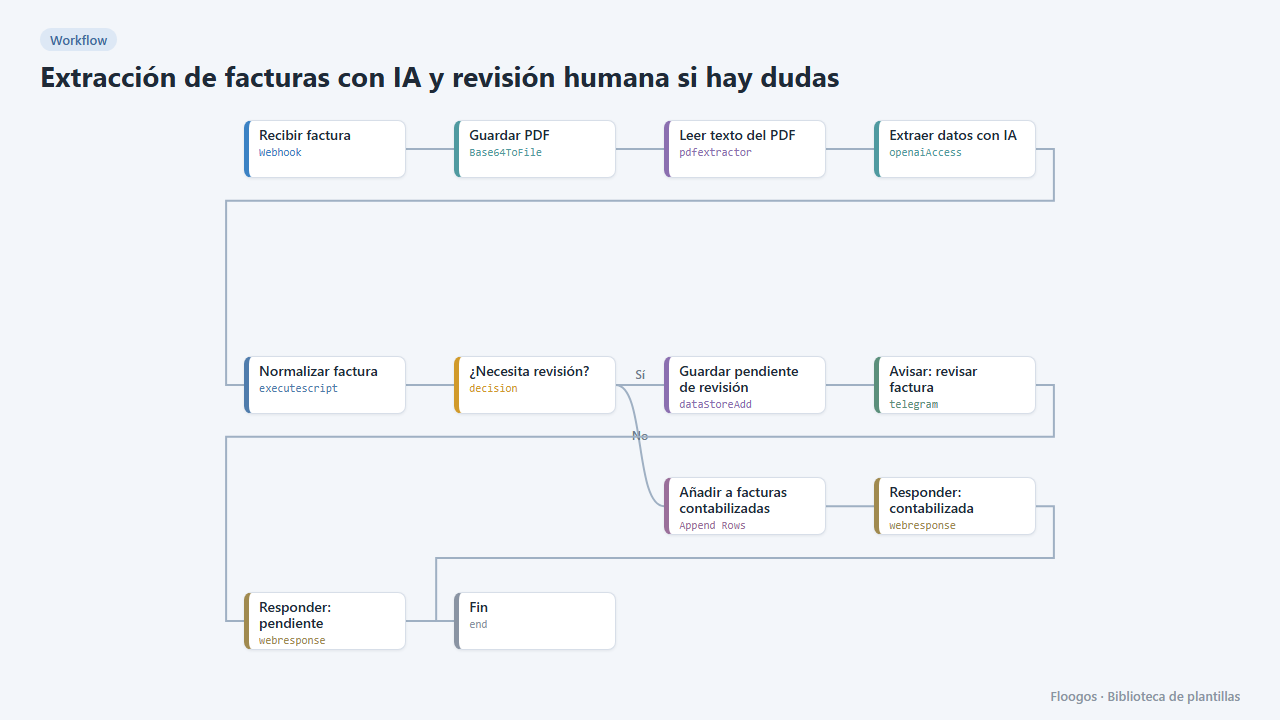
AI invoice extraction with human review when in doubt
AI extracts the invoice data; reliable ones go straight to the sheet, and if confidence is low or fields are missing they are set aside and you get a Telegram alert to review them.
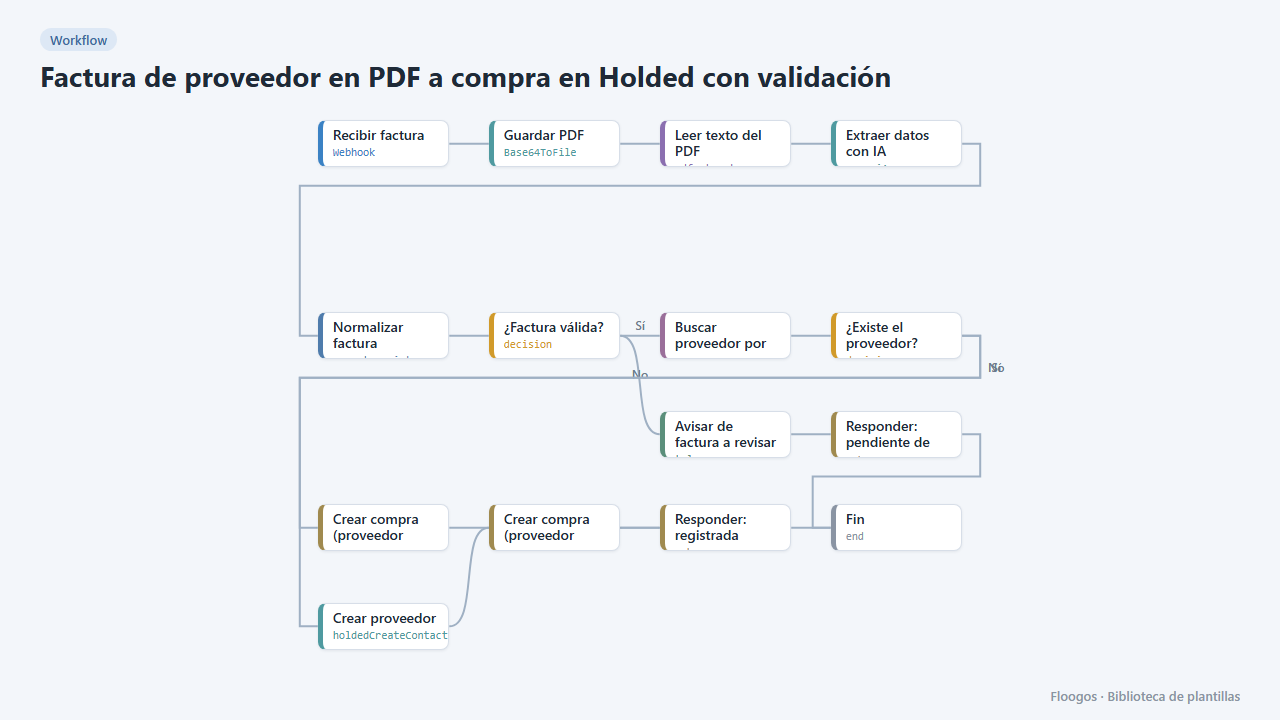
Supplier PDF invoice to a Holded purchase with validation
AI reads the PDF invoice, validates amounts and required fields, finds or creates the supplier in Holded and records the purchase; if anything fails it alerts you on Telegram.
Try it in under 5 minutes
Create the template in your account, connect your credentials and activate it when you are ready.
Use this template