
Save reports and files to OneDrive from a webhook
A URL you send a file name and its content (text or Base64) to, which saves it in your OneDrive and returns the link.
Everything is created inactive in a new folder of your account. Nothing runs until you activate it, and you can undo it for 24 hours.
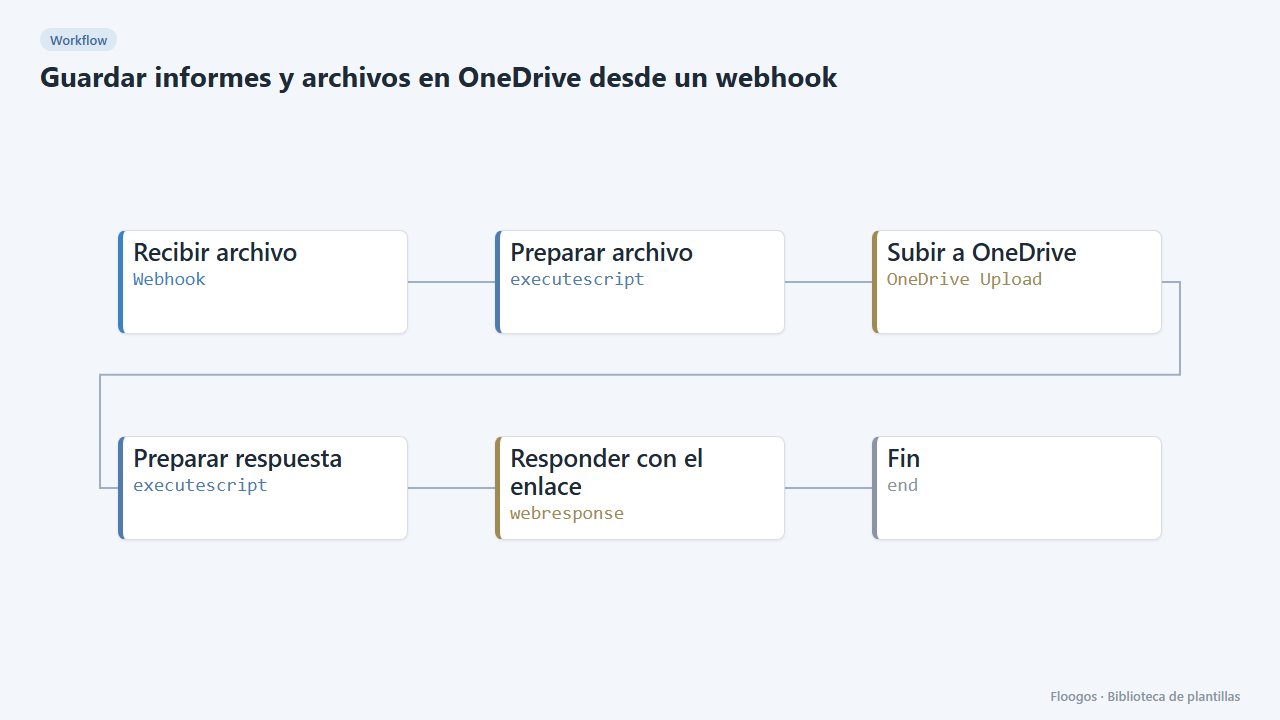
What it does
A reusable piece to archive documents in Microsoft 365 OneDrive from any system: a sales CSV, a text report, an already Base64-encoded PDF… Call the webhook with nombre_archivo and the content (contenido as text, or contenido_base64 for binary files) and the workflow uploads it to the chosen folder and replies with the file link.
What you need: a connected Microsoft 365 account (OAuth).
How to use it: you can include a subfolder in the name (Informes/ventas.csv); if it does not exist, OneDrive creates it. To use a specific OneDrive folder, set its identifier in folderId of the Subir a OneDrive node (root by default).
Limitations: the OneDrive module uploads content as Base64, so the Preparar archivo script converts plain text automatically. Invalid characters are cleaned from the name (accents, spaces and symbols become _). Simple upload supports files up to about 4 MB. A file with the same name is replaced. It has not been tested against real Microsoft accounts.
How to set it up
- 1
Connect the microsoft credential
This template uses microsoft in: Subir a OneDrive. Create or pick the credential and assign it in those nodes.
- 2
Copy the webhook URL (Recibir archivo)
A new URL is generated on install. Paste it into the external system that must call this workflow.
- 3
Connect Microsoft 365
In the Subir a OneDrive node connect your Microsoft account. To save into a specific folder, enter its identifier in
folderId(you can get it with a Microsoft OneDrive node and thelistFilesoperation). - 4
Test with text
Send a
POSTto the webhook with{"nombre_archivo":"Informes/test.txt","contenido":"Hello from Floogos"}. You should receive{"ok":true,"nombre":"...","url":"..."}and see the file in your OneDrive. - 5
Upload binary files
For PDFs, images or spreadsheets send the content already encoded as Base64 in
contenido_base64. - 6
Activate the workflow
Workflows are installed inactive. Once everything is set, activate it.
Related templates
Other templates that use similar nodes or integrations.
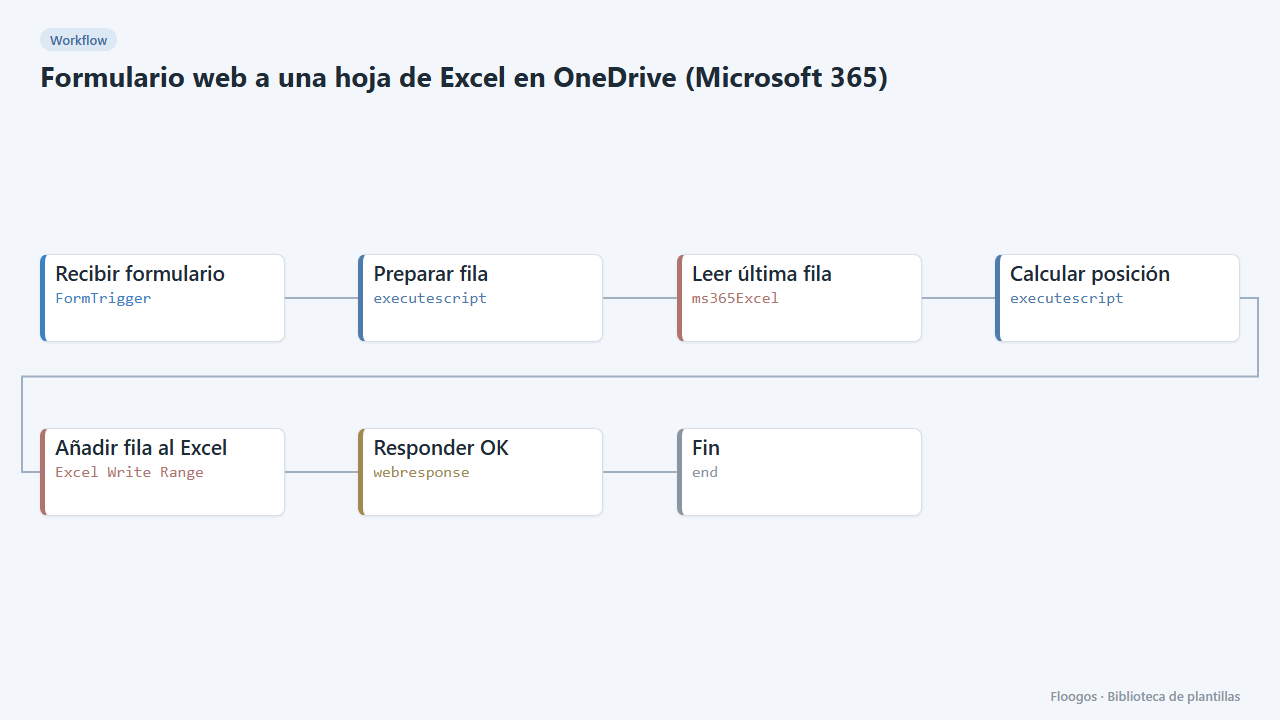
Web form to an Excel sheet in OneDrive (Microsoft 365)
Every form submission is added as a new row in an Excel workbook in your OneDrive, with the header row created automatically.
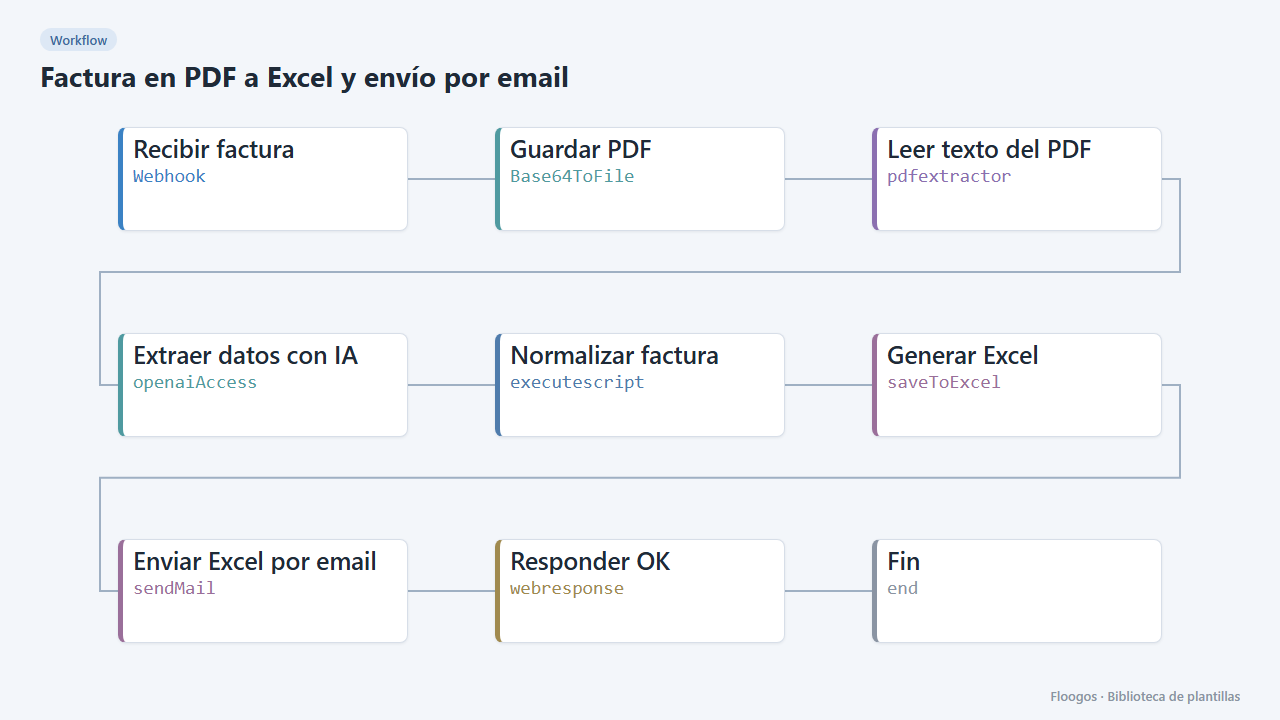
PDF invoice to Excel, sent by email
Turn each PDF invoice into an Excel file with its lines, net, VAT and total, and email the download link to accounting.
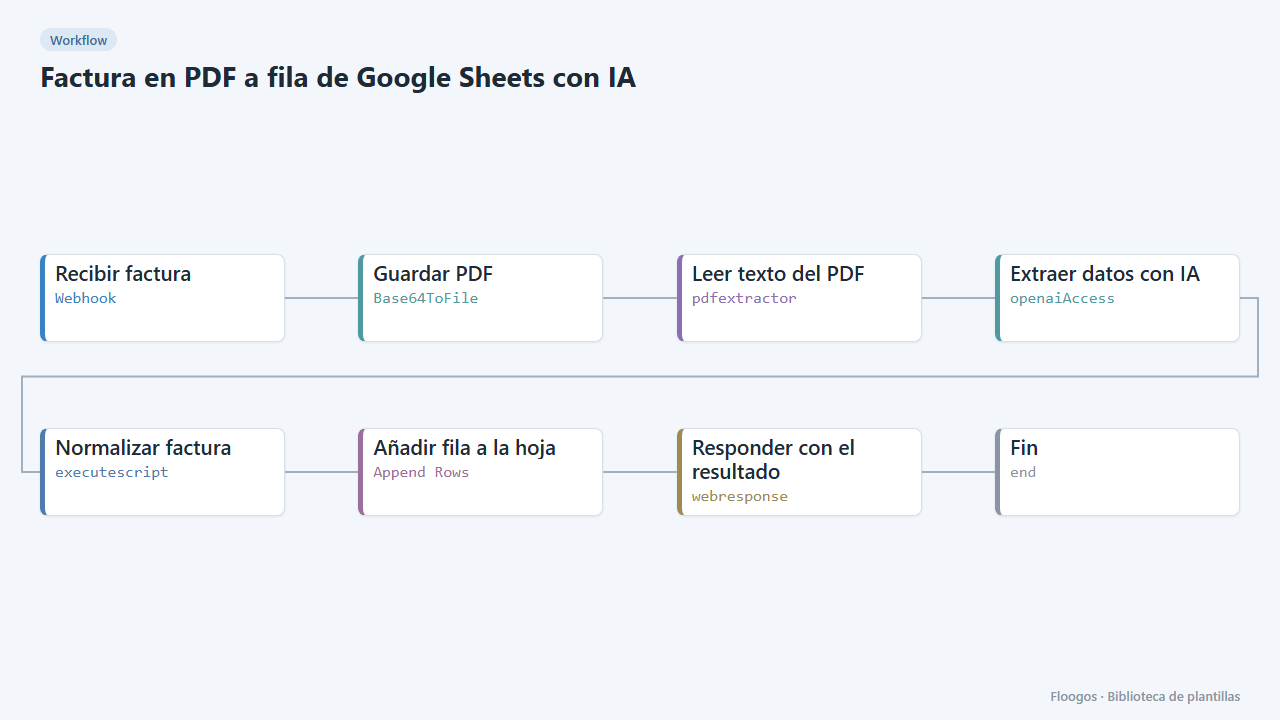
PDF invoice to a Google Sheets row with AI
Receive a PDF invoice, AI extracts supplier, tax ID, number, date, net, VAT, total and lines, validates the amounts and adds a row to your sheet.
Try it in under 5 minutes
Create the template in your account, connect your credentials and activate it when you are ready.
Use this template