
Lead capture form with KPI dashboard
A public form that stores each lead, alerts sales and feeds a dashboard with totals, source, interest and daily trend.
Everything is created inactive in a new folder of your account. Nothing runs until you activate it, and you can undo it for 24 hours.
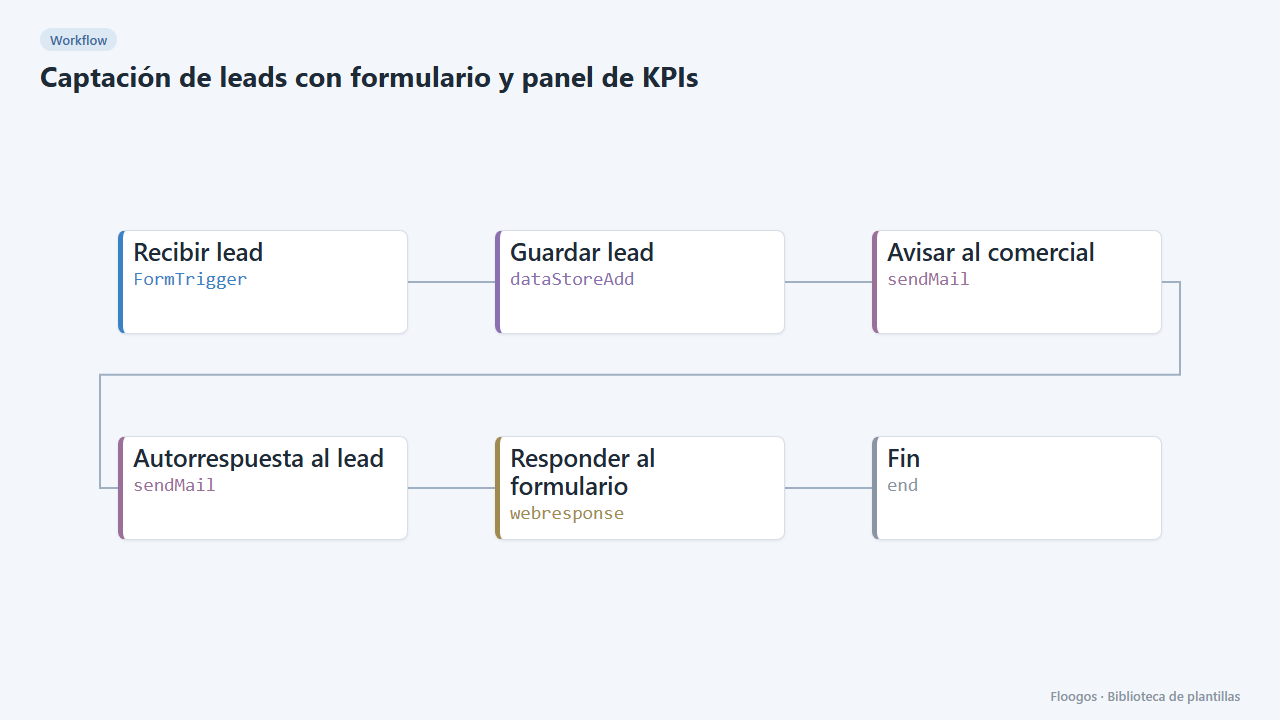
What it does
Turn any page or campaign into a measurable lead source. The visitor fills in the contact form (name, email, company, interest and how they found you); the lead is stored as nuevo, an auto-reply is sent and the sales team gets an alert with all the details. The lead dashboard shows total leads, the last 7 and 30 days, the top source, the breakdown by source and interest, the daily trend and the latest leads.
What is included: 1 form, 1 workflow, 1 dashboard and the leads_web data group.
What you need: an SMTP account and the sales team email.
How to use it: install the template, connect SMTP, set the sales email, embed or share the form link and follow results in the dashboard.
How to set it up
- 1
Connect the smtp credential
This template uses smtp in: Avisar al comercial, Autorrespuesta al lead. Create or pick the credential and assign it in those nodes.
- 2
Copy the webhook URL (Recibir lead)
A new URL is generated on install. Paste it into the external system that must call this workflow.
- 3
Publish and test the form "Contacto comercial"
Open it, publish it and submit a test entry to check the workflow starts.
- 4
Open the dashboard "Captación de leads"
Check that the test data shows up.
- 5
Set who receives leads
In the Captación de lead workflow, Avisar al comercial node, replace
ventas@tuempresa.comwith the sales team email. - 6
Publish the form
Open the Contacto comercial form, copy its public link and share or embed it on your site. Every submission shows up in the Captación de leads dashboard.
- 7
Activate the workflow
Workflows are installed inactive. Once everything is set, activate it.
Related templates
Other templates that use similar nodes or integrations.
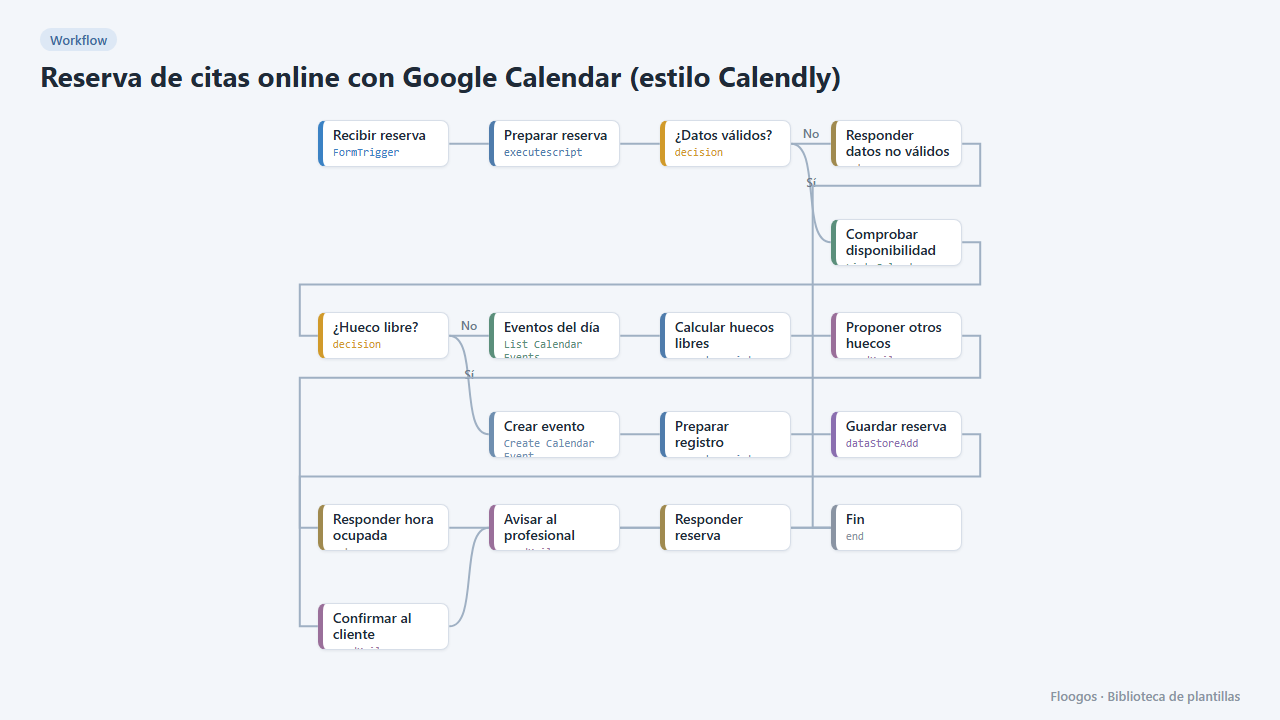
Online appointment booking with Google Calendar (Calendly-style)
A public form for your customers to book an appointment: it checks your Google Calendar, creates the event, confirms by email and, if the slot is taken, suggests the free slots of that day.
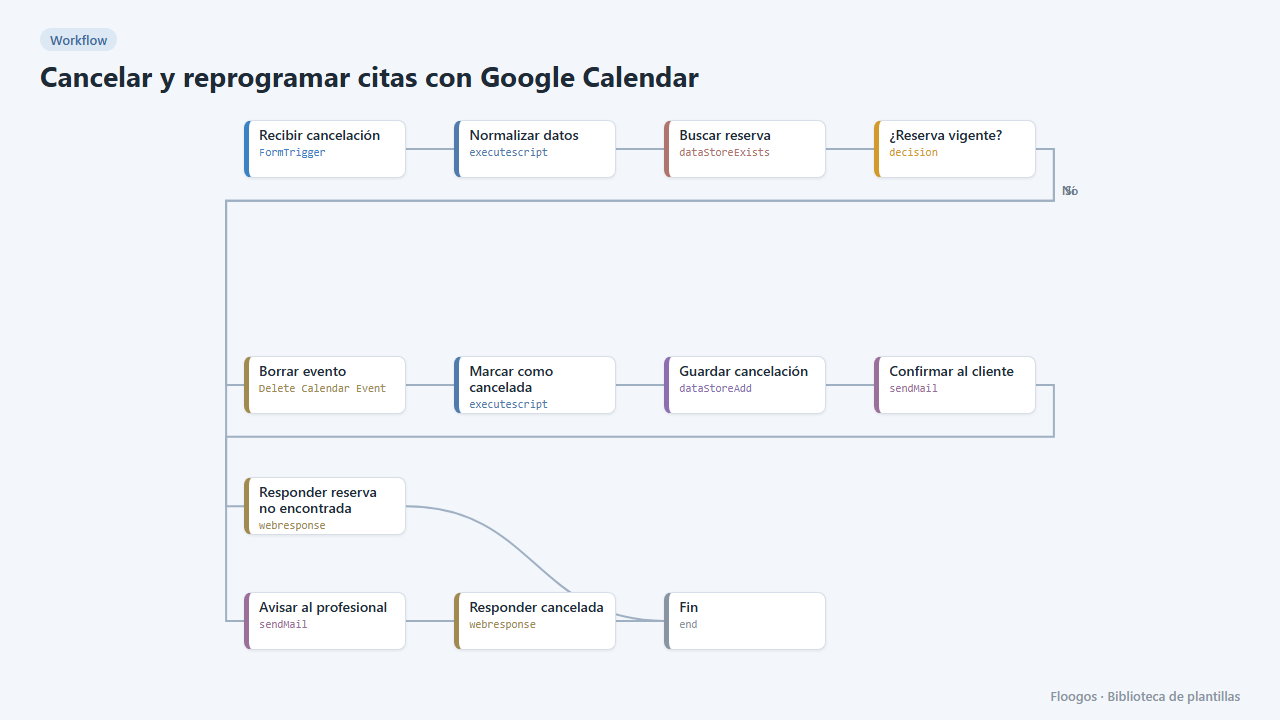
Cancel and reschedule appointments with Google Calendar
Two public forms for your customers to cancel or change their appointment with their booking code: the Google Calendar event is deleted or moved and everyone gets notified.
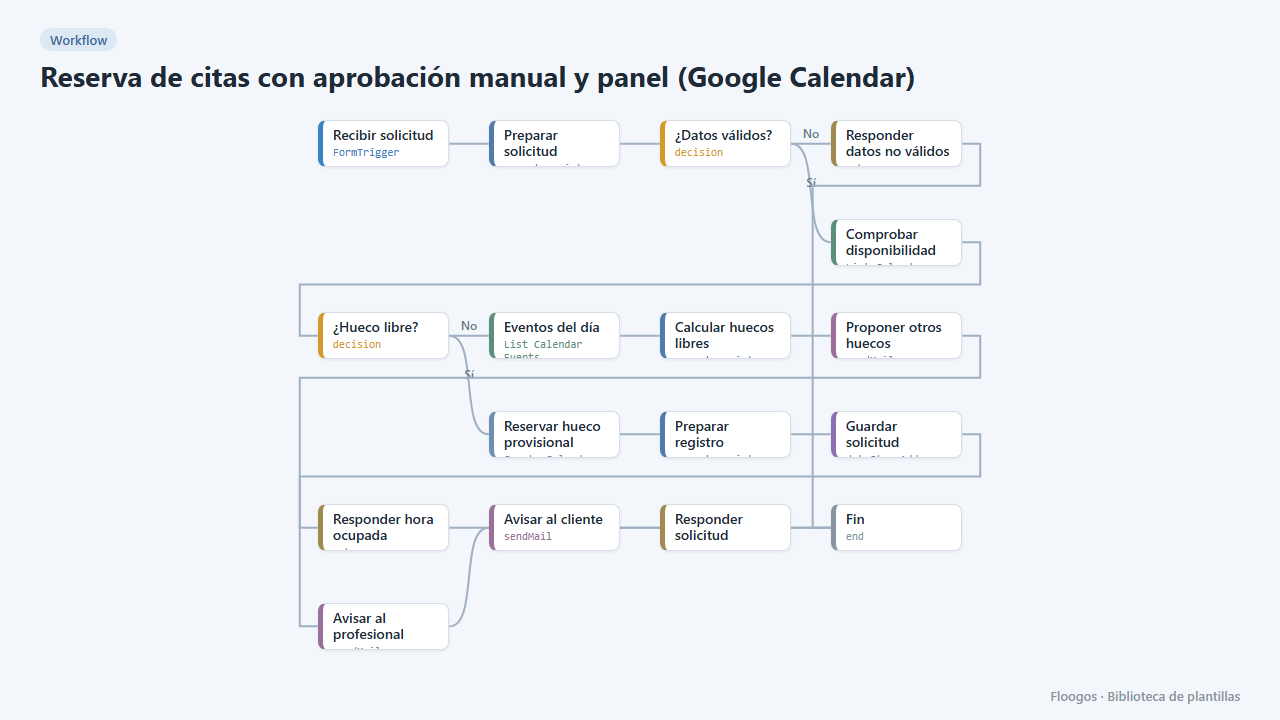
Appointment booking with manual approval and dashboard (Google Calendar)
The customer requests an appointment, the slot is held as tentative in your Google Calendar and you approve or reject it from a dashboard in one click; the customer gets the outcome by email.
Try it in under 5 minutes
Create the template in your account, connect your credentials and activate it when you are ready.
Use this template