
Weekly summary of an Excel sheet in a Teams channel
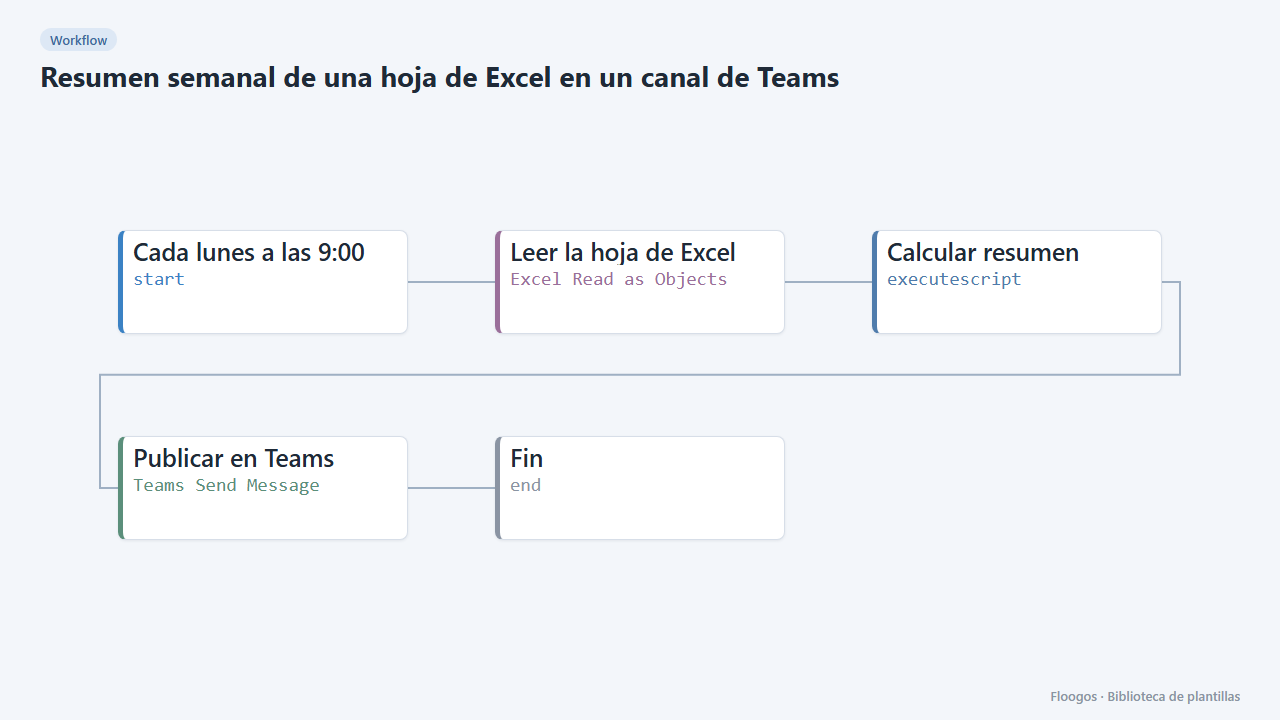
Every Monday it reads an Excel sheet from OneDrive, counts the rows of the last week, sums an amounts column and posts it to Teams.
Everything is created inactive in a new folder of your account. Nothing runs until you activate it, and you can undo it for 24 hours.
What it does
Turn the Excel your team already uses into an automatic report. Every Monday at 9:00 the workflow reads the sheet (first row = header), calculates how many rows were added in the last 7 days based on the date column, sums an amounts column (optional) and posts the summary in a Teams channel. It works very well with the sheet filled by the "Web form to an Excel sheet" template, but it suits any workbook with a date column.
What you need: a connected Microsoft 365 account (OAuth), an .xlsx workbook in your OneDrive and the channel's teamId and channelId identifiers.
How to adjust it: in the Calcular resumen script set the date column name (COL_FECHA, Fecha by default) and, if you want a total, the numeric column name (COL_IMPORTE, Importe by default; it is skipped if it does not exist).
Limitations: up to 1000 rows and 26 columns are read (range A1:Z1000). Dates can be text (2026-10-17 09:30, 17/10/2026) or Excel dates. It has not been tested against real Microsoft accounts.
How to set it up
- 1
Connect the microsoft credential
This template uses microsoft in: Leer la hoja de Excel, Publicar en Teams. Create or pick the credential and assign it in those nodes.
- 2
Set the workbook and sheet
In Leer la hoja de Excel connect your Microsoft account, paste the workbook
fileId(returned by thelistExcelFilesoperation of the Microsoft Excel node) and checksheetName(Hoja1orSheet1). - 3
Adapt the columns
In Calcular resumen change
COL_FECHAandCOL_IMPORTEto your column names and tweak the report title if you like. - 4
Choose the Teams channel
In Publicar en Teams connect your account and paste
teamIdandchannelId. Run the workflow manually to see the first summary. - 5
Activate the workflow
Workflows are installed inactive. Once everything is set, activate it.
Related templates
Other templates that use similar nodes or integrations.
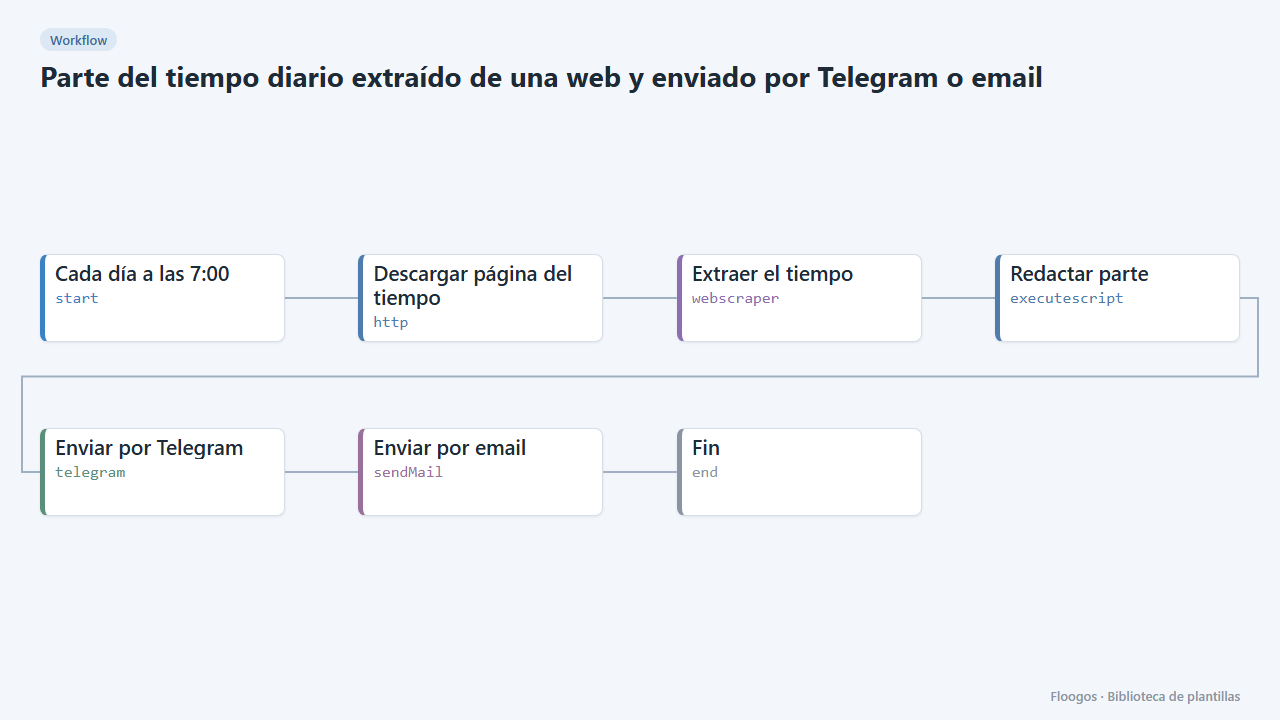
Daily weather report scraped from a website and sent by Telegram or email
Every morning it reads your city weather from a web page and sends it to you by Telegram and email before the working day starts.
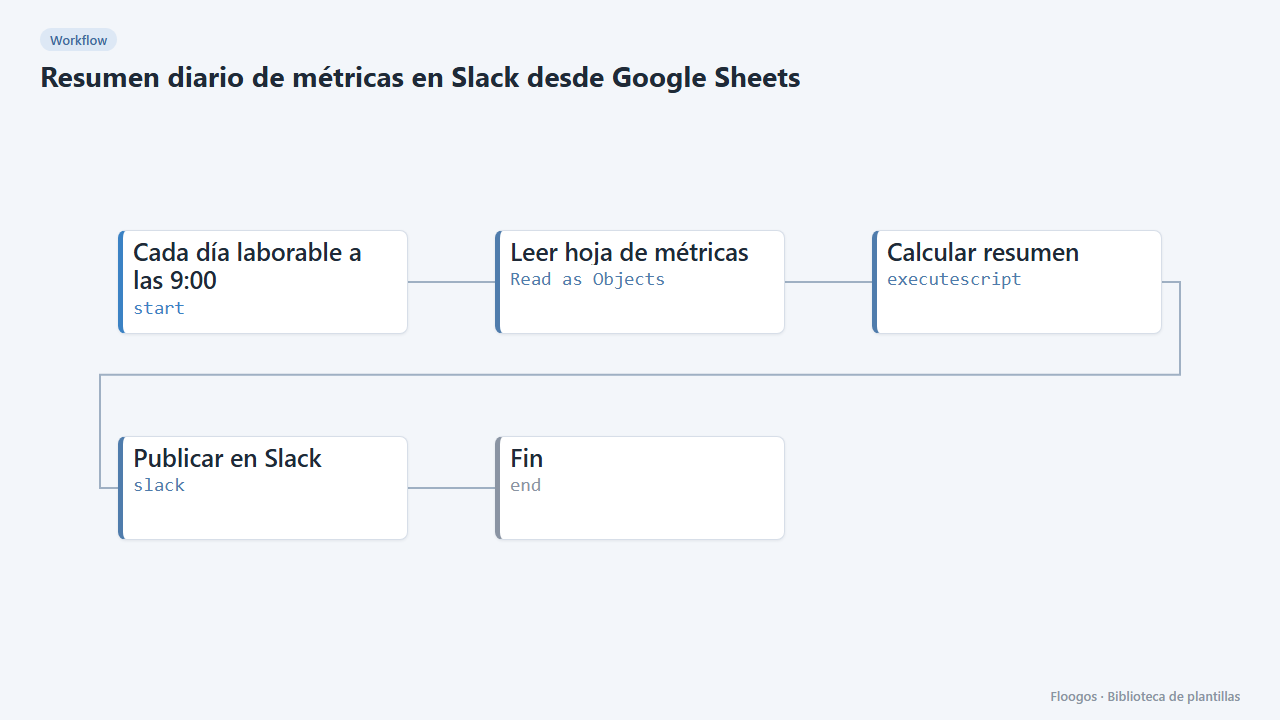
Daily metrics summary on Slack from Google Sheets
Every business day it reads a Google Sheet, computes row count and total and posts the summary to a Slack channel.
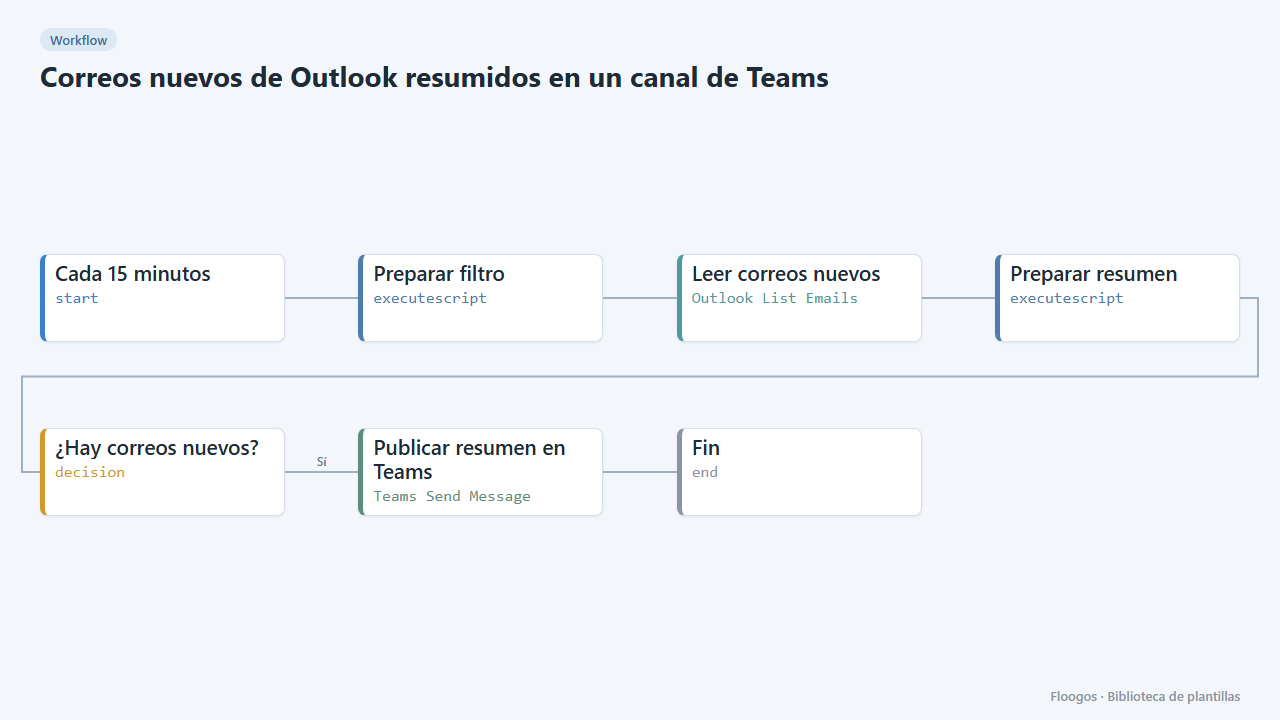
New Outlook emails summarised in a Teams channel
Every 15 minutes it checks your Outlook inbox and, if new emails have arrived, posts a summary (sender and subject) in a Teams channel.
Try it in under 5 minutes
Create the template in your account, connect your credentials and activate it when you are ready.
Use this template