
New Outlook emails summarised in a Teams channel
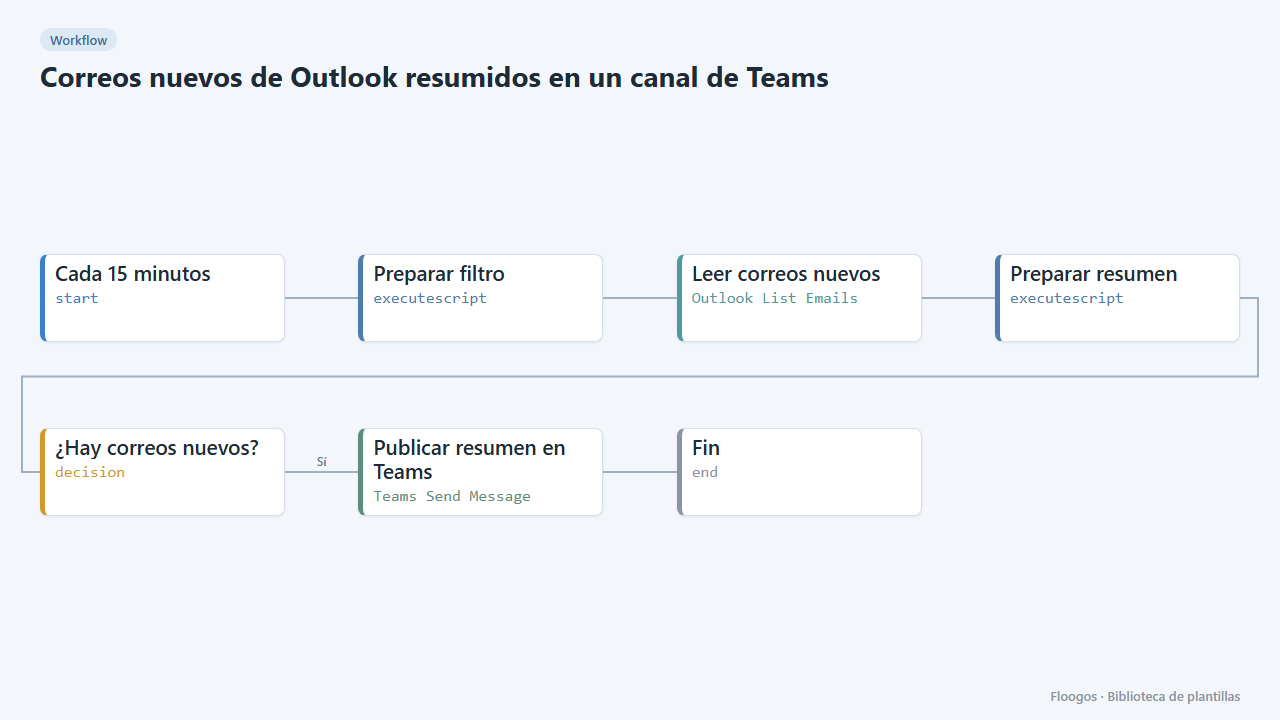
Every 15 minutes it checks your Outlook inbox and, if new emails have arrived, posts a summary (sender and subject) in a Teams channel.
Everything is created inactive in a new folder of your account. Nothing runs until you activate it, and you can undo it for 24 hours.
What it does
Ideal for support, sales or admin mailboxes: your team sees in Teams what has arrived in Outlook without opening the mailbox. Every 15 minutes the workflow asks Outlook for the messages received in that interval and, only if there are any, posts a summary in the channel with sender, subject and time (up to 10 emails; if there are more, it says how many are missing).
What you need: a connected Microsoft 365 account (OAuth) with access to the mailbox and the Teams channel, and the teamId and channelId identifiers.
How duplicates are avoided: the query uses a time window equal to the cron interval. If you change the schedule of the start node, also change the MINUTOS constant in the Preparar filtro script.
Limitations: it reads the connected user's inbox folder (not shared mailboxes). Only the sender, subject and the beginning of the text are shown; emails are neither stored nor forwarded. If the workflow is paused, emails from that period are not summarised. It has not been tested against real Microsoft accounts.
How to set it up
- 1
Connect the microsoft credential
This template uses microsoft in: Leer correos nuevos, Publicar resumen en Teams. Create or pick the credential and assign it in those nodes.
- 2
Connect Outlook and Teams
Connect your Microsoft account in the Leer correos nuevos and Publicar resumen en Teams nodes, and paste the
teamIdandchannelIdin the second one. - 3
Adjust the frequency
By default it runs every 15 minutes. If you prefer another interval, change the schedule of the start node and the
MINUTOSconstant in the Preparar filtro script so they match. - 4
Test it
Send yourself an email and run the workflow manually within the next 15 minutes: the summary should appear in the channel.
- 5
Activate the workflow
Workflows are installed inactive. Once everything is set, activate it.
Related templates
Other templates that use similar nodes or integrations.
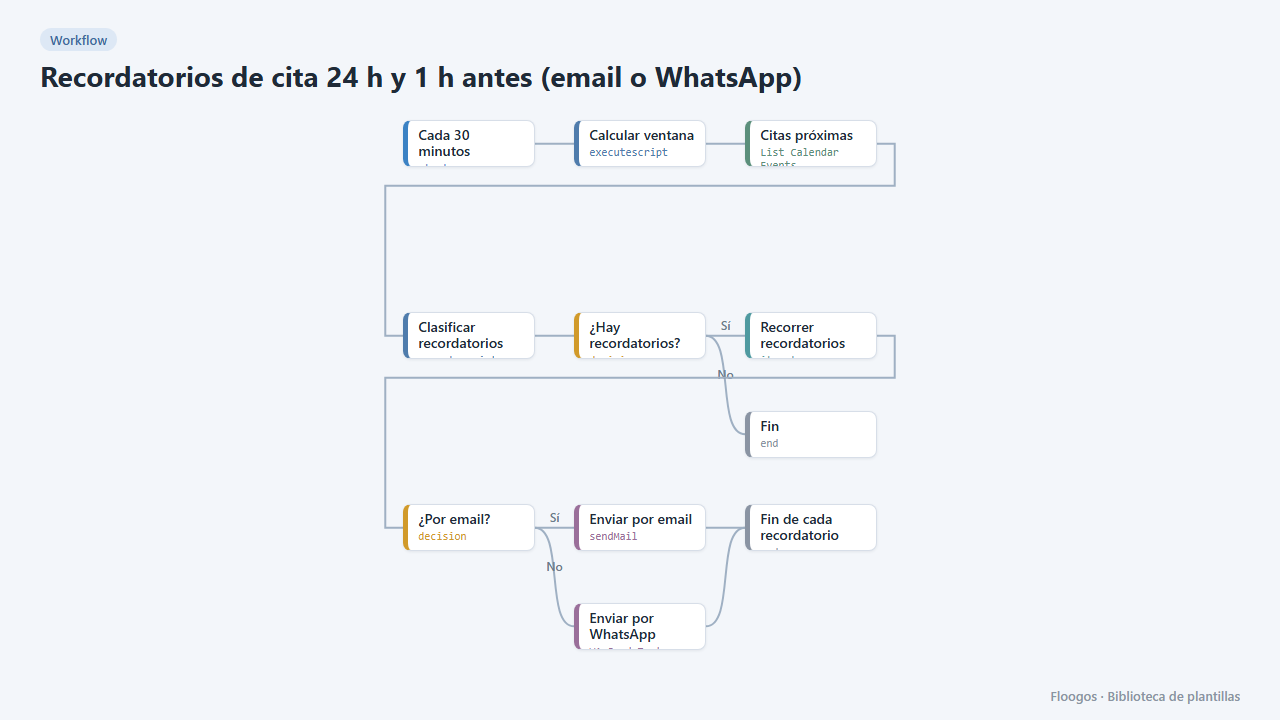
Appointment reminders 24 h and 1 h before (email or WhatsApp)
Every 30 minutes it checks your Google Calendar and notifies your customers by email or WhatsApp one day and one hour before their appointment, to cut no-shows.
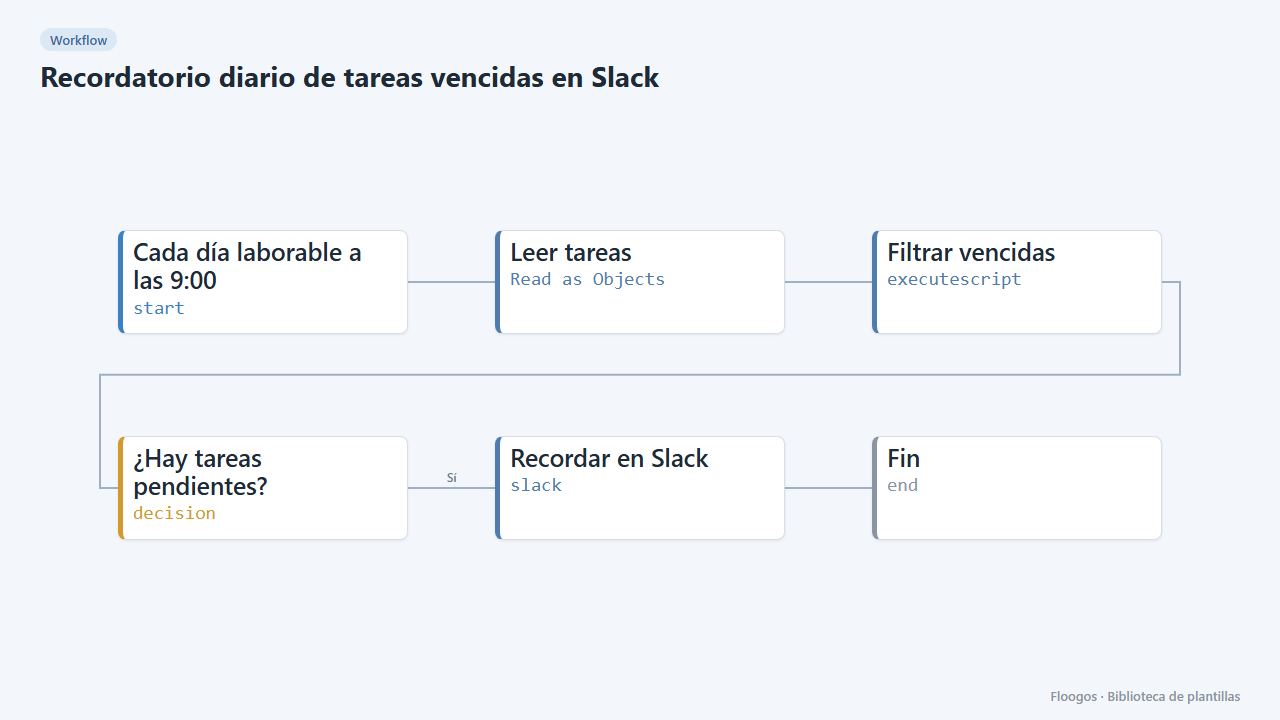
Daily overdue-task reminder on Slack
Every morning it checks your task sheet and posts on Slack the ones due today or overdue; if there are none, it stays quiet.
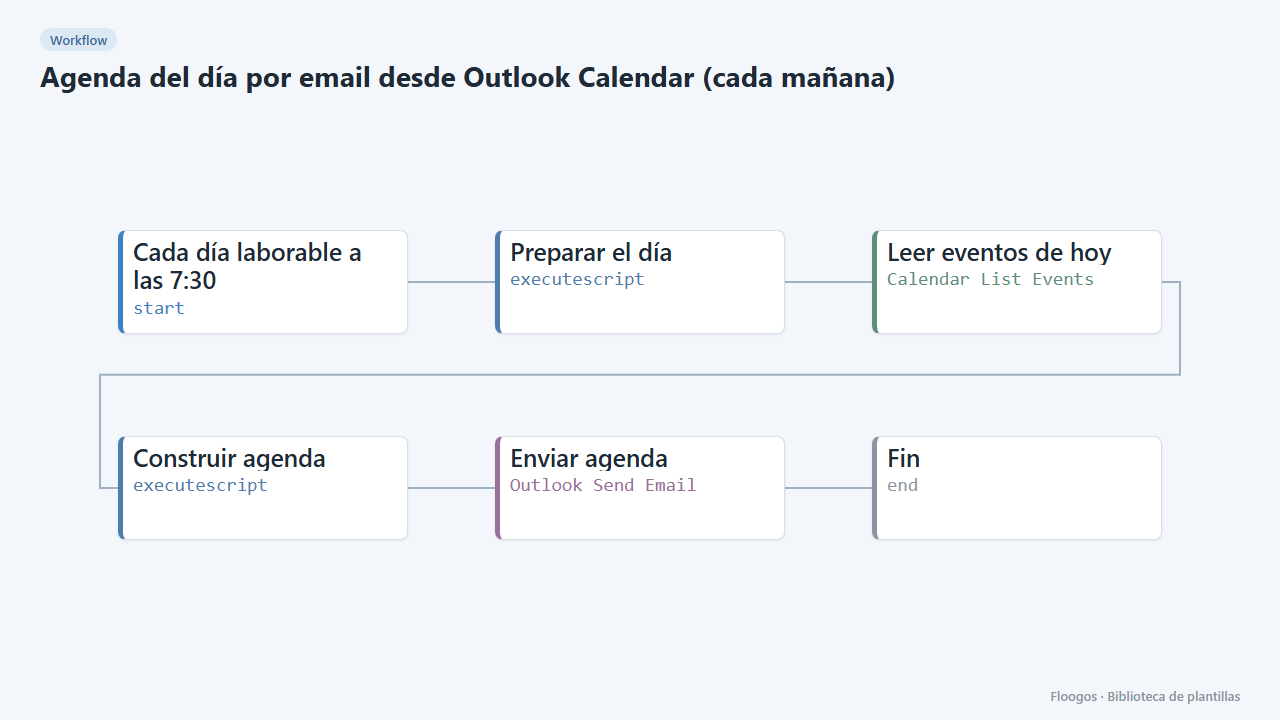
Daily agenda email from Outlook Calendar (every morning)
Every working day at 7:30 it emails you, via Outlook, a summary of today's meetings and events from your calendar.
Try it in under 5 minutes
Create the template in your account, connect your credentials and activate it when you are ready.
Use this template