
Daily weather report scraped from a website and sent by Telegram or email
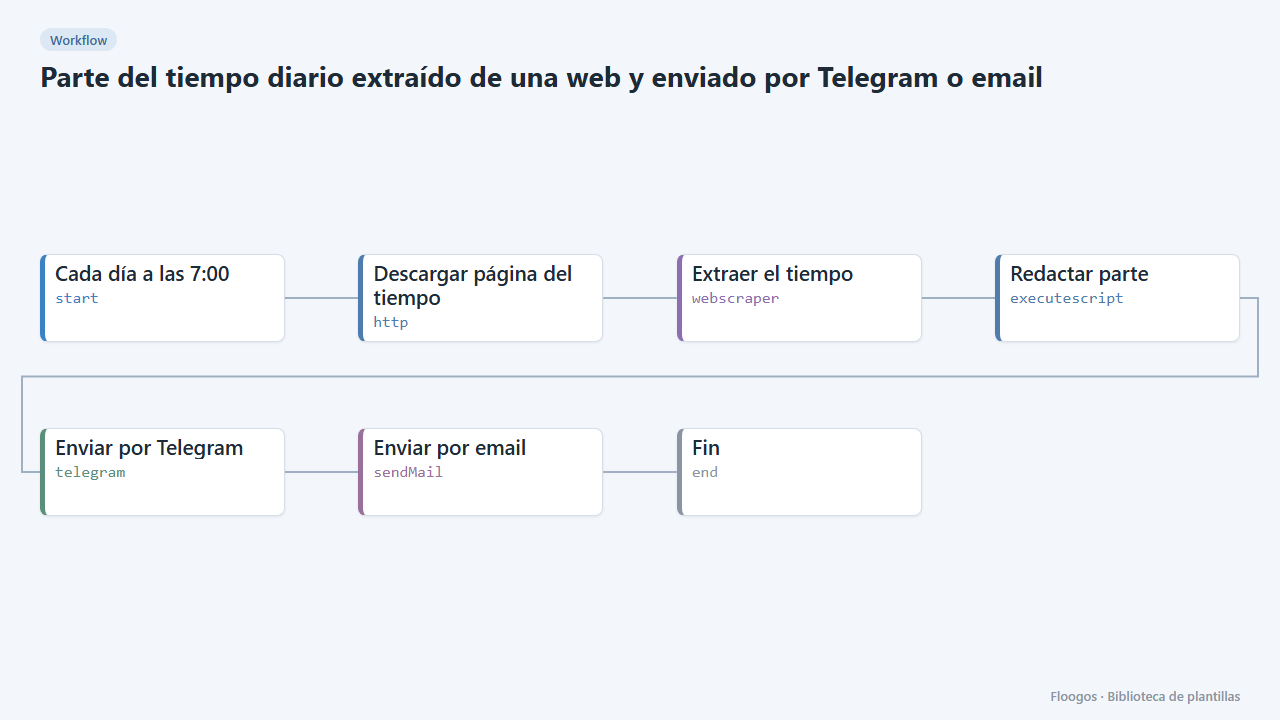
Every morning it reads your city weather from a web page and sends it to you by Telegram and email before the working day starts.
Everything is created inactive in a new folder of your account. Nothing runs until you activate it, and you can undo it for 24 hours.
What it does
A simple, useful alert for field teams, logistics, construction, hospitality or outdoor events. First thing in the morning (7:00 by default) the workflow downloads your town weather page, the Web Scraper node extracts the city, temperature, sky status and one extra figure (wind, rain chance...) and sends a short report by Telegram and by email. Keep the channel you prefer and delete the other node.
What you need: a Telegram bot and/or an SMTP account. The sample URL and selectors are only indicative: you must adapt them to the weather site you choose. If your provider offers an official API (AEMET, OpenWeather...), it is more stable than scraping a page.
Responsible use: check the site robots.txt and terms of use before using it and limit requests to one per day.
How to set it up
- 1
Connect the telegram credential
This template uses telegram in: Enviar por Telegram. Create or pick the credential and assign it in those nodes.
- 2
Connect the smtp credential
This template uses smtp in: Enviar por email. Create or pick the credential and assign it in those nodes.
- 3
Choose the weather page and selectors
In Descargar página del tiempo enter your town URL. In Extraer el tiempo adjust the CSS selectors of each field (city, temperature, status and extra) using Inspect in your browser. The sample selectors are generic and will almost surely need changes. If the site loads the weather with JavaScript, the node will not see it: pick another site or use its API.
- 4
Choose the channel
In Enviar por Telegram pick the bot credential (the destination chat is defined in the credential). In Enviar por email pick your SMTP and the recipient. If you only want one channel, delete the other node.
- 5
Test and schedule
Run the workflow by hand and check that the report arrives with correct data. Then enable the schedule on the first node (by default, every day at 7:00).
- 6
Activate the workflow
Workflows are installed inactive. Once everything is set, activate it.
Related templates
Other templates that use similar nodes or integrations.
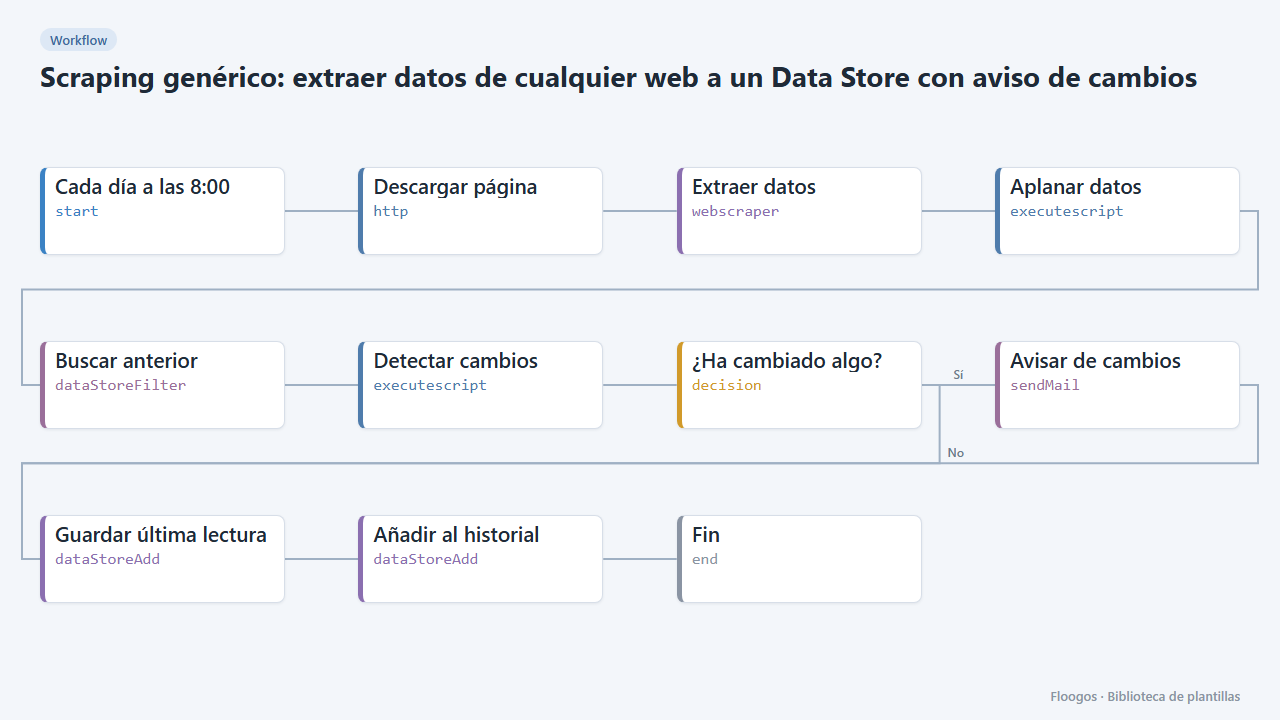
Generic scraping: extract data from any website into a Data Store with change alerts
Base template: you give a URL and the CSS selectors of what you want to extract, and the workflow stores each reading in a Data Store and alerts you if any value changes.
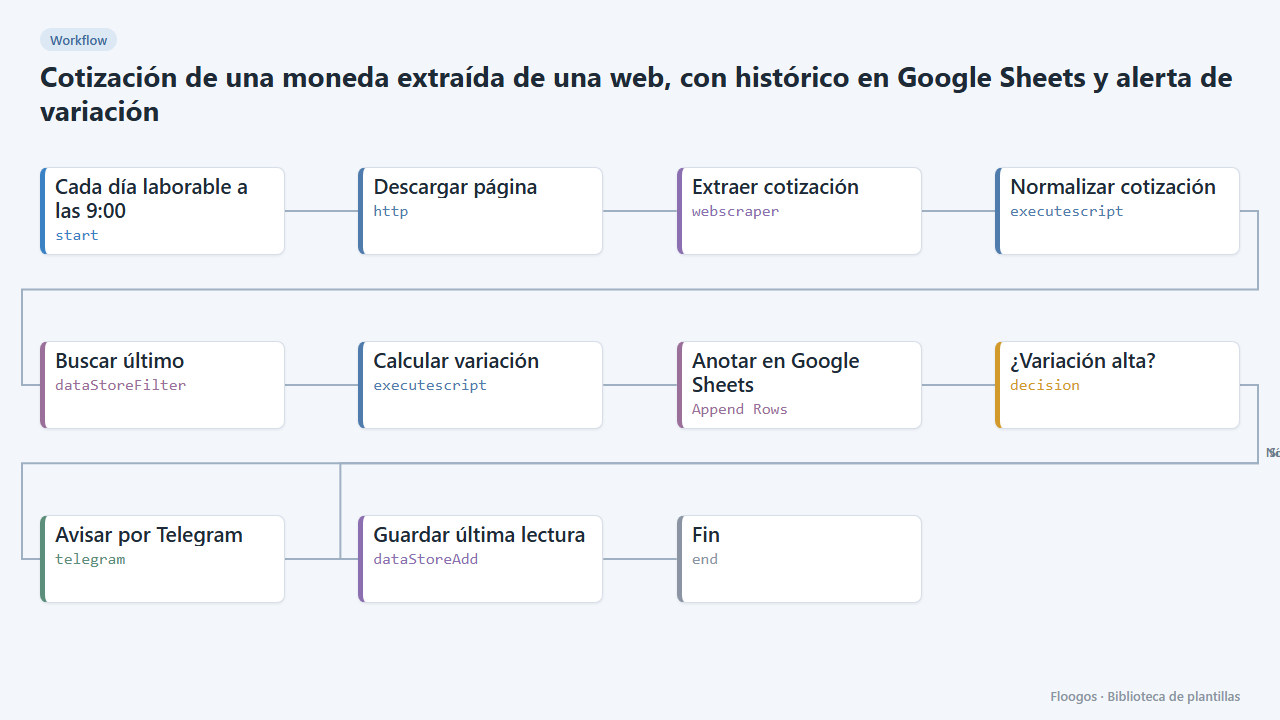
Currency rate scraped from a website, with Google Sheets history and variation alert
Reads the dollar, euro or any currency rate from a web page, logs it in Google Sheets every day and alerts you on Telegram when it moves more than a set percentage.
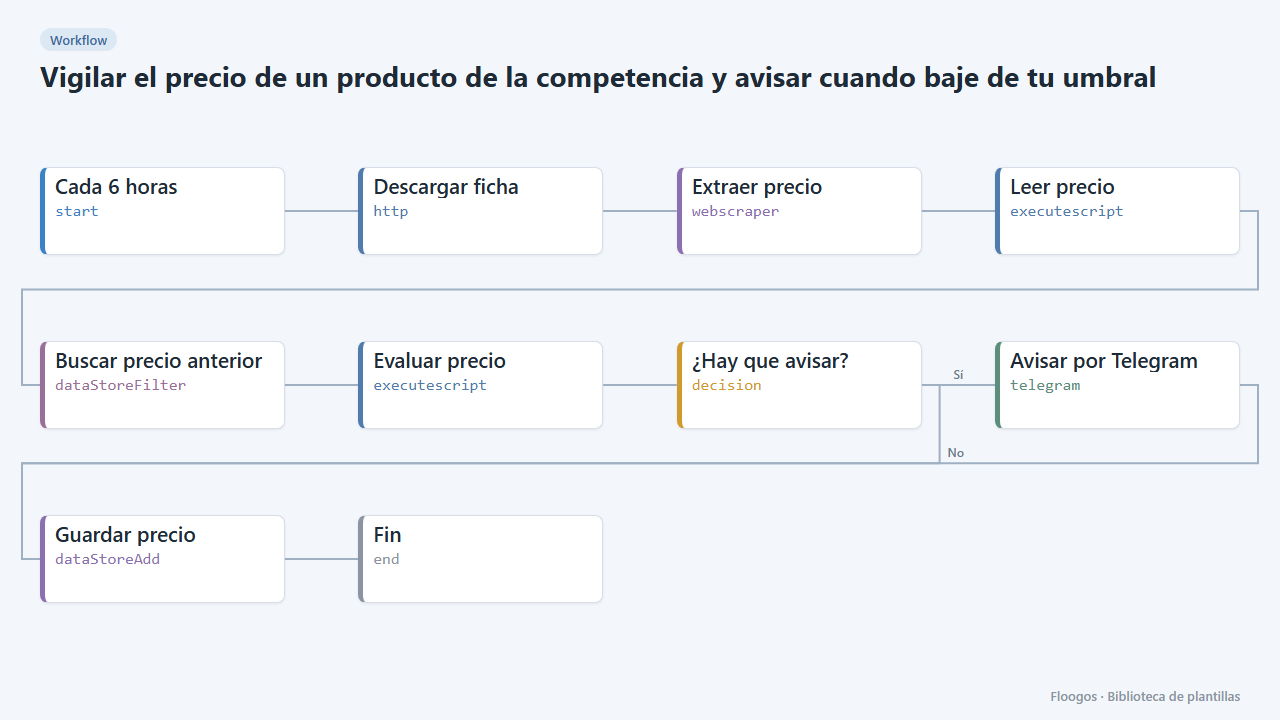
Watch a competitor product price and alert when it drops below your threshold
Checks a competitor product page every few hours, extracts its price and alerts you on Telegram when it falls below the figure you set.
Try it in under 5 minutes
Create the template in your account, connect your credentials and activate it when you are ready.
Use this template