
Generic scraping: extract data from any website into a Data Store with change alerts
Base template: you give a URL and the CSS selectors of what you want to extract, and the workflow stores each reading in a Data Store and alerts you if any value changes.
Everything is created inactive in a new folder of your account. Nothing runs until you activate it, and you can undo it for 24 hours.
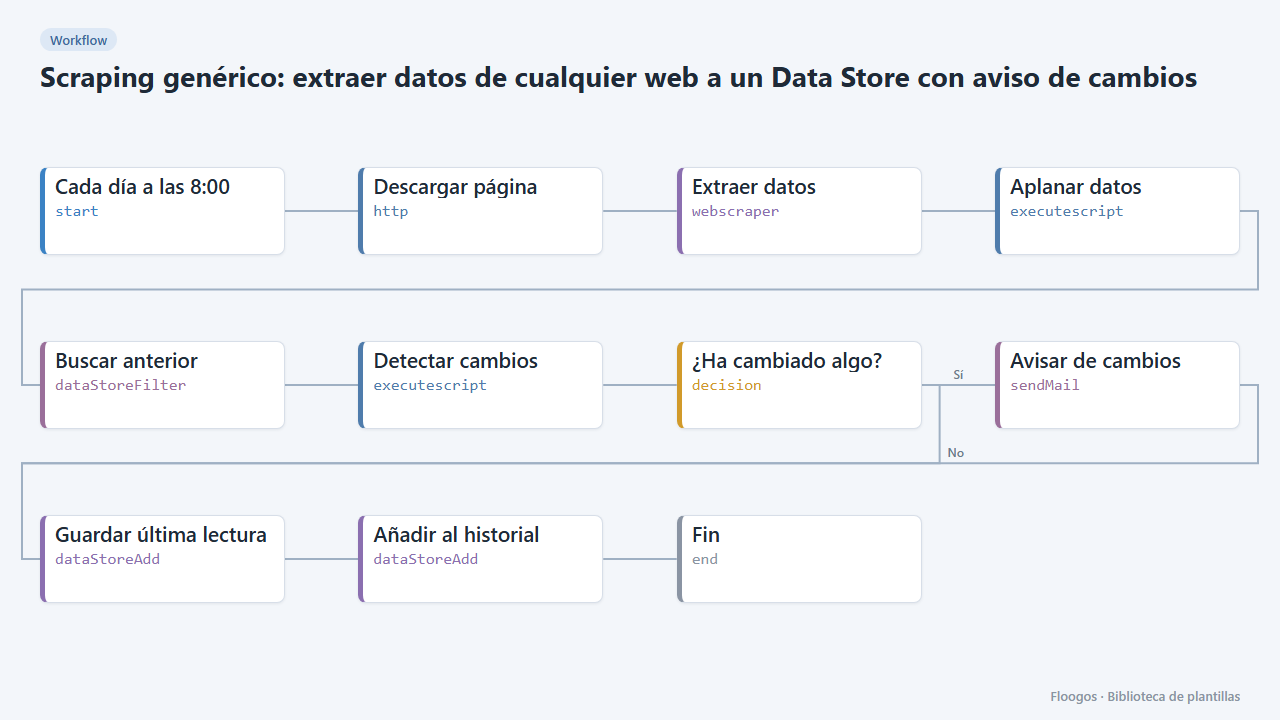
What it does
The starting point for any scraping case. Define the URL and the list of elements (CSS selectors with the name of each field) in the Extraer datos node; the workflow downloads the page, extracts the fields and stores two things: the last reading (to compare) and a history with one entry per run, viewable from the Data Store and from a dashboard. If any field differs from the previous reading, you get an email with the detail of what changed (before → after).
What is included: 1 scheduled workflow (every day at 8:00) and the scraping-ultimo and scraping-historial data groups.
What you need: an SMTP account and, above all, to know the page selectors. The sample extracts the title and a paragraph of a test website: you must replace it with your URL and selectors. The node reads the HTML as the server delivers it; it does not run JavaScript or log in, so it does not work for content painted in the browser.
Responsible use: respect the site robots.txt and terms of use, query as rarely as possible and do not extract personal data without a legal basis.
How to set it up
- 1
Connect the smtp credential
This template uses smtp in: Avisar de cambios. Create or pick the credential and assign it in those nodes.
- 2
Set the URL and selectors
In Descargar página set the URL. In Extraer datos edit the
elementslist: each element has aselector(CSS), aname(field name) and, optionally,subElementsfor lists (for example each table row).imgelements return theirsrcandalinks theirhref. To read ametatag use{"type":"meta","name":"description"}. Use Inspect in your browser to get the selectors. The sample ones (h1,p) are only a guide. - 3
Configure the change alert
In Avisar de cambios pick your SMTP and the recipient. On the first day the reading is only stored (nothing to compare with); from the second day, any difference triggers the email.
- 4
Test and schedule
Run the workflow by hand twice and check the
scraping-ultimoandscraping-historialgroups in the Data Store. Then enable the schedule on the first node (by default, every day at 8:00). - 5
Activate the workflow
Workflows are installed inactive. Once everything is set, activate it.
Related templates
Other templates that use similar nodes or integrations.
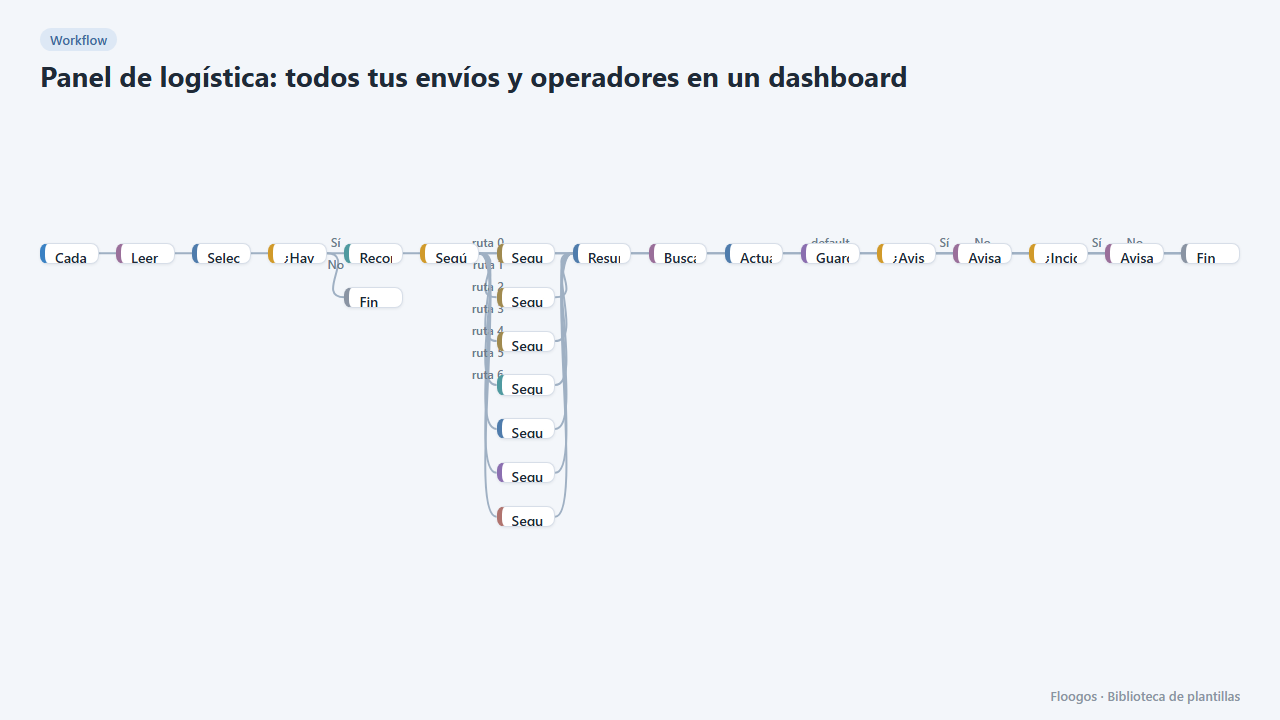
Logistics panel: all your shipments and carriers in one dashboard
Dashboard with KPIs, charts, filters and a side detail panel per shipment, fed by automatic tracking of DHL, FedEx, UPS, SEUR, Sendcloud, Shippo and EasyPost.
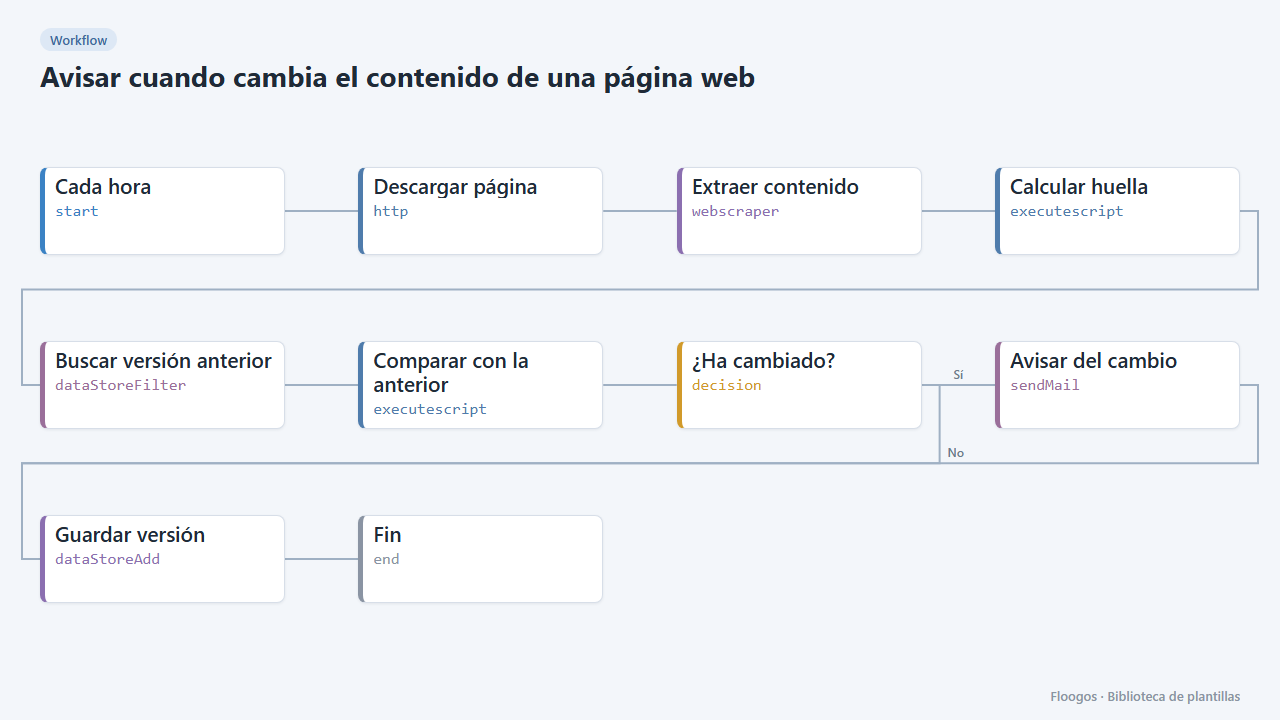
Get notified when a web page content changes
Checks a page every hour (prices, terms, calls for proposals, competitors) and emails you what changed as soon as it spots a difference.
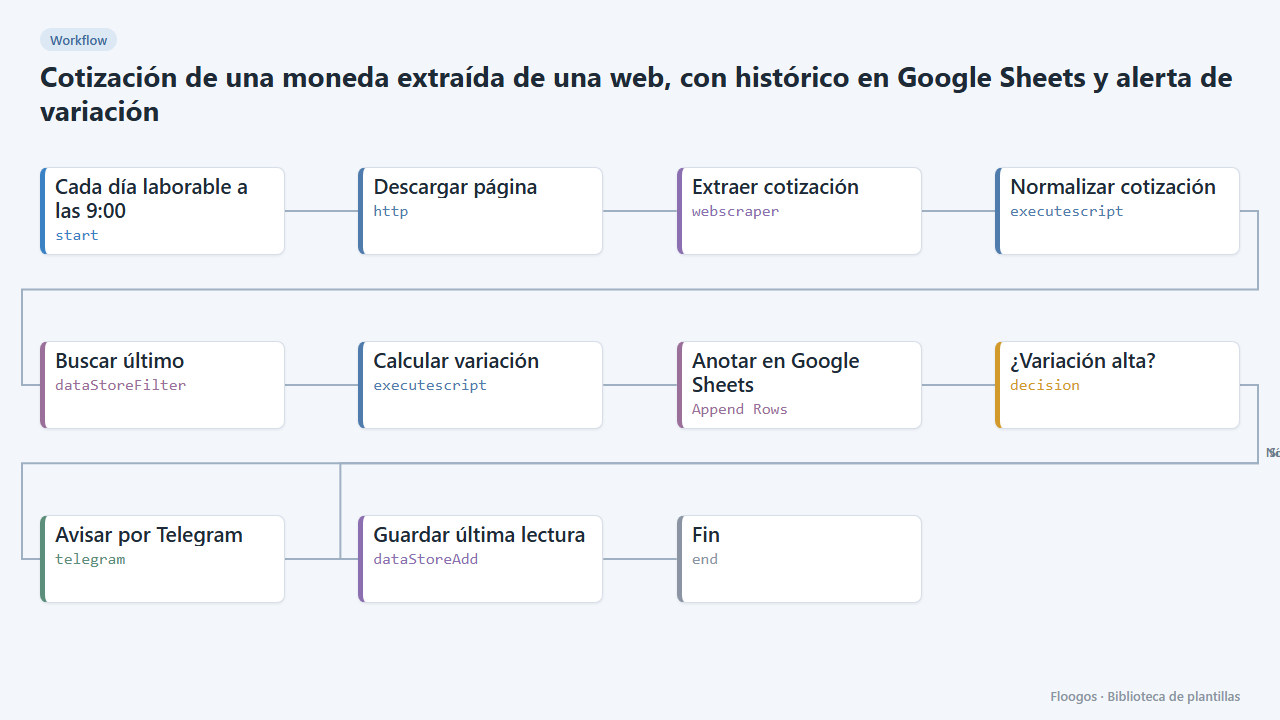
Currency rate scraped from a website, with Google Sheets history and variation alert
Reads the dollar, euro or any currency rate from a web page, logs it in Google Sheets every day and alerts you on Telegram when it moves more than a set percentage.
Try it in under 5 minutes
Create the template in your account, connect your credentials and activate it when you are ready.
Use this template