
Time-off requests with approval and dashboard
A form to request vacation or time off, an alert to the manager and a dashboard to approve or reject each request in one click.
Everything is created inactive in a new folder of your account. Nothing runs until you activate it, and you can undo it for 24 hours.
What it does
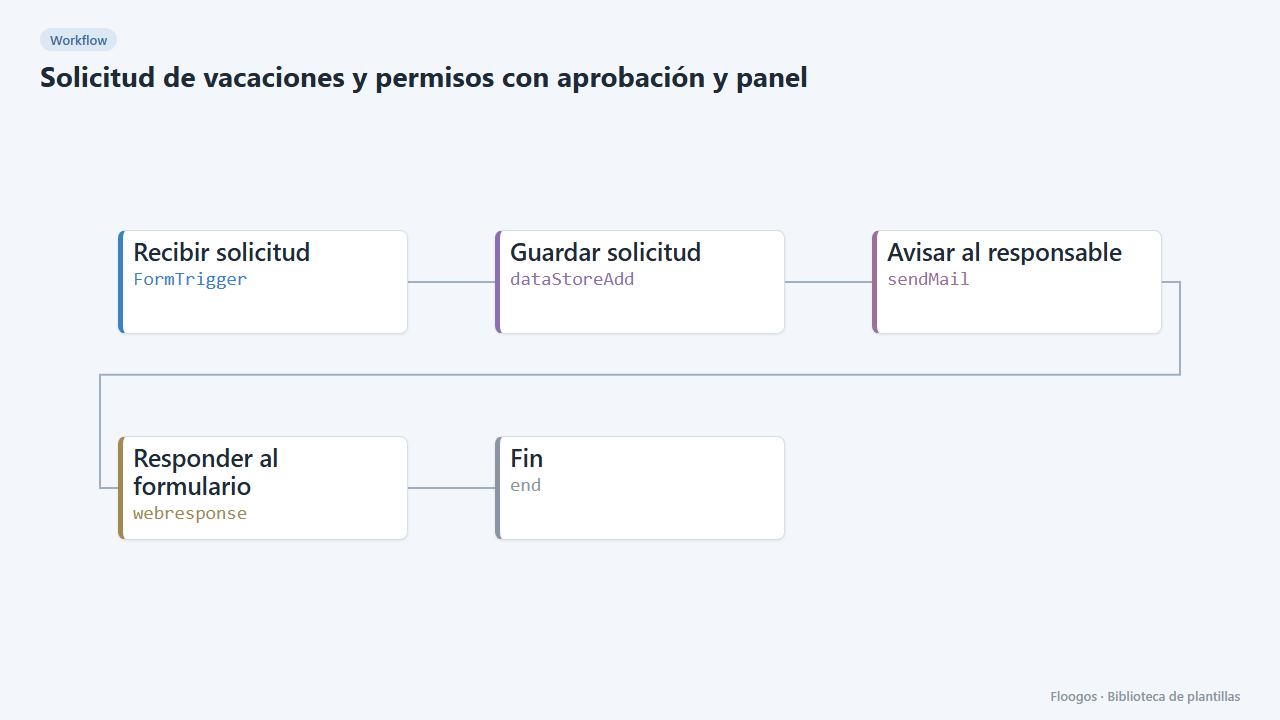
Replace emails and absence spreadsheets. The employee fills in the request form with the type (vacation, leave or personal day), the dates and the reason; the request is saved as pending and the manager gets an email. The absence dashboard shows totals, the breakdown by status and type, and the request list; clicking a row opens the decision form, where it is approved or rejected with a comment. The employee receives an email with the outcome and the dashboard is updated.
What is included: 2 forms, 2 workflows, 1 dashboard and the solicitudes_vacaciones data group.
What you need: an SMTP account and the HR manager email.
How to use it: install the template, connect SMTP, set the manager email, share the request form link and manage requests from the dashboard.
How to set it up
- 1
Connect the smtp credential
This template uses smtp in: Avisar al responsable, Avisar al empleado. Create or pick the credential and assign it in those nodes.
- 2
Copy the webhook URL (Recibir solicitud)
A new URL is generated on install. Paste it into the external system that must call this workflow.
- 3
Copy the webhook URL (Recibir decisión)
A new URL is generated on install. Paste it into the external system that must call this workflow.
- 4
Publish and test the form "Solicitud de ausencia"
Open it, publish it and submit a test entry to check the workflow starts.
- 5
Publish and test the form "Decisión sobre ausencia"
Open it, publish it and submit a test entry to check the workflow starts.
- 6
Open the dashboard "Ausencias"
Check that the test data shows up.
- 7
Set who approves
In the Solicitud de ausencia workflow, Avisar al responsable node, replace
rrhh@tuempresa.comwith the approver email. - 8
Test the full flow
Open the Solicitud de ausencia form and submit a test request. In the Ausencias dashboard click the new row (status pendiente) and approve or reject: when you close the drawer the status changes by itself.
- 9
Activate the workflow
Workflows are installed inactive. Once everything is set, activate it.
Related templates
Other templates that use similar nodes or integrations.
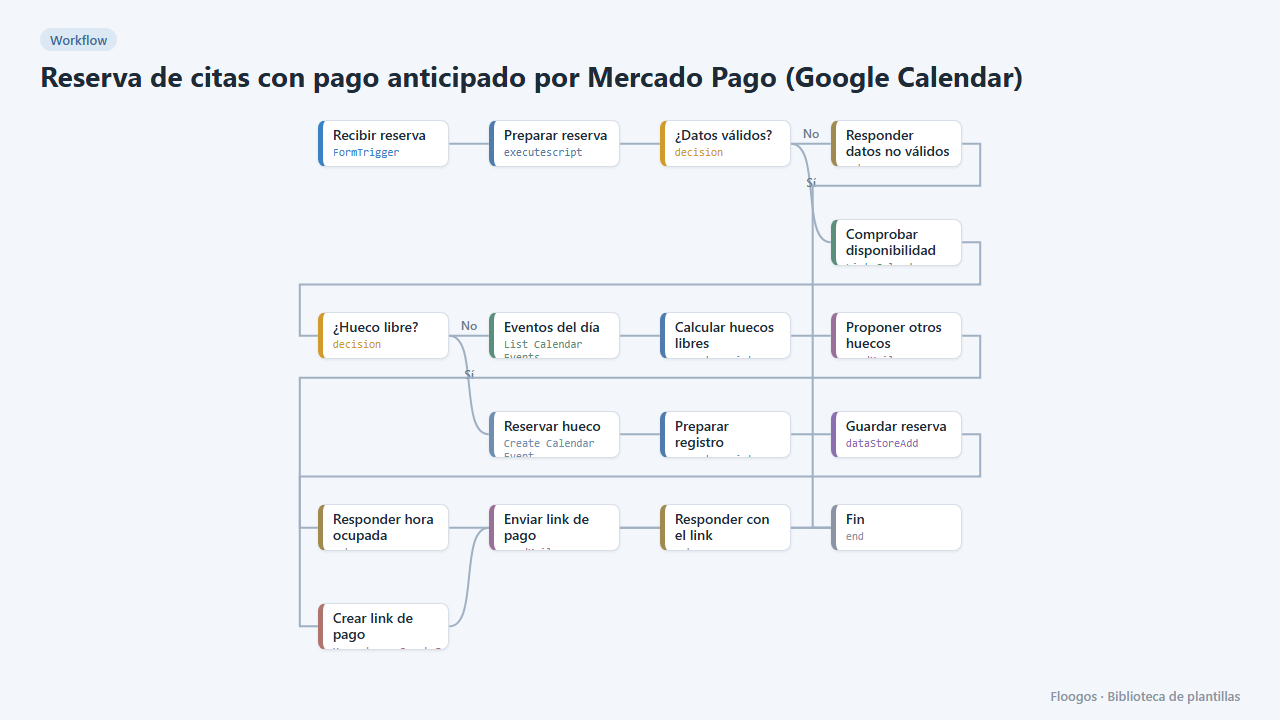
Appointment booking with upfront Mercado Pago payment (Google Calendar)
The customer books, gets a Mercado Pago payment link and the appointment is only confirmed in your Google Calendar once the payment is approved; if they do not pay, the slot is released automatically.
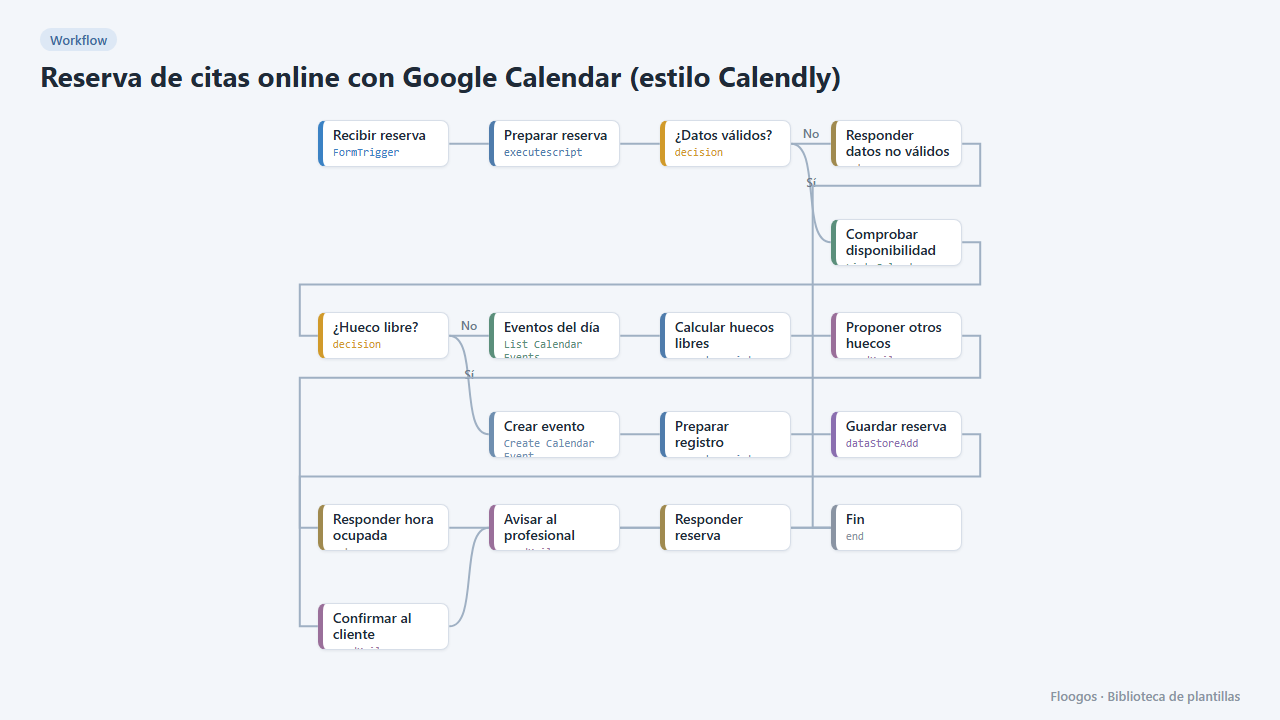
Online appointment booking with Google Calendar (Calendly-style)
A public form for your customers to book an appointment: it checks your Google Calendar, creates the event, confirms by email and, if the slot is taken, suggests the free slots of that day.
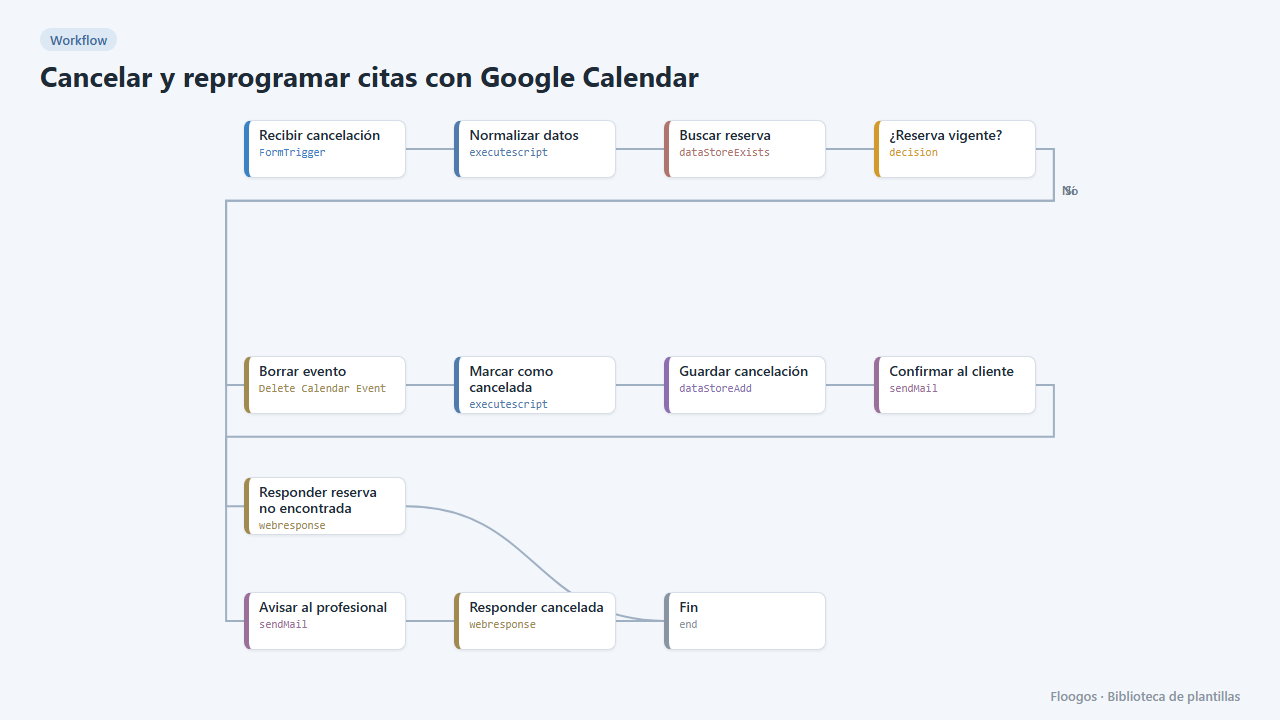
Cancel and reschedule appointments with Google Calendar
Two public forms for your customers to cancel or change their appointment with their booking code: the Google Calendar event is deleted or moved and everyone gets notified.
Try it in under 5 minutes
Create the template in your account, connect your credentials and activate it when you are ready.
Use this template