
Support chat with an AI agent that opens tickets and summarises the urgent ones daily
The agent tries to solve technical questions in the chat and, if it cannot, opens a ticket with its urgency; every morning you get the sorted list.
Everything is created inactive in a new folder of your account. Nothing runs until you activate it, and you can undo it for 24 hours.
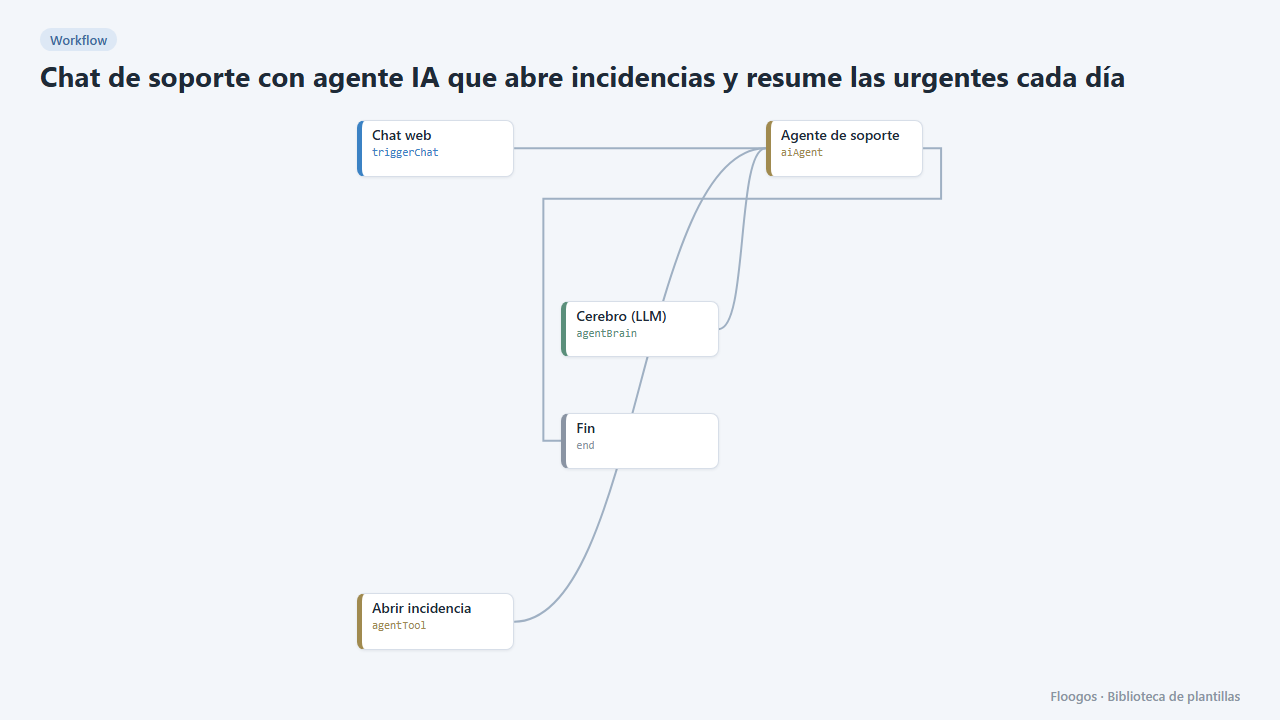
What it does
A first line of support that never sleeps. The AI agent talks to the customer, guides them with simple steps and, if the problem persists, opens a ticket storing name, email, summary and urgency (low, medium, high or critical) in a Data Store (incidencias_chat). A second workflow runs every morning, gathers the tickets of the last 24 hours, sorts them from most to least urgent and emails them with the count per level. If there were none, you receive nothing.
What you need: an AI credential for the Brain and a mail account (SMTP) for the summary.
How to use it: install the template, connect the brain and the email, adapt the agent instructions to your product and enable the schedule. The chat stores the ticket but does not fire other workflows, so the alert arrives in the daily summary; if you need an instant alert for critical ones, add a Data Store trigger on incidencias_chat with a Slack or Telegram alert.
How to set it up
- 1
Connect the openai credential
This template uses openai in: Cerebro (LLM). Create or pick the credential and assign it in those nodes.
- 2
Connect the smtp credential
This template uses smtp in: Enviar resumen. Create or pick the credential and assign it in those nodes.
- 3
Connect the brain
In the Chat de soporte workflow choose provider, model and credential in the Cerebro (LLM) node.
- 4
Teach it your product
In the Agente de soporte node, add to the
system_promptthe most common problems of your product and their fixes; the more real data, the fewer unnecessary tickets. - 5
Set up the summary
In Resumen diario de incidencias connect your SMTP, change the recipient of the Enviar resumen node and enable the schedule (by default, every day at 8:00).
- 6
Test
Open the chat, describe a problem that cannot be solved and give a name and email. The ticket appears in
incidencias_chat; run the summary manually to see the email. - 7
Activate the workflow
Workflows are installed inactive. Once everything is set, activate it.
Related templates
Other templates that use similar nodes or integrations.
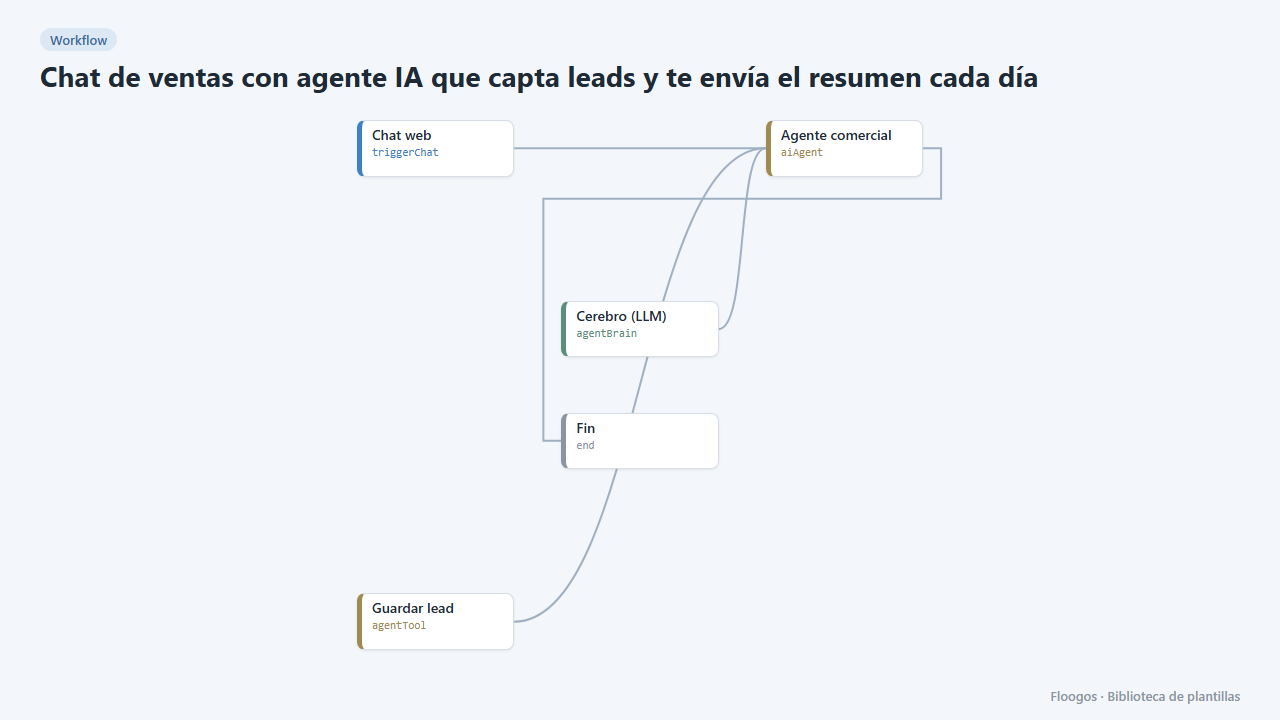
Sales chat with an AI agent that captures leads and emails you a daily summary
A website chat that talks to visitors, collects their contact details and emails you the new leads every morning.
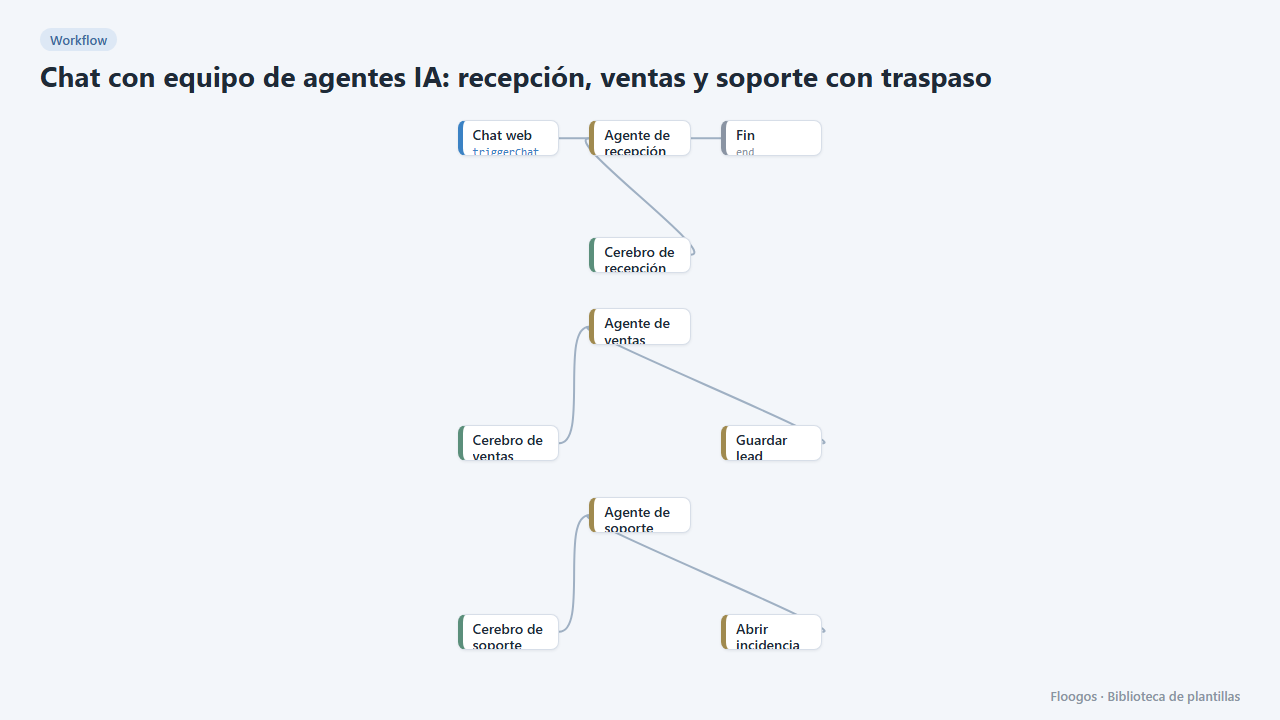
AI agent team chat: reception, sales and support with handoff
A single website chat served by several specialist agents that hand the conversation over depending on the topic, like a human team.
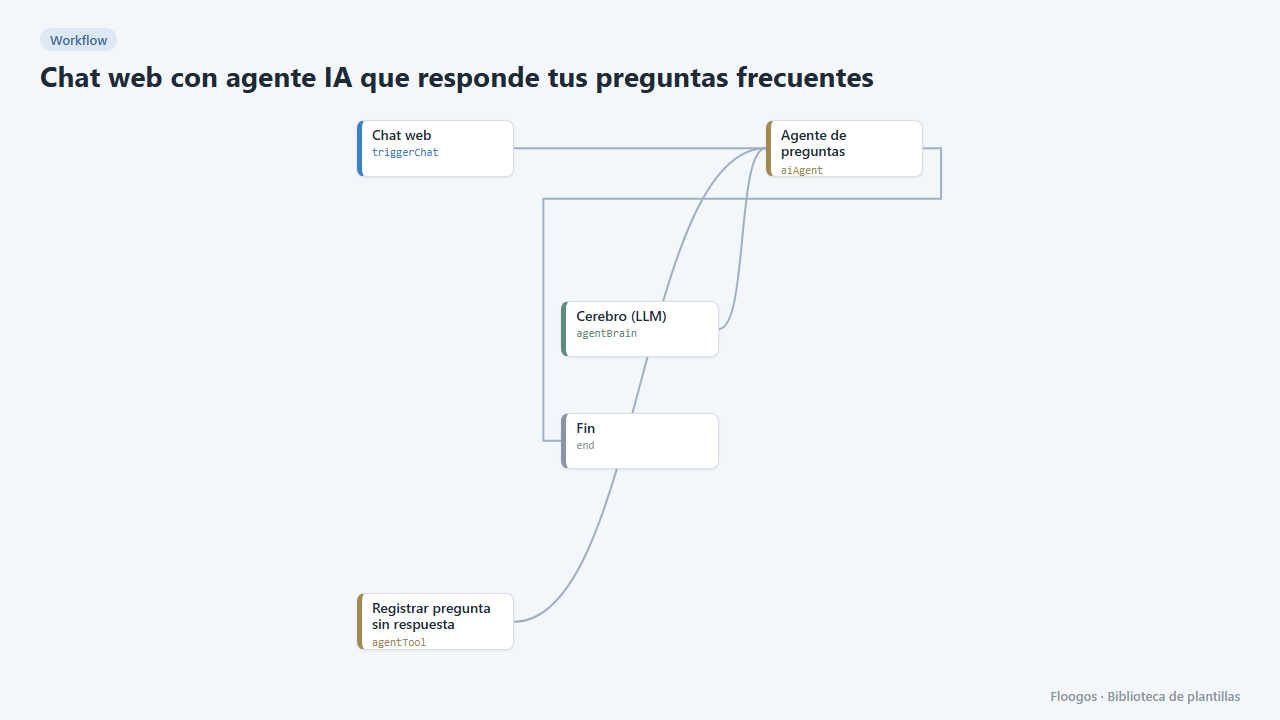
Web chat with an AI agent that answers your FAQ
A public chat for your website that answers common questions with AI and logs the ones it cannot answer.
Try it in under 5 minutes
Create the template in your account, connect your credentials and activate it when you are ready.
Use this template