
Daily email alert for low-stock products in Finnegans
Every morning it checks Finnegans products and emails purchasing the ones at or below their minimum stock, most urgent first.
Everything is created inactive in a new folder of your account. Nothing runs until you activate it, and you can undo it for 24 hours.
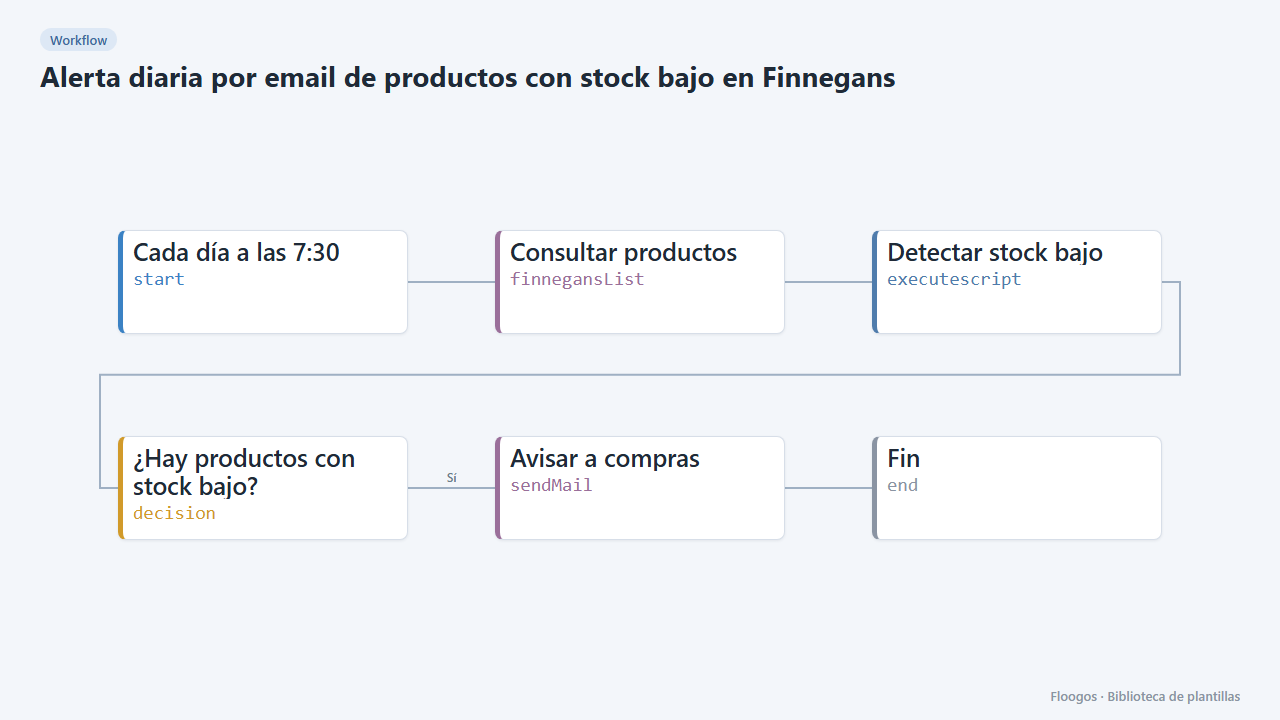
What it does
The workflow queries Finnegans' product entity (Producto by default), compares each product's stock with its minimum stock (or a default minimum of 5 units when the product does not report one) and, if any is below, sends an email with a table sorted from most to least urgent. If everything is fine, it sends nothing.
The email also states how many products do not report stock in that entity, so you know whether the alert is reliable.
What you need: a Finnegans credential and a mail account (SMTP).
Important: stock is not always exposed on the product entity; some instances have a separate stock entity. The Finnegans API is configurable per instance, so the entity name and fields are not confirmed: run the “Consultar productos” node first, look at what it returns and adjust the “AJUSTA” block of the script (field aliases and default minimum) or the entity name.
How to set it up
- 1
Connect the finnegansList credential
This template uses finnegansList in: Consultar productos. Create or pick the credential and assign it in those nodes.
- 2
Connect the smtp credential
This template uses smtp in: Avisar a compras. Create or pick the credential and assign it in those nodes.
- 3
See what your instance returns
Pick your credential in Consultar productos and run just that node. Check the entity exists and which field holds the stock.
- 4
Adjust the script
In Detectar stock bajo add your real code, name, stock and minimum field names to
ALIAS, and changeMINIMO_POR_DEFECTOif needed. - 5
Set up the email
In Avisar a compras pick your mail account and change the recipient
compras@tuempresa.com. - 6
Activate the workflow
Workflows are installed inactive. Once everything is set, activate it.
Related templates
Other templates that use similar nodes or integrations.
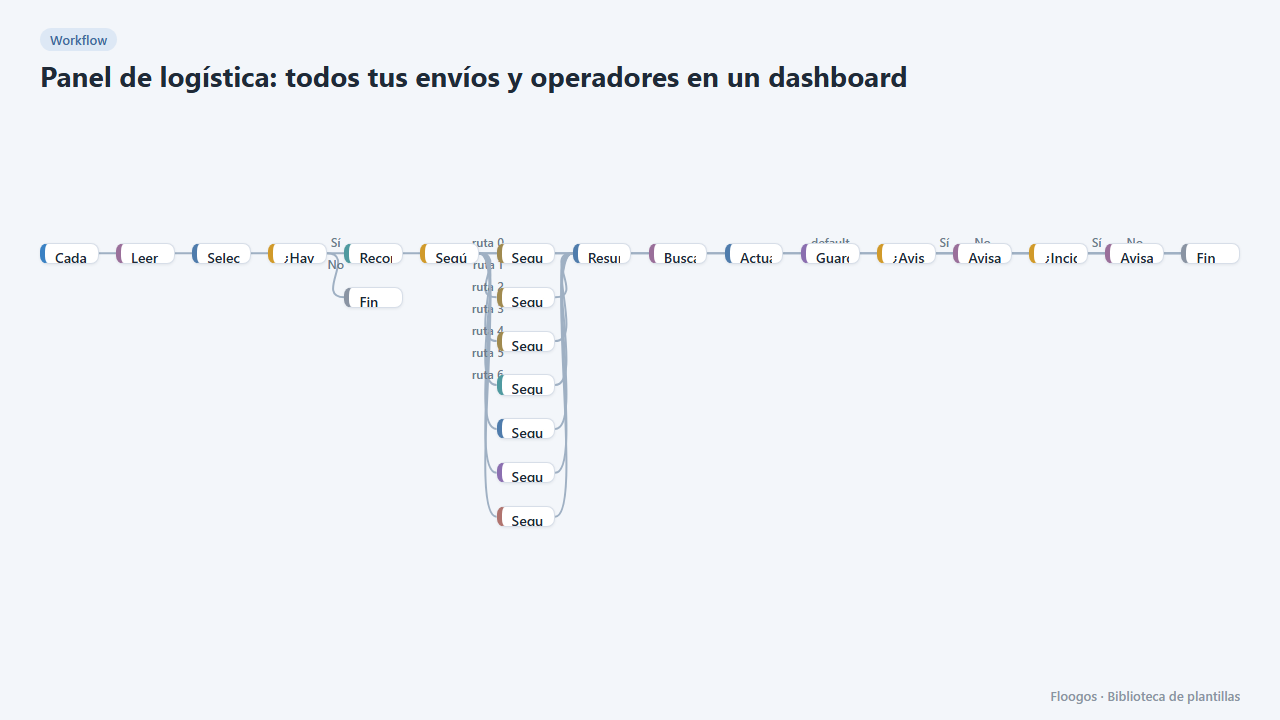
Logistics panel: all your shipments and carriers in one dashboard
Dashboard with KPIs, charts, filters and a side detail panel per shipment, fed by automatic tracking of DHL, FedEx, UPS, SEUR, Sendcloud, Shippo and EasyPost.
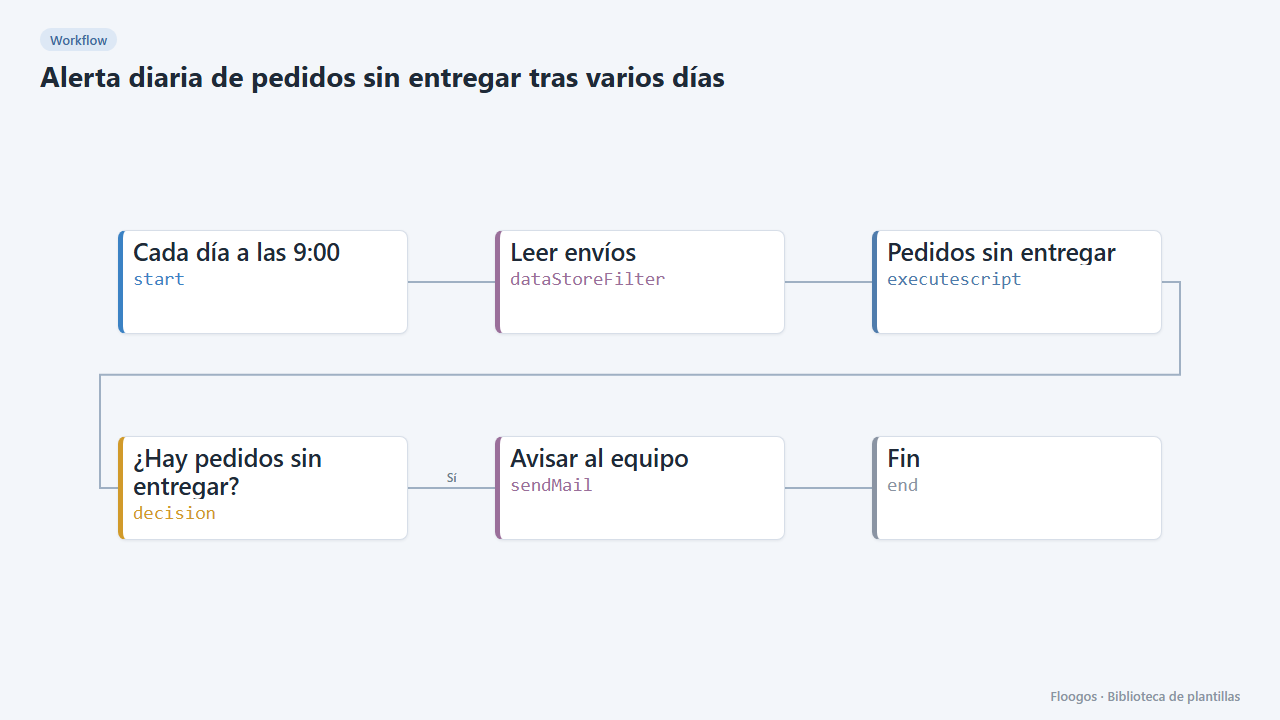
Daily alert for orders not delivered after several days
Every morning it checks the shipments Data Store and emails your team a table of orders still undelivered after more than 4 days.
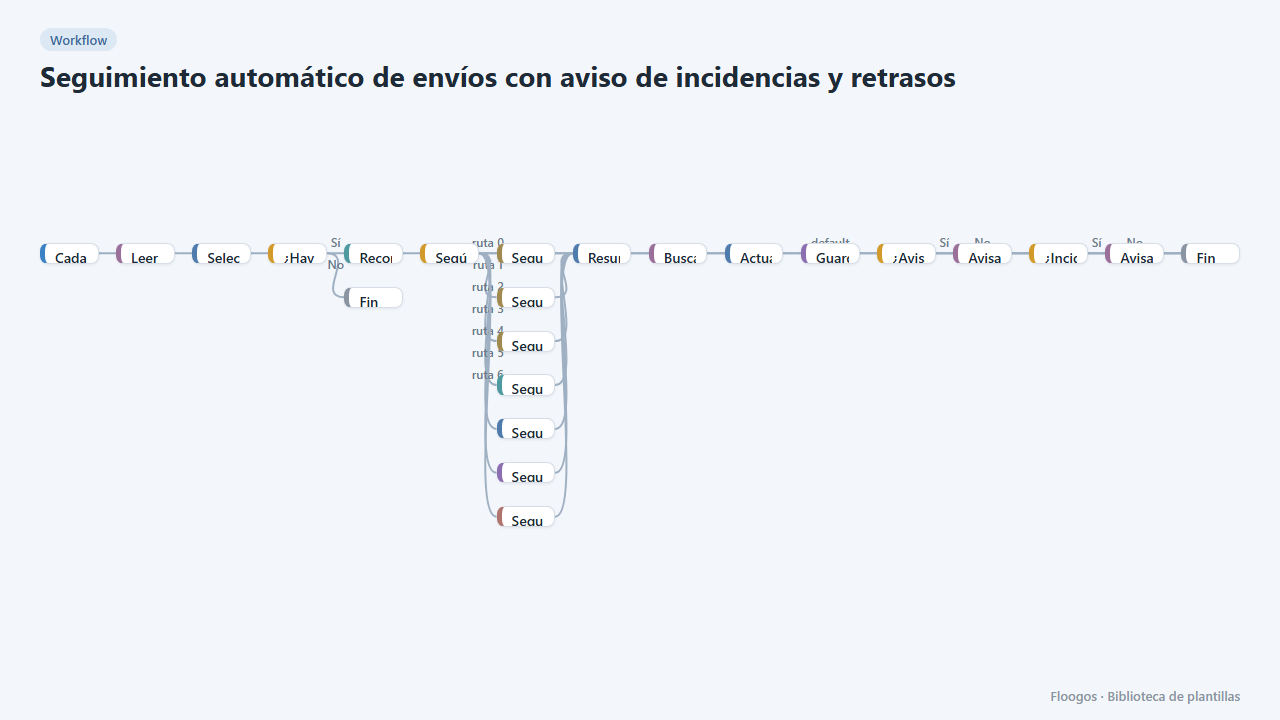
Automatic shipment tracking with incident and delay alerts
Every 3 hours it queries the status of in-flight shipments in DHL, FedEx, UPS, SEUR, Sendcloud, Shippo or EasyPost and notifies the customer and your team.
Try it in under 5 minutes
Create the template in your account, connect your credentials and activate it when you are ready.
Use this template