
Customer creation: from HubSpot to Holded
When a contact becomes a customer in HubSpot, it reads their data and creates them as a customer in Holded automatically.
Everything is created inactive in a new folder of your account. Nothing runs until you activate it, and you can undo it for 24 hours.
What it does
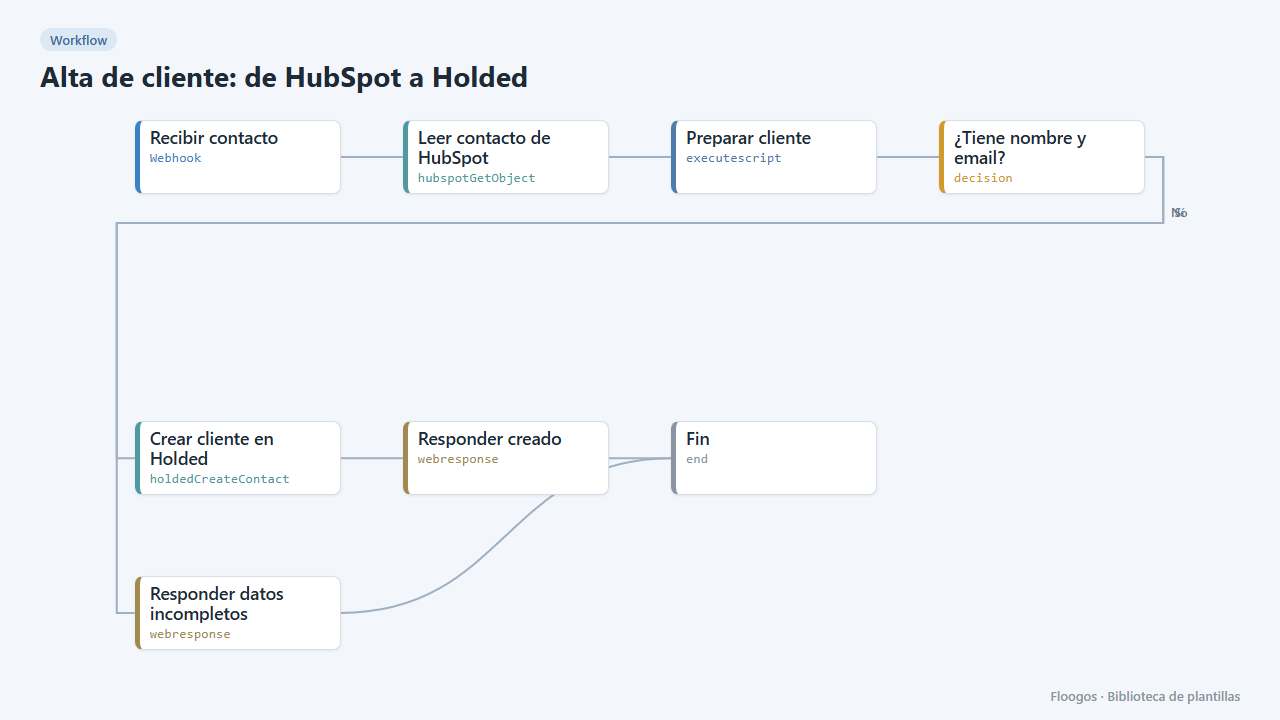
Stop copying data by hand between your CRM and your ERP. The workflow receives a HubSpot contact ID through a webhook, reads their record (name, company, email and phone) and creates the customer in Holded. If the name or the email is missing it answers with an error instead of creating an incomplete customer.
What you need: a HubSpot private app token with contact read access and the Holded API key.
How to use it: install the template, connect HubSpot and Holded and make HubSpot call the webhook URL with {"contact_id":"12345"} (for example from a HubSpot workflow triggered when the lifecycle stage becomes "Customer").
Note: the template does not check whether the customer already exists in Holded; if you need that, add a search by email first with the Holded: List contacts node.
How to set it up
- 1
Connect the hubspot credential
This template uses hubspot in: Leer contacto de HubSpot. Create or pick the credential and assign it in those nodes.
- 2
Connect the holded credential
This template uses holded in: Crear cliente en Holded. Create or pick the credential and assign it in those nodes.
- 3
Copy the webhook URL (Recibir contacto)
A new URL is generated on install. Paste it into the external system that must call this workflow.
- 4
Connect HubSpot and Holded
Set up the Leer contacto de HubSpot node with your HubSpot token and the Crear cliente en Holded node with your Holded API key.
- 5
Test with a real contact
Send a
POSTto the webhook URL with{"contact_id":"<ID of a HubSpot contact>"}. The customer should appear in Holded and the response includes itsholded_id. - 6
Activate the workflow
Workflows are installed inactive. Once everything is set, activate it.
Related templates
Other templates that use similar nodes or integrations.
Supplier PDF invoice to a Holded purchase with validation
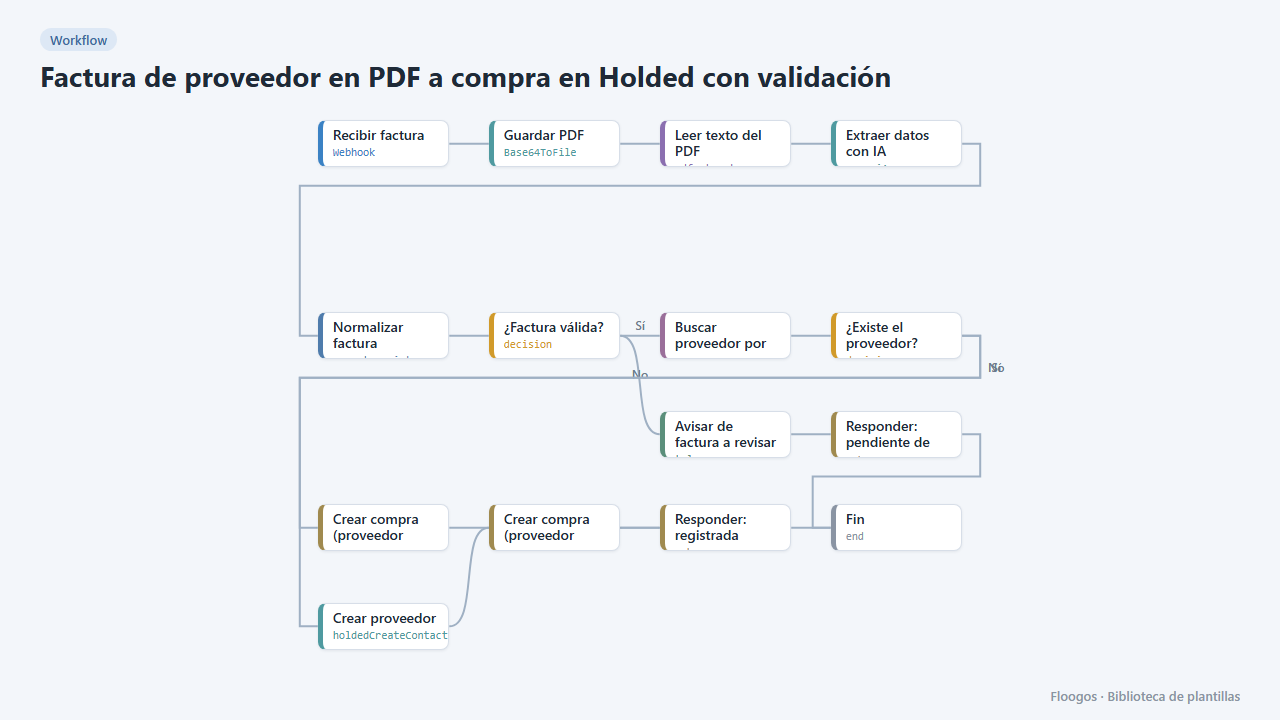
AI reads the PDF invoice, validates amounts and required fields, finds or creates the supplier in Holded and records the purchase; if anything fails it alerts you on Telegram.
Create Odoo customers from your website with a welcome email
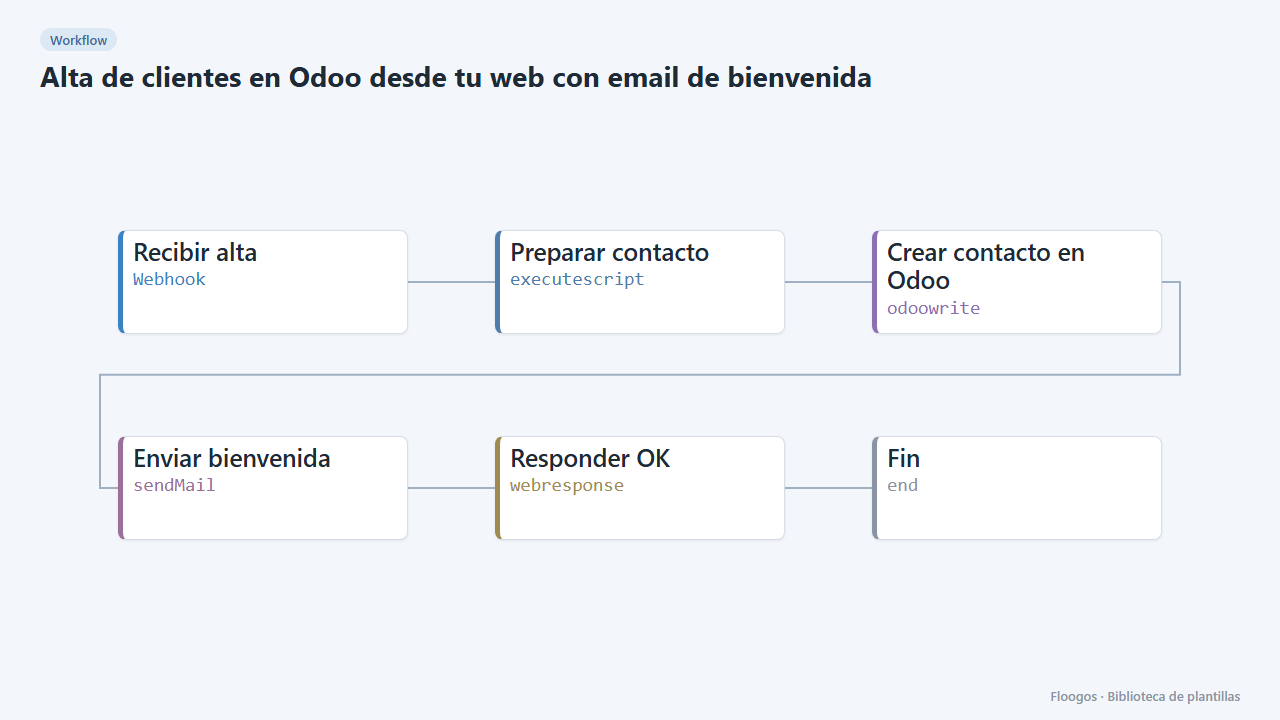
When someone signs up on your website it creates the contact in Odoo and sends them a welcome email.
Create each new Shopify customer in Holded
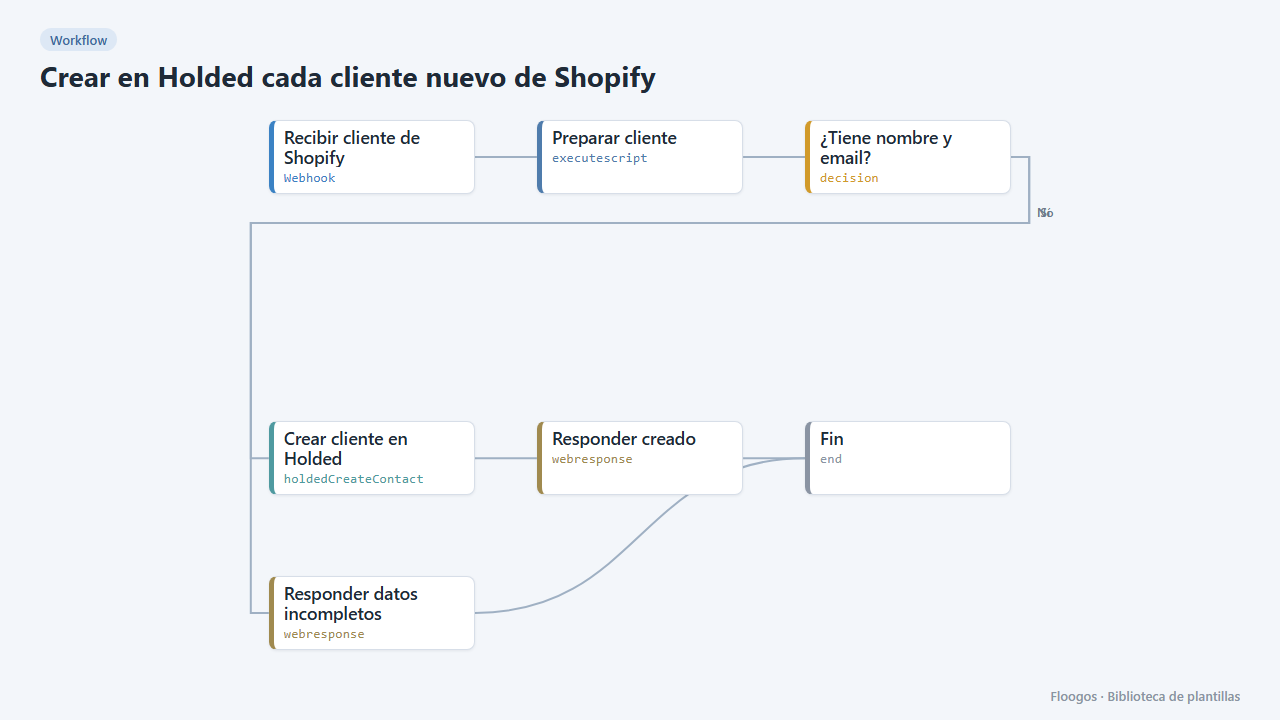
When a customer signs up in Shopify, it automatically creates them as a client contact in Holded, ready to be invoiced.
Try it in under 5 minutes
Create the template in your account, connect your credentials and activate it when you are ready.
Use this template