
Weekly SSL and domain audit with email report and expiry alert
Every Monday it checks the domain list in your Google Sheets, verifies SSL certificate and domain expiry, and emails you a report with alerts if anything expires in under 30 days.
Everything is created inactive in a new folder of your account. Nothing runs until you activate it, and you can undo it for 24 hours.
What it does
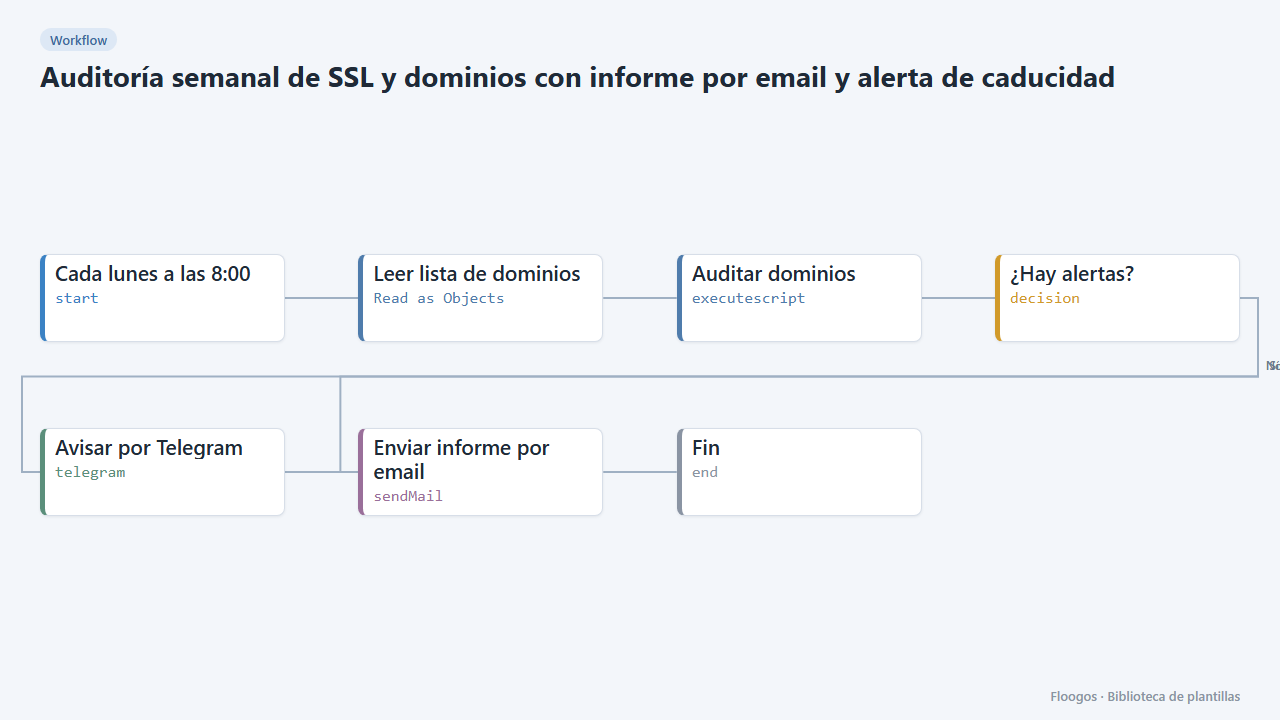
Make sure no certificate or domain expires by surprise. Keep the list of your company or client domains in a Google Sheets spreadsheet (one column named dominio). Every Monday at 8:00 the workflow reads it and, for each domain, checks: the SSL certificate expiry date (and whether it is trusted), the issuer and the domain expiry date (via RDAP). It builds a table sorted with problems first, emails it and, if anything expires in under 30 days or a certificate is broken, also sends a Telegram alert.
What is included: 1 scheduled workflow (Monday 8:00). All checks run in a single script, so you do not need a node per domain.
What you need: a Google Sheets spreadsheet with the domains, an SMTP account and, optionally, a Telegram bot.
Limitations: domain expiry comes from RDAP; not every extension publishes it (for example .es does not) and then it shows no data. The SSL check targets port 443 of the listed domain, not the www subdomain unless you list it. To watch the availability of a single site every few minutes, use the uptime and SSL monitor template.
How to set it up
- 1
Connect the google credential
This template uses google in: Leer lista de dominios. Create or pick the credential and assign it in those nodes.
- 2
Connect the telegram credential
This template uses telegram in: Avisar por Telegram. Create or pick the credential and assign it in those nodes.
- 3
Connect the smtp credential
This template uses smtp in: Enviar informe por email. Create or pick the credential and assign it in those nodes.
- 4
Prepare the domains sheet
Create a Google Sheets spreadsheet with a
Dominiostab and, in row 1, the headerdominio. Write one domain per row below it, withouthttps://(for examplemycompany.com). In the Leer lista de dominios node pick your Google connection and paste the spreadsheet ID. - 5
Adjust the warning threshold
In the Auditar dominios script change
AVISAR_DIAS(30 by default) to the number of days notice you want. The ¿Hay alertas? decision sends the Telegram alert when at least one domain has problems. - 6
Connect mail and Telegram
In Enviar informe por email pick your SMTP and the recipients. In Avisar por Telegram pick the bot credential (the destination chat is defined in the credential) or delete the node if you do not use it.
- 7
Test and schedule
Run the workflow by hand with 2 or 3 domains and review the report. Then enable the schedule on the first node (by default, Mondays at 8:00).
- 8
Activate the workflow
Workflows are installed inactive. Once everything is set, activate it.
Related templates
Other templates that use similar nodes or integrations.
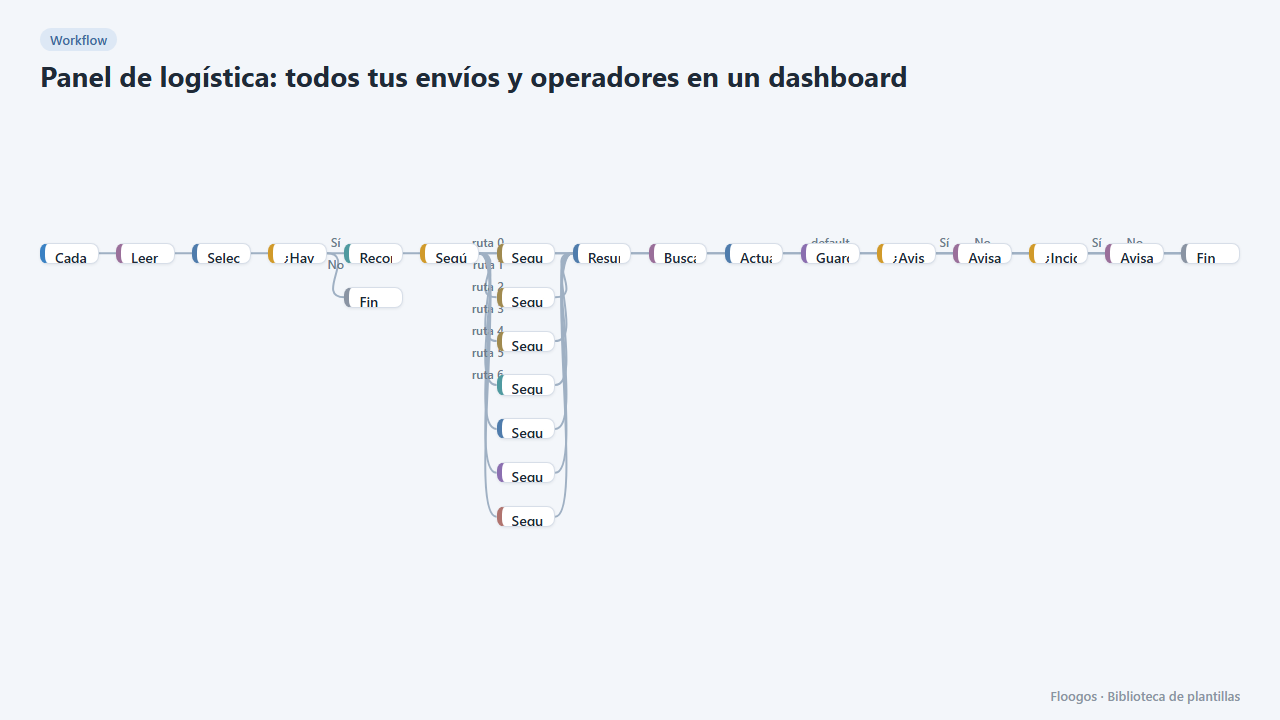
Logistics panel: all your shipments and carriers in one dashboard
Dashboard with KPIs, charts, filters and a side detail panel per shipment, fed by automatic tracking of DHL, FedEx, UPS, SEUR, Sendcloud, Shippo and EasyPost.
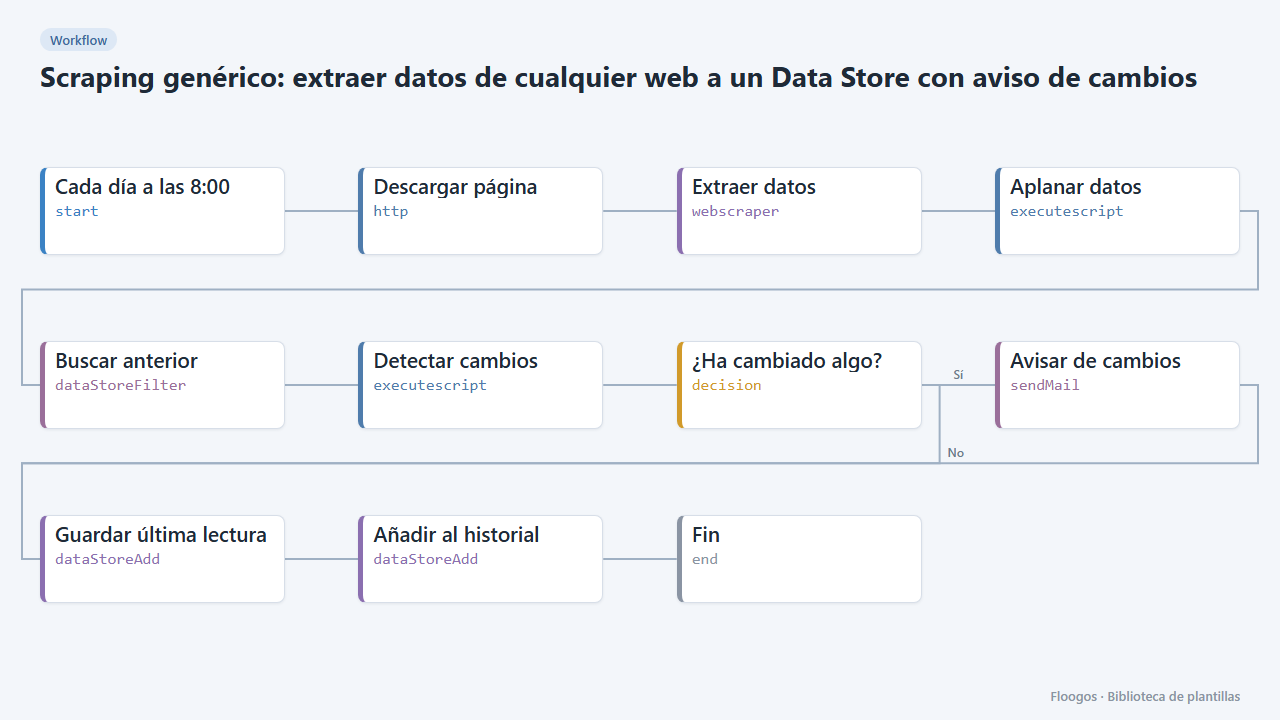
Generic scraping: extract data from any website into a Data Store with change alerts
Base template: you give a URL and the CSS selectors of what you want to extract, and the workflow stores each reading in a Data Store and alerts you if any value changes.
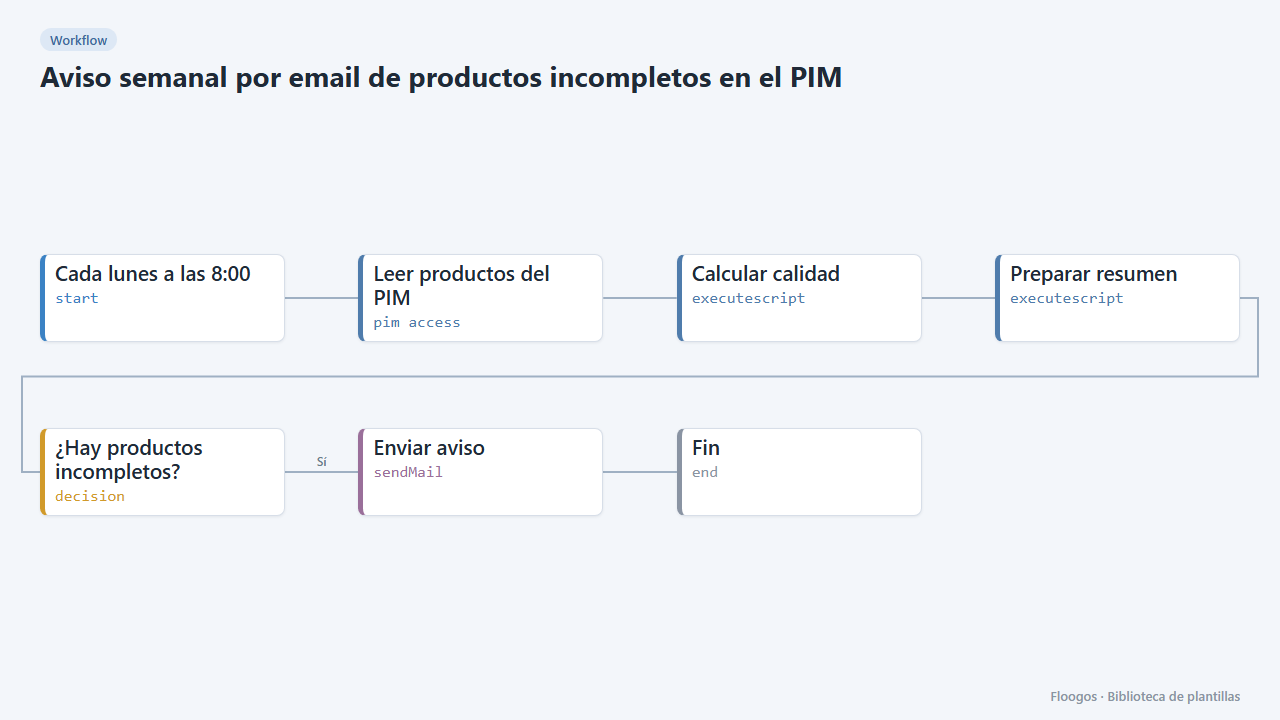
Weekly email about incomplete products in the PIM
Every Monday you get an email listing the PIM products missing mandatory data (image, description, price…), worst first.
Try it in under 5 minutes
Create the template in your account, connect your credentials and activate it when you are ready.
Use this template