
Editorial calendar in Google Sheets that posts to Facebook and Instagram
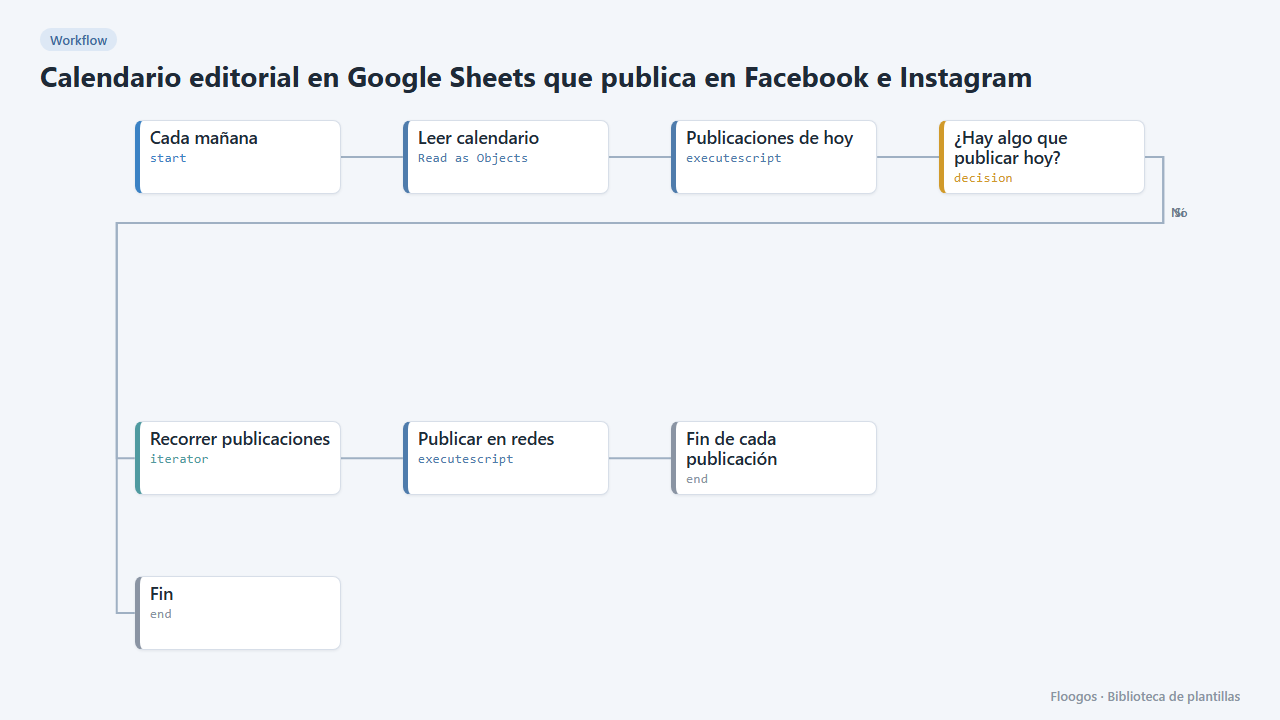
Every morning it reads your posts sheet and publishes to Facebook, Instagram and LinkedIn whatever is due that day.
Everything is created inactive in a new folder of your account. Nothing runs until you activate it, and you can undo it for 24 hours.
What it does
Plan your social media in a Google Sheet and stop posting by hand. Every day at the time you choose, the flow reads the Publicaciones tab, keeps the rows dated today and publishes each one to the channels listed (Facebook, Instagram and, optionally, LinkedIn).
Sheet columns: fecha (YYYY-MM-DD or DD/MM/YYYY), texto, imagen_url (public URL; required for Instagram), enlace (optional), canales (for example facebook,instagram; if empty it uses Facebook and Instagram) and estado (write no publicar to skip a row).
What you need: a Facebook page, a linked Instagram Business account and a Meta app with a page token (steps below). To avoid duplicates, the flow must run only once a day.
How to set it up
- 1
Connect the google credential
This template uses google in: Leer calendario. Create or pick the credential and assign it in those nodes.
- 2
Connect your Facebook page
At developers.facebook.com create an app, add the
pages_manage_postsandpages_read_engagementpermissions and use the Graph API Explorer to generate a long-lived page token. In Credentials create a Basic Auth one namedfacebook-page: username = page ID, password = page token. - 3
Connect Instagram (Business account)
Your Instagram account must be Business or Creator and linked to your Facebook page. Add the
instagram_basicandinstagram_content_publishpermissions to your app, get the account ID withGET /{page-id}?fields=instagram_business_accountand create a Basic Auth credential namedinstagram-business: username = Instagram account ID, password = the same page token. Instagram only publishes images (JPG) hosted at a public URL. - 4
Prepare the sheet
Create a sheet with a Publicaciones tab and the columns
fecha,texto,imagen_url,enlace,canales,estado. Set its ID and your Google credential in the Leer calendario node. - 5
Test and activate
Add a row dated today and run the flow once by hand. When it works, enable the daily schedule. If you want LinkedIn, set it up first: Create an app at developers.linkedin.com with the Share on LinkedIn and Sign In with LinkedIn using OpenID Connect products, generate a token with the
openid profile w_member_socialpermissions and store it in a Basic Auth credential namedlinkedin(username = anything, password = the token). The token expires after 60 days: you will have to renew it. If you do not use LinkedIn, leave it out of the channels. - 6
Activate the workflow
Workflows are installed inactive. Once everything is set, activate it.
Related templates
Other templates that use similar nodes or integrations.
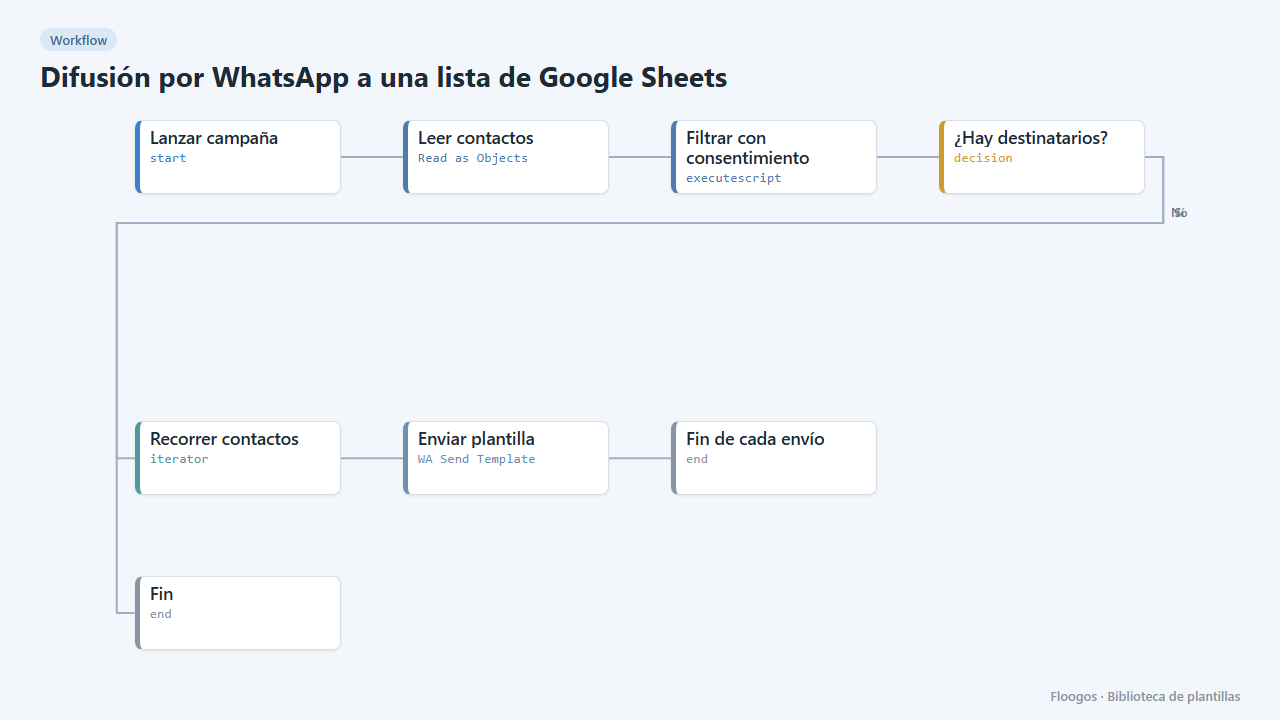
WhatsApp broadcast to a Google Sheets list
Sends a WhatsApp Business template to every contact in a sheet who has given consent.
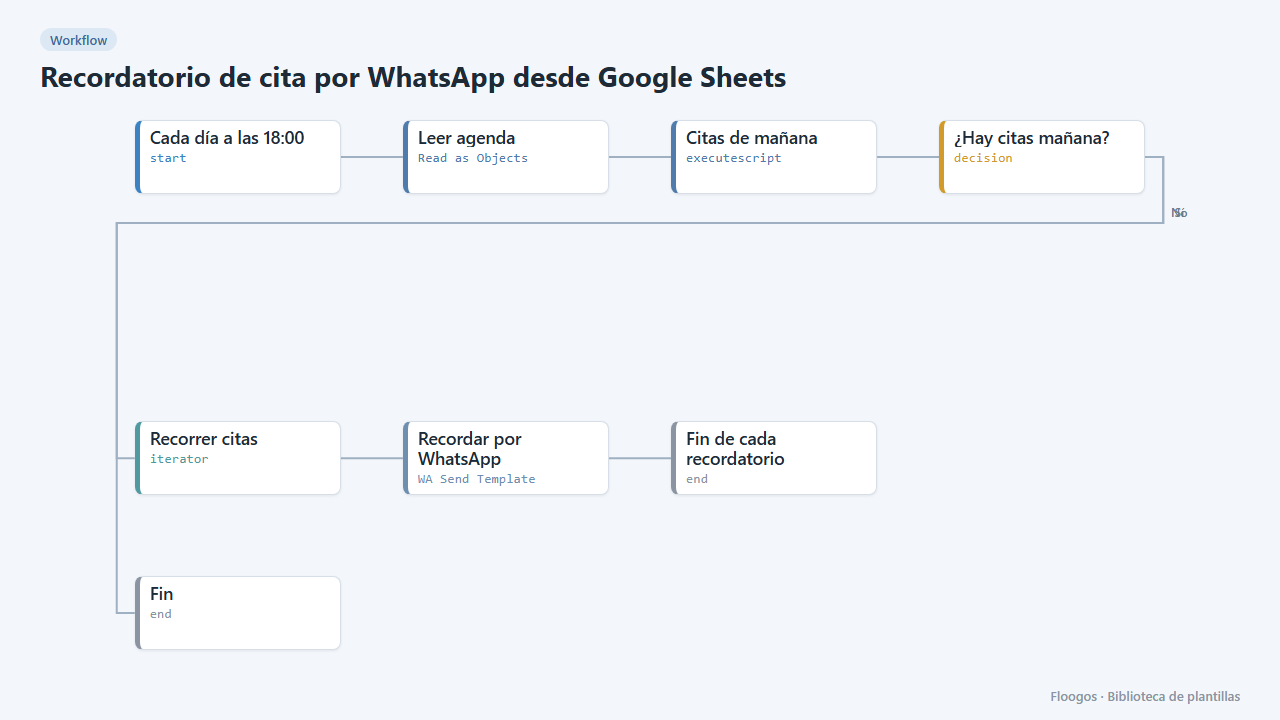
Appointment reminder via WhatsApp from Google Sheets
Every afternoon it reads your agenda in Google Sheets and sends a WhatsApp reminder to everyone with an appointment tomorrow.
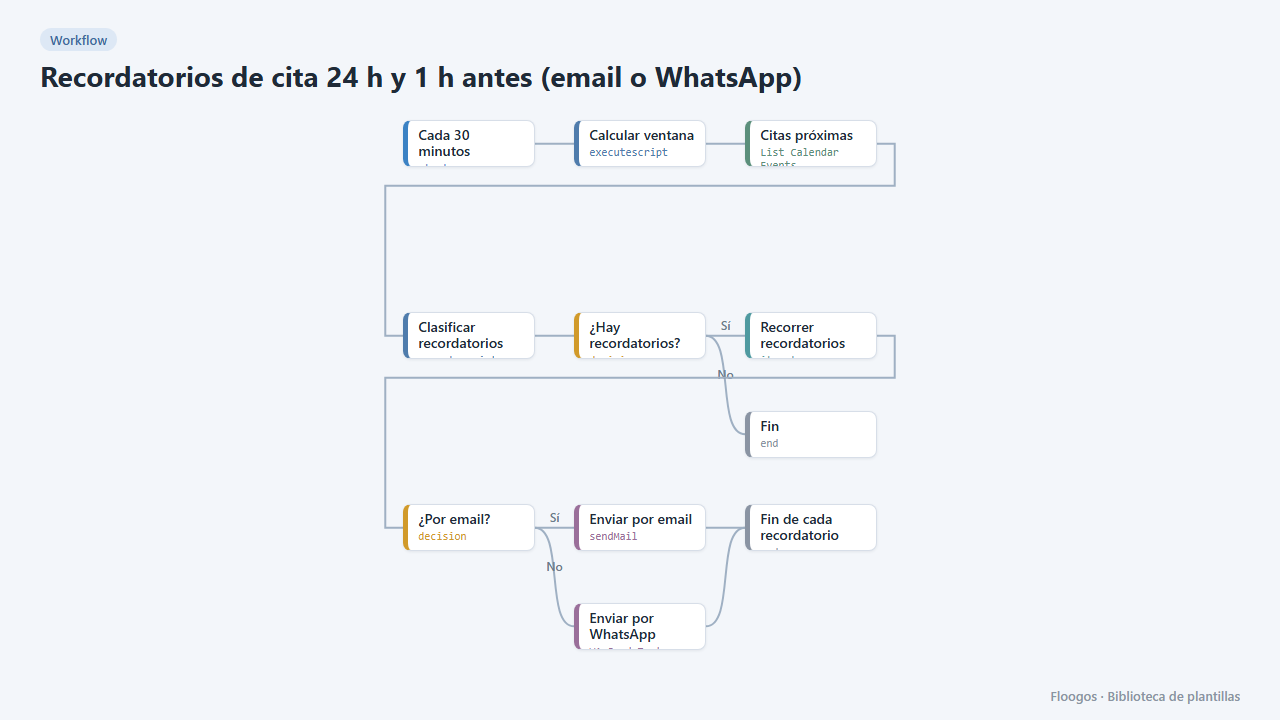
Appointment reminders 24 h and 1 h before (email or WhatsApp)
Every 30 minutes it checks your Google Calendar and notifies your customers by email or WhatsApp one day and one hour before their appointment, to cut no-shows.
Try it in under 5 minutes
Create the template in your account, connect your credentials and activate it when you are ready.
Use this template